JSM Asset Management: The Complete 2026 Guide (Updated for Service Collections, Object Limits & the New Dashboards)

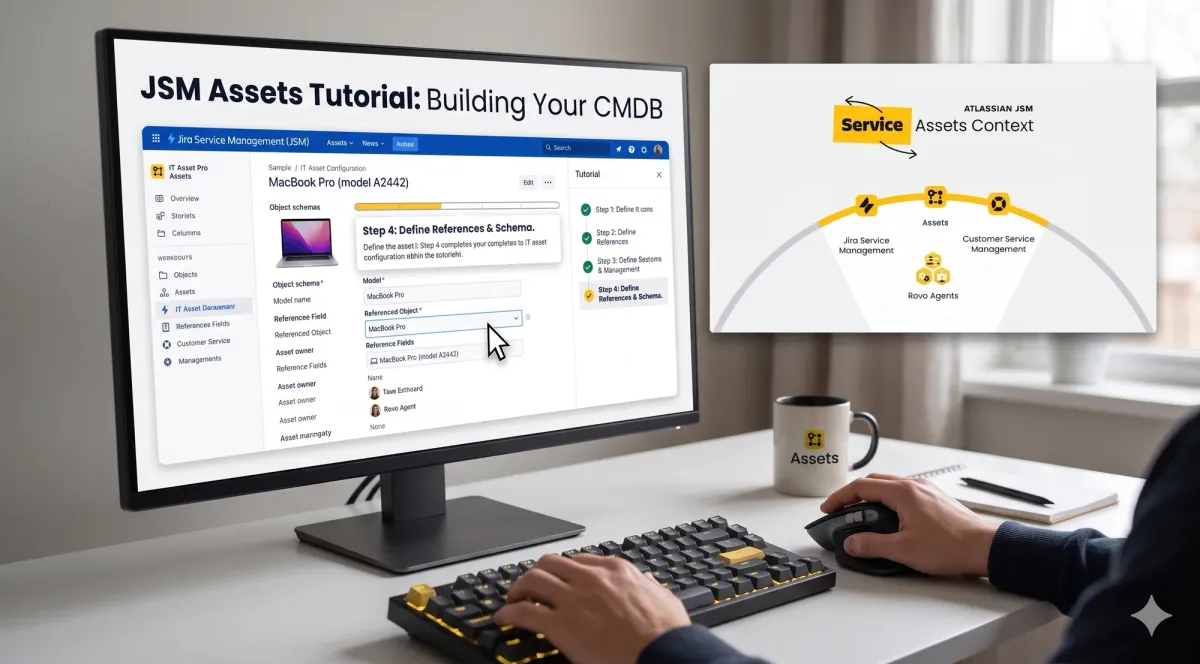
Consultant reality check: I've implemented Assets for organisations ranging from 10-person startups to enterprises like the NHS. Here's what most people don't tell you — Assets can save you serious money. I recently helped a client replace three separate asset tracking systems with JSM Assets. Their savings? Nearly £10,000 per year. Premium isn't cheap, but if you're juggling multiple tools right now, the ROI is real and it's measurable.
And here's the thing most posts won't tell you: in 2026, you don't even need Premium any more for a lot of use cases. More on that in a minute.
Want this whole system implemented in your company in less than a week? That's exactly what I do
This is a full walkthrough of how JSM Assets works in 2026 — what's changed, what to set up first, where teams over-engineer themselves into a hole, and which features are actually worth your time. Whether you're tracking 50 laptops or building a 10,000-item CMDB, the principles below have come out of 14 years of doing this on real client projects.
What's Changed in 2026 (Read This Before You Build Anything)
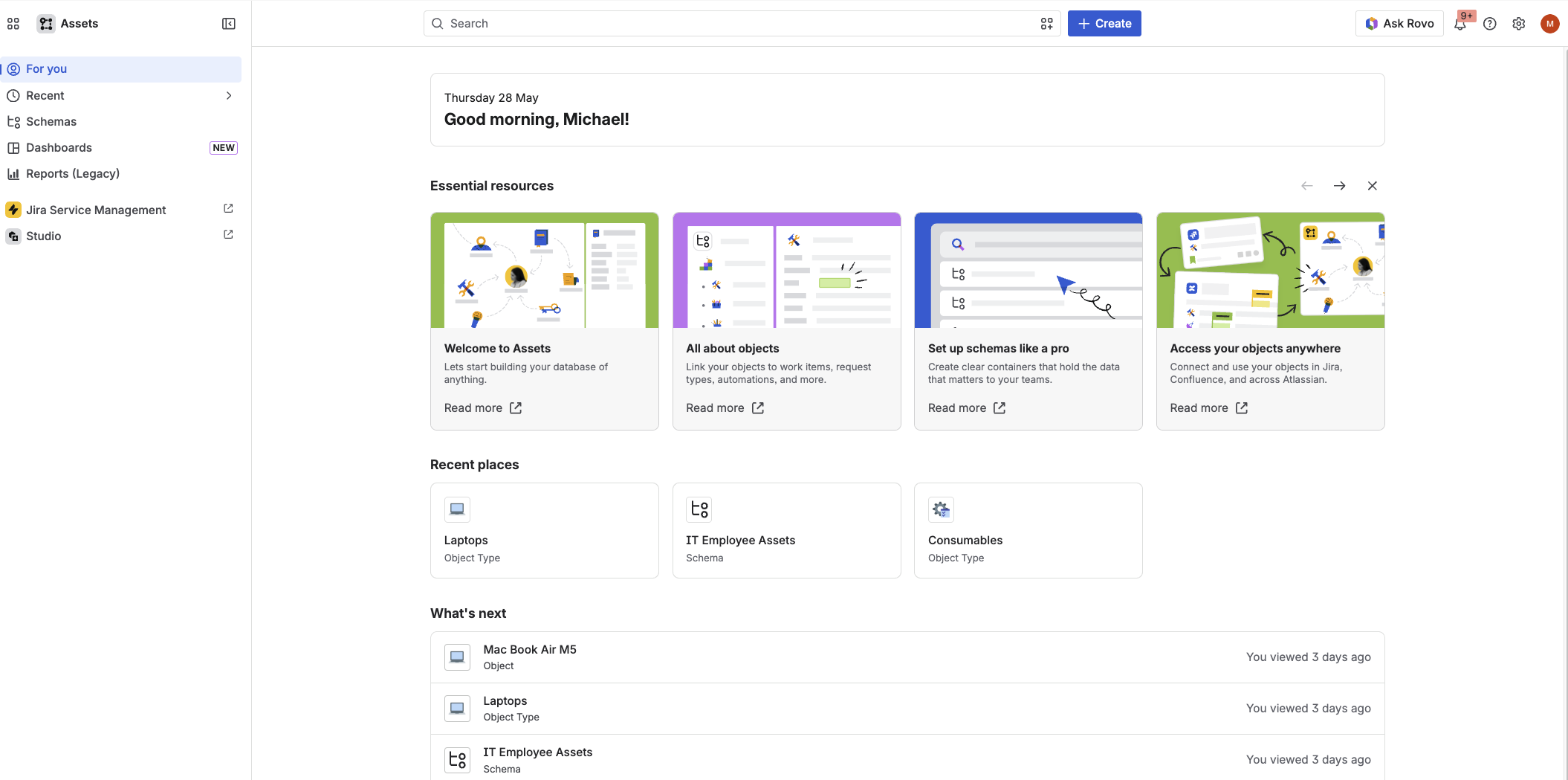
If you read a JSM Assets tutorial from 2024 or 2025, a lot of the foundational advice still holds. But four things have moved meaningfully in the last 12 months and they change how I'd recommend setting things up today:
- Assets is no longer locked to Premium only. Atlassian's new Service Collection Standard bundle ships Assets natively. Standard customers who used to be told "you need Premium" can now access Assets within the right collection bundle. (Important caveat below — it's not a fully standalone product yet.)
- Object limits are tiered, not flat. The old "you can have up to 500,000 objects" line is now wrong. Standard gets 5,000, Premium gets 50,000, Enterprise gets 500,000 — and if you go over, Atlassian charges $0.02 per object per month (dropped from $0.05 in October 2025) up to a new maximum of 10 million objects as of November 2025.
- Legacy reports are being deprecated. The old per-schema "Reports" tab is on its way out. The future is the redesigned Jira Dashboards module with Assets-aware gadgets — and it's a massive UX upgrade.
- The old External Asset Platform APIs are gone. Atlassian forced everyone over to Forge-native APIs and introduced Assets Data Manager with native integration adapters for Intune, Jamf, Azure VM, SCCM, and Entra ID. If your old custom integration broke quietly some time in late 2025, this is probably why.
I'll go deep on each of these below. Let's start with the basics.
What Is JSM Assets?
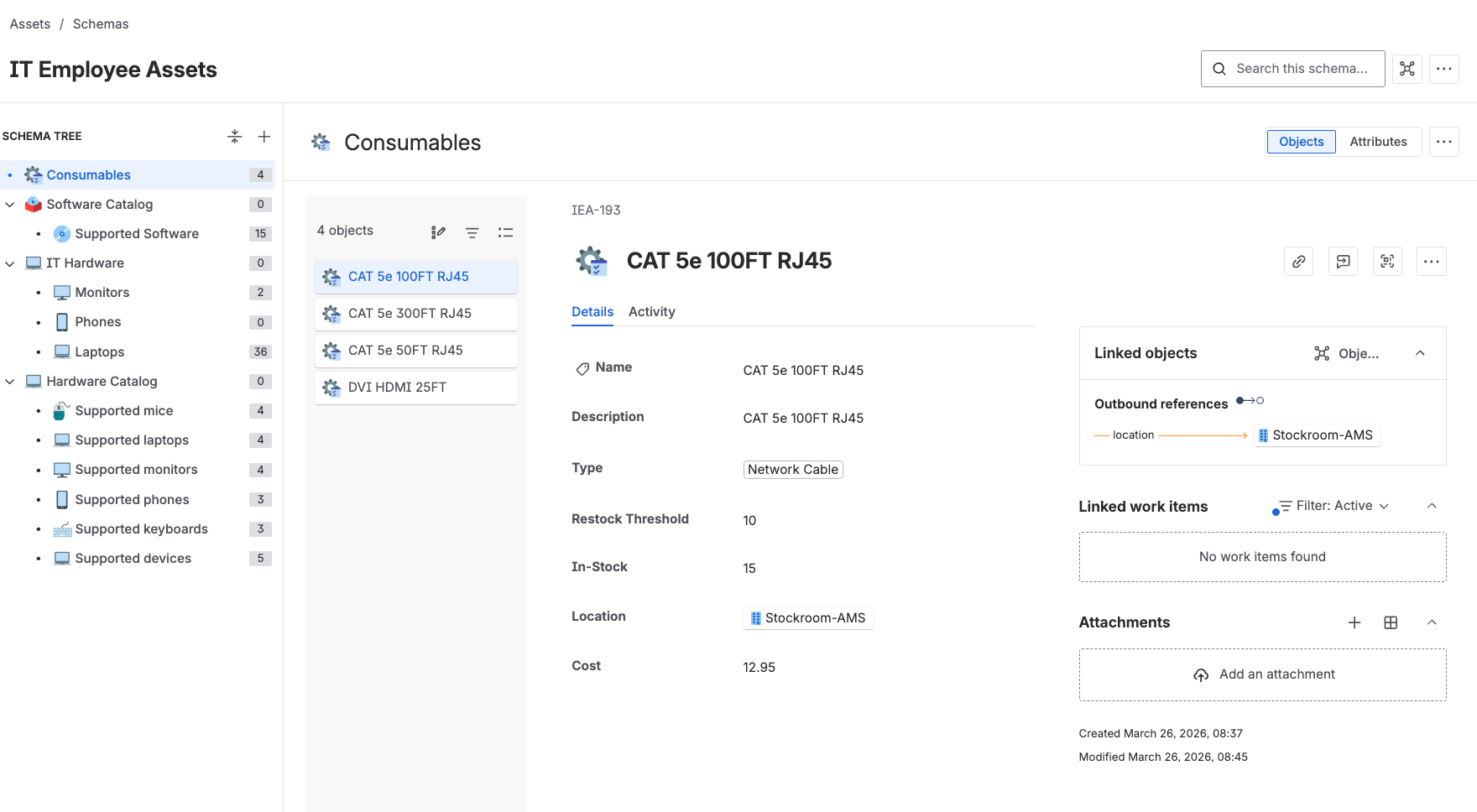
JSM Assets is Atlassian's Configuration Management Database (CMDB) — but I find that framing makes it sound scarier than it is. The way I explain it to new clients (and the way I first heard it described by Josh at Grid.io, who runs a brilliant deep-dive course on this — more on him later): think of Assets as an Excel spreadsheet on steroids that talks directly to your Jira tickets.
You can use it to:
- Track IT equipment — laptops, phones, servers, monitors, licences
- Run your employee onboarding and offboarding hardware
- Link physical or digital assets to service requests automatically
- Build relationships between configuration items (e.g. "this server hosts these three applications")
- Monitor full asset lifecycle from purchase to retirement
The bottom line: if you need to know what equipment you have, who has it, where it lives, and what it's connected to — Assets solves that problem properly, and connects it back into your service desk in a way that scattered spreadsheets and CSVs never will.
How to Get Assets in 2026 (This Has Changed)
This is the section that's most out of date in every other guide on the internet right now.
The Old Story (2024-2025)
"Assets is JSM Premium only. There's no way around it."
The New Story (2026)
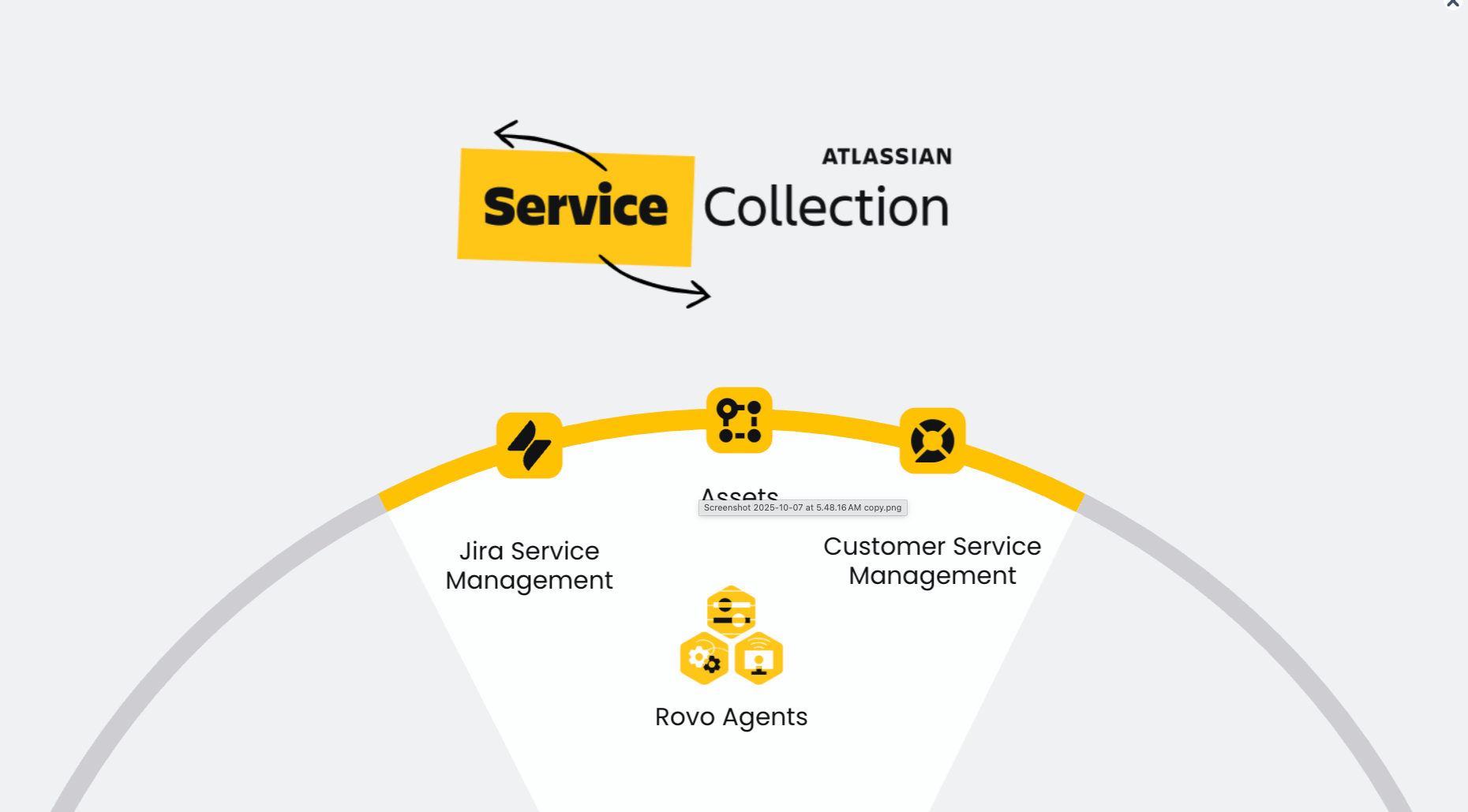
Atlassian introduced Service Collections to repackage their tools around use cases instead of product names. The relevant one here is the Service Collection Standard bundle, which natively includes Assets. That means a team on a Standard equivalent can now access Assets without jumping to full JSM Premium pricing — provided they're in the right Collection.
One asterisk: Underneath the hood, Assets is still powered by the Jira Service Management engine. So even if you're a developer team using Jira Software with Asset custom fields on your tickets, the underlying site has to have appropriate JSM / Service Collection licensing enabled to provide the Assets schema infrastructure. You can't yet buy "Assets" as a standalone product for a pure Jira Software setup.
What I'd Recommend Doing First
- Check what Collection you're already on. Go to your Atlassian admin and look at your subscription. If you're on a Service Collection that already includes Assets — good news, you can start today.
- If you're on classic JSM Standard — the question becomes whether you want to migrate to a Service Collection Standard bundle (which gives you Assets) or jump to JSM Premium (which gives you Assets plus Virtual Agents and Operations). The right answer depends on what else you need.
- Activate a Premium trial regardless. Even if you're on Standard, kick off a Premium trial to build a proof of concept and calculate ROI. You usually get 30-60 days. I recently got 60 on a demo instance.
Consultant tip: Don't sit in indecision over this. The fastest way to find out if Assets is right for your team is to spin it up with a single object schema, a single object type, and 10-20 real assets. You'll know in a week whether it's worth deploying properly.
Confused about which licensing tier you actually need? That's exactly the kind of thing I sort out for clients on a Quick Fix call — book one here.
Understanding the Hierarchy
Before we dive into building, get this terminology straight. It will save you a lot of confusion later.
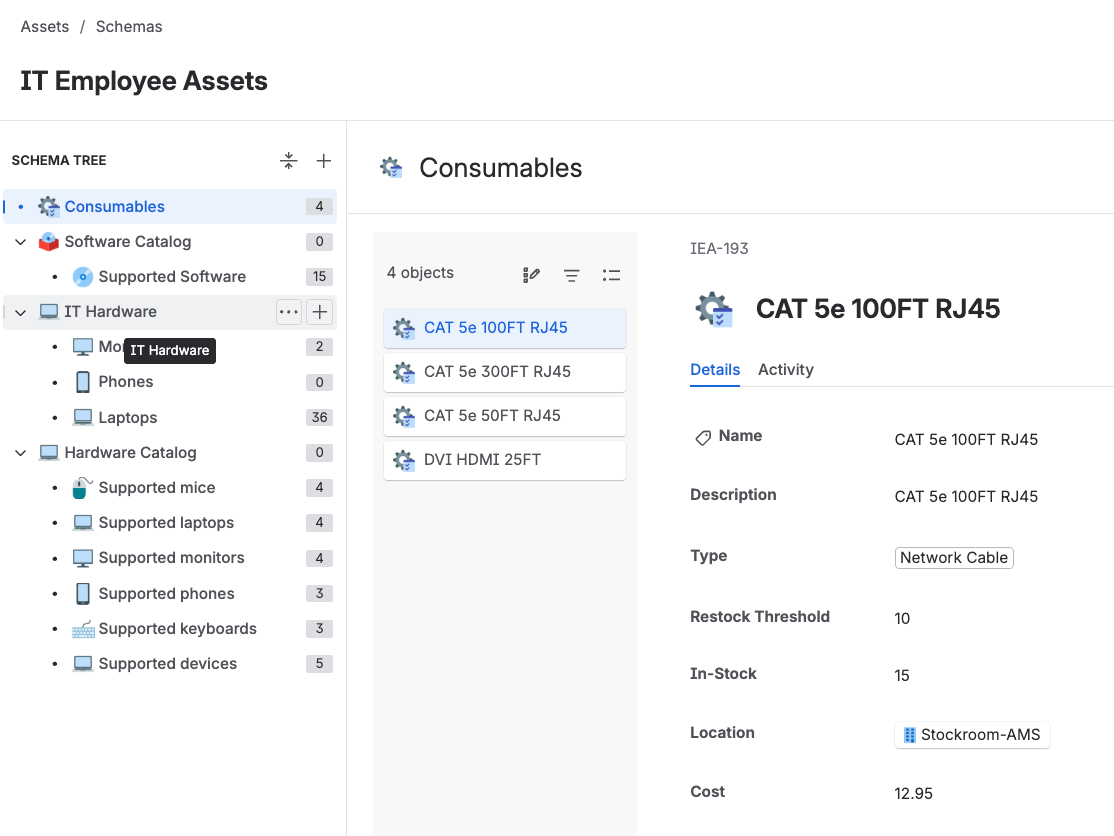
- Object Schema = a container for related assets (think of it as a database)
- Object Type = a category within a schema (Laptops, Phones, Software)
- Object = an individual asset (e.g. "Dell Inspiron 15 — #12345")
- Attribute = a property of an object (Serial Number, Purchase Date, Owner)
- Reference = a relationship between objects (this Laptop → is Assigned To → this User)
Visually:
Object Schema: "IT Assets"
  └─ Object Type: "Laptops"
      ├─ Object: "Dell Inspiron 15"
      │   ├─ Attribute: Serial Number
      │   ├─ Attribute: Assigned To  ──── References ──→ User Object
      │   └─ Attribute: Purchase Date
      └─ Object: "MacBook Pro 14"
You can also nest object types under each other (e.g. "IT Hardware > Laptops > Macs"). Don't go mad with this — most schemas I deploy have one level of nesting at most. The deeper you go, the harder it is to maintain.
One small but useful 2026 setting in each Object Type's settings: there's an Inheritance option to "pass along attributes to objects or child objects." If you check it, child object types automatically inherit the attributes of their parent. Great for standardised hardware sub-types. Leave it unchecked if you want full control.
Creating Object Schemas
You've got two paths.
Option 1: Templates (Recommended for Learning)
Click Create Object Schema and you'll see pre-built templates:
- IT Assets Management (the most common)
- HR Management
- Facilities Management
- A handful of others depending on your release version
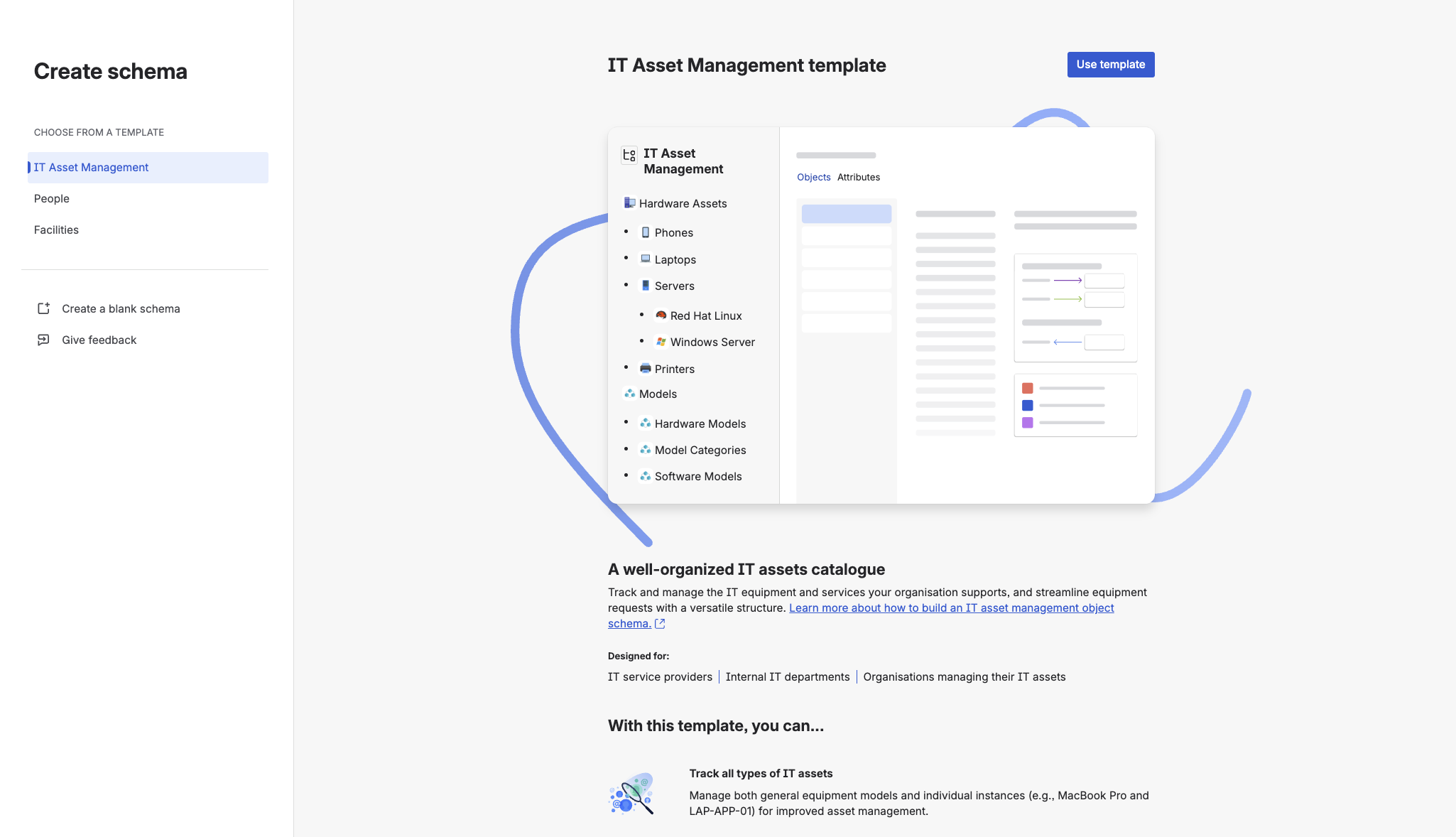
Pick "IT Assets Management" for your first schema. You get pre-configured object types (Laptops, Phones, Software), sensible default attributes, and the relationships already wired up. Brilliant for getting a feel for the tool in 15 minutes.
The catch: some field names in templates can't be renamed. If you're particular about naming conventions, you'll hit that wall eventually.
Option 2: Blank Schema (Recommended for Production)
When I deploy for clients, I almost always go blank. Reasons:
- Complete control over naming conventions
- No unnecessary fields cluttering the interface
- You build exactly what you need, nothing more
- Easier to maintain long-term
To create a blank schema: Create Object Schema → Blank Schema → Name it → Create. Then start adding object types from scratch.
Consultant approach: spin up a template first to understand how things wire together, then build your real production schema from blank. Best of both worlds.
Attributes: Don't Over-Engineer
Attributes are just a fancy word for fields. For a Laptop, you'll typically want:
- Serial Number (Text, Unique)
- Model (Text or reference to a Model object — more on this below)
- Manufacturer (Text or Select List: Dell, HP, Apple, Lenovo)
- Purchase Date (Date)
- Warranty Expiry (Date)
- Status (Select: Available, Assigned, In Repair, Retired)
- Assigned To (User or Object reference to your People schema)
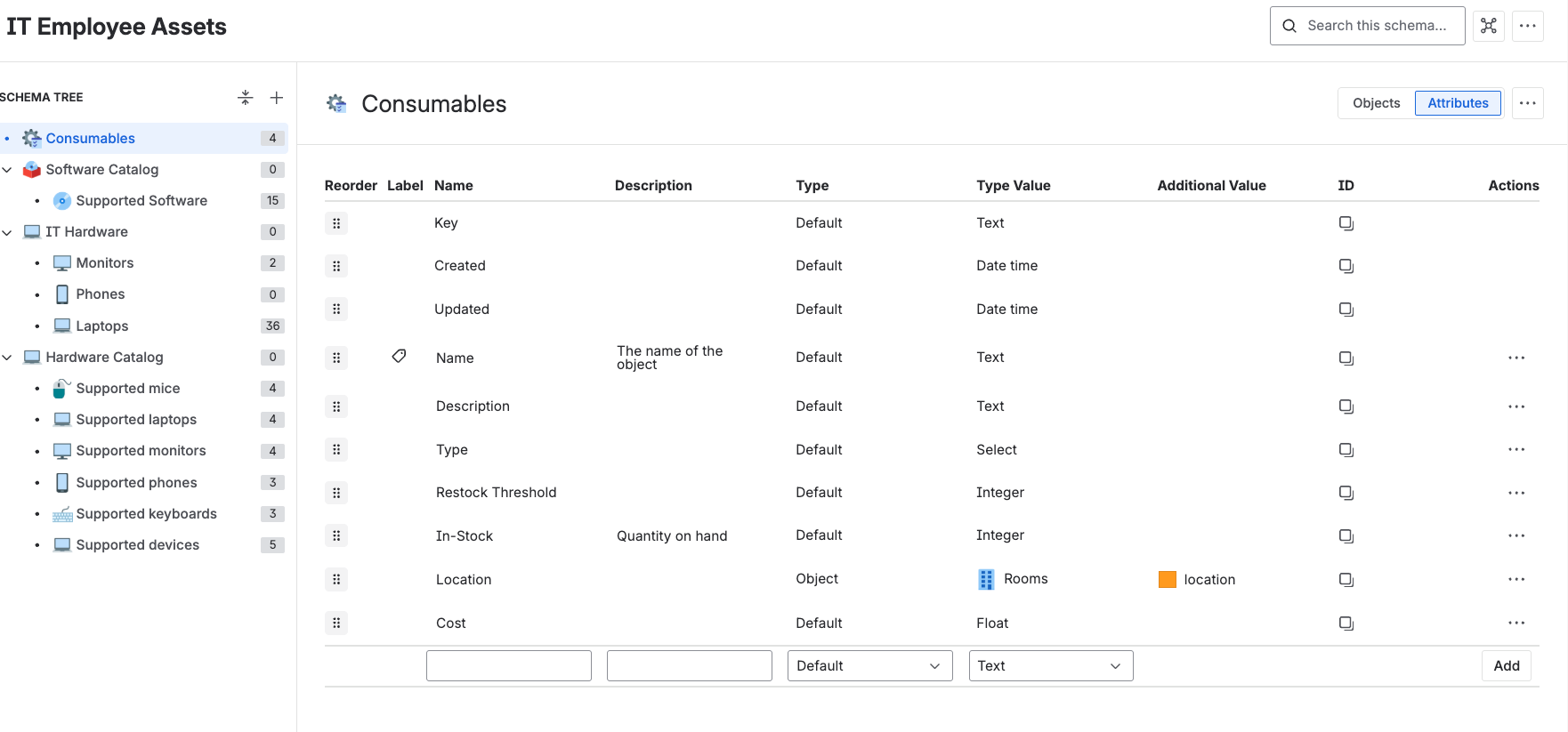
Atlassian gives you about a dozen attribute types — text, integer, boolean, date, URL, email, text area, select, IP address, user, group, project, and a couple more.
Consultant rule of thumb: start with 5-7 essential fields per object type. You can always add more later. Every attribute is a field someone has to fill in, and data quality goes through the floor the moment your forms get too long.
A Useful 2026 Setting Most People Miss: Cardinality
By default, an attribute holds one value. But you can change that via Attribute Settings → Cardinality to allow multiple values per field.
Use case: a laptop might have two assigned techs during a transition, or a server might run multiple applications. Set cardinality to unlimited (or a specific maximum) and the field becomes multi-value. Don't switch every field to multi-value — most should stay single — but knowing this exists saves real headaches.
Object References: Where Assets Gets Powerful
A reference is a link between two objects. Laptop → Assigned To → Employee. Server → Hosts → Application. Monitor → Connected To → Laptop. These references can cross schemas (e.g. your Laptop object in the IT Assets schema can reference a User object in your People schema).
To create a reference:
- In the Object Type, go to Configure → Attributes
- Click Create Attribute
- Choose Object (single reference) or Object (Multiple) as the type
- Pick the target object type
- Name the reference (e.g. "Assigned To")
- Save
You can also create custom reference types (Settings → Reference types) — different colours for different kinds of relationships ("provides," "depends on," "owned by"). The colours show up in the Object Graph and make complex CMDBs readable.
The Object Graph: The Feature Nobody Talks About
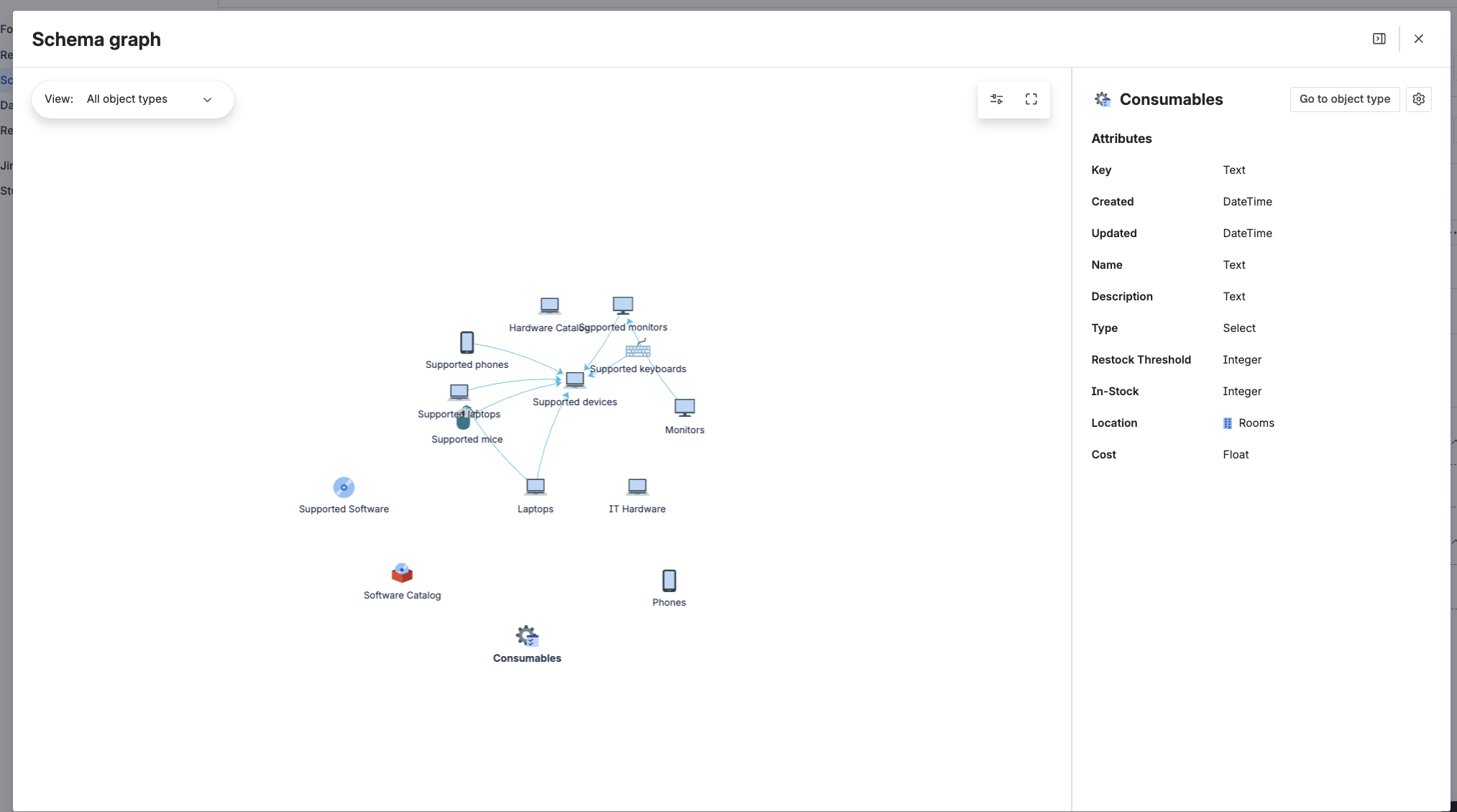
This is the section I'm adding because virtually no Assets tutorial covers it properly, and yet it's one of the most powerful features in the whole product.
The Object Graph is a visual representation of all the relationships in (and across) your schema. Open any object, click the graph icon in the top-right corner, and you see a network diagram: the object in the centre, surrounded by every other object it's linked to (and what they're linked to), out to a configurable number of "hops."
Want this whole system implemented in your company in less than a week? That's exactly what I do
This is what makes Assets a real CMDB. If you've ever maintained a Visio diagram of your infrastructure manually, you'll appreciate what this saves you.
A Practical Use Case for the Object Graph
Pick a host server. Open its Object Graph. You instantly see:
- Every application running on it
- Every network interface attached to it
- Every database it connects to
- Every business service it underpins
- Every user team responsible for those services
Now imagine you're planning a maintenance window for that server. In two clicks you know exactly which applications go down, which client-facing services are affected, and who needs to be notified. That's the difference between "we'll send an outage email and hope" and "we'll notify exactly these three teams about this specific window."
Making the Graph Readable
By default the graph can look like a hairball — too much, too many connections. There's a settings cog inside the graph view that lets you:
- Limit reference depth (set to 2 or 3 hops max — most useful settings)
- Filter by reference type (show only "hosts" and "depends on," hide the rest)
- Toggle specific object types on/off
Use these aggressively. The point of the graph isn't to show everything — it's to show the right things for the question you're asking.
Honest take: I don't use the Object Graph daily for IT-hardware tracking. I use it heavily for infrastructure, on-prem servers, and business service mapping. If you're tracking 200 laptops and a handful of monitors, you don't really need it. If you're managing servers, network gear, or business-critical applications, it's gold.
Integrating Assets with JSM Service Desk
This is where Assets goes from "interesting database" to "operational backbone of your service desk."
Step 1: Create an Assets Custom Field
In your JSM project: Project Settings → Fields → Create Custom Field → Assets. Name it something obvious like "Laptop" or "Affected Equipment."
Step 2: Configure the Field with AQL
AQL (Assets Query Language) decides which assets appear in the field. It's syntactically almost identical to JQL, so if you've written Jira filters you'll be at home in 10 minutes.
Examples I use all the time:
Show only available laptops:
objectType = "Laptops" AND Status = "Available"
Show all laptops and phones:
objectType IN ("Laptops", "Phones")
Step 3: The Filter Issue Scope AQL Trick (Underrated)
Here's a setting that absolutely changes the UX of your forms: Filter Issue Scope AQL. It lets you filter the asset dropdown based on the current issue's fields.
The most common case: show only the reporter's own assets when they're submitting a ticket. So instead of Alana from accounts having to scroll through 800 laptops to find hers, she sees the one laptop she actually owns, pre-filtered:
owner_user IN (AQL = "$reporter")
That $reporter token resolves to whoever is creating the issue. The form just shows them their stuff. If they're submitting "my laptop is broken," they see their laptop. Done.
I genuinely cannot overstate how much friction this removes from incident submission forms. Configure it once on each Assets custom field, and your end users will quietly stop complaining about your forms.
Step 4: Add the Field to Request Types
Project Settings → Request Types → pick the request type → Fields → drag your Assets field onto the form → save.
Decide whether it's required, optional, or allows multiple selections. For "report broken laptop" — required and single. For "request additional software" — optional and multiple.
Getting Data Into Assets (Three Real-World Options)
Almost no one builds an asset database from scratch by hand. You'll be migrating from spreadsheets, syncing from Intune or Azure AD, or scanning an on-prem network. Here are the three methods I actually use.
Method 1: CSV Import (My Default for Most Clients)
CSV import is your best friend for migrating an existing list. Atlassian's CSV import has matured massively in the last 18 months — it handles relationships, statuses, and references cleanly. I've imported 500+ assets in one go without issues.
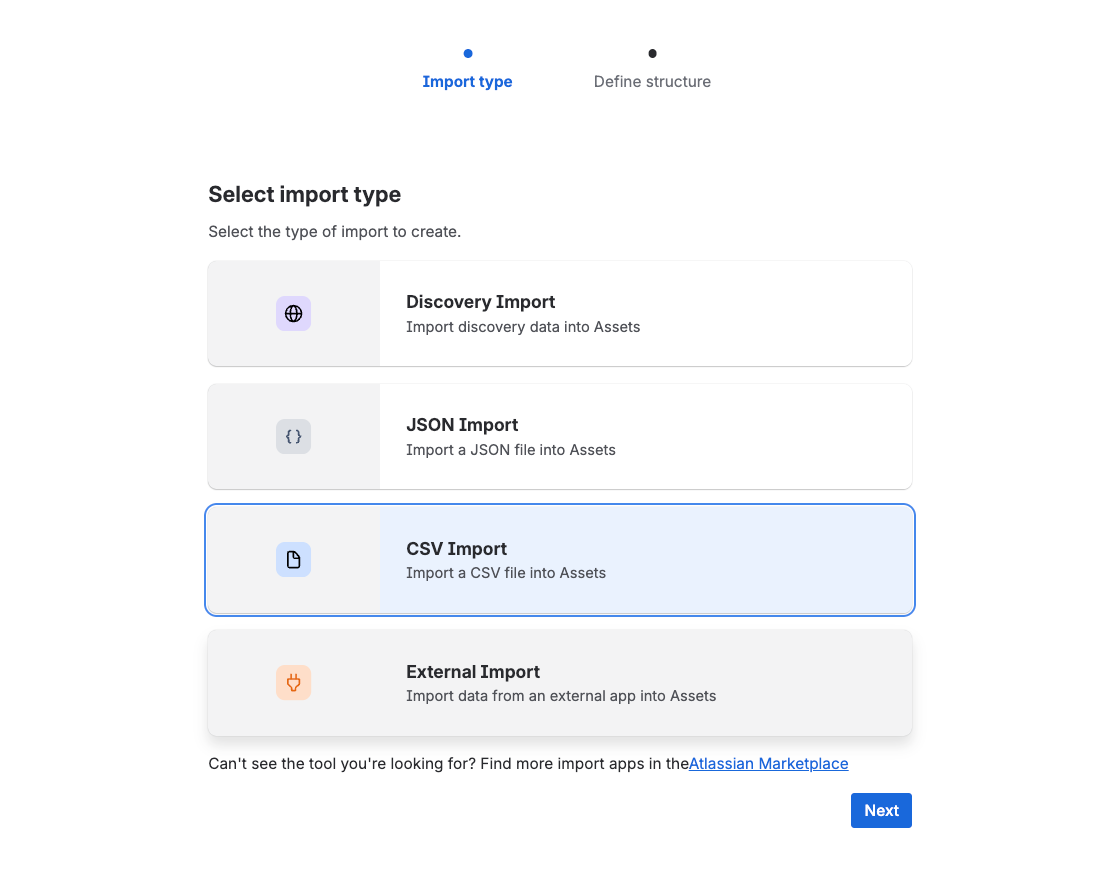
The basic flow:
- Schema → Settings → Import tab → Create Import → CSV
- Upload your CSV
- Map columns to attributes
- Run
The non-obvious bit is mapping object references via CSV. If your CSV has a column called Model containing values like "MacBook Pro 14" and "Dell Latitude 5520," and you want those to reference your existing Model objects (not be stored as plain text), use this exact AQL in the mapping:
name = ${Model}
That ${Model} substitutes the value from each row of the CSV at import time. Same trick for Owner:
name = ${Owner}
Now your imported laptops are properly linked to the right model and owner objects, not just stored as floating text. That's the difference between a working CMDB and a glorified spreadsheet.
Identifier setting: also choose a unique column (usually Name or Serial Number) as your identifier. On re-imports, the system uses that to update existing objects instead of creating duplicates. This is what lets you re-import a refreshed CSV monthly without your data exploding.
Want this whole system implemented in your company in less than a week? That's exactly what I do
Method 2: Live Sync from Intune, Azure AD, Jamf, AWS
If you've got a source of truth that lives elsewhere (Intune for endpoints, Azure AD for users, Jamf for Macs, AWS for cloud infrastructure), don't manually maintain Assets — sync it.
For client work I've had really good results with PIIO (a marketplace plugin — no affiliation, I just use it). Set up a scheduled sync from your source of truth into Assets and your CMDB stays current automatically. It's set-it-and-forget-it once configured.
Atlassian now also ships native integration adapters as part of the Assets Data Manager for Intune, Jamf, Azure VM, SCCM and Entra ID. Worth checking what's natively available before you reach for a paid plugin.
Method 3: Assets Discovery Agent (On-Prem Network Scanning)
If you've got on-premise infrastructure (servers, network gear, data-centre kit), Atlassian ships a free Assets Discovery Agent you install on a Windows or Linux host inside your network. It scans the IP ranges you give it, pulls hardware specs, OS info, network interfaces, and uploads everything to your Cloud Assets schema on a daily or weekly schedule.
Worth doing if you have any data centre or on-prem infrastructure. Skip it if you're a pure cloud / SaaS shop with no physical kit to scan.
The full install walkthrough is too long to drop into this article — but the high-level flow is: download the agent from the Marketplace, configure scan ranges and credentials, run discovery.exe -s for setup, then discovery.exe to actually scan, validate the file locally, then switch the export target to "JSM Cloud" with an auth token from your schema. Atlassian's docs walk through it step-by-step.
Automating Assets (This Is Where the Real Value Hides)
The most common reason teams implement Assets is to track inventory. The most common reason teams get real ROI from it is automation.
Two automation patterns cover roughly 80% of the use cases I build for clients.
Pattern 1: Update Asset Status From a Ticket
When a customer logs an outage on an application, automatically flip the asset's status to "At Risk" or "Down" so the rest of the team can see it without having to dig.
The skeleton looks like:
- Trigger: Issue created (filtered to a specific project + request type)
- Branch on AQL: find the application object referenced in the ticket
- Then → Edit Asset Object Attribute: set Status = "At Risk"
Pattern 2: Auto-Link the Reporter's Assets to Their Ticket
This is the killer one. When Alana submits "my laptop is broken," the automation looks up Alana's laptop in Assets and links it to the ticket — no manual selection needed.
The skeleton:
- Trigger: Issue created
- Create variable:
laptopOwner = {{issue.reporter.accountId}} - Lookup Object: in your IT Asset schema, run an AQL like
objectType = "Laptops" AND owner_user IN ({{laptopOwner}}) - Then → Edit Issue: set the Laptop custom field to
key IN ({{lookupObjects}})
Configure both Filter Issue Scope AQL (so the user also sees the right thing in the form, in case they prefer to pick it) and the automation (so it gets linked automatically even if they don't). Belt and braces.
A Debugging Trick That Saves Hours
When you're building these automations, don't test them by submitting real tickets. Instead:
- Switch the trigger temporarily to Scheduled Trigger
- Save and turn the rule on
- Use the "Run rule now" option from the three-dot menu
- Check the audit log
- Fix any errors and run again
- Once it works end-to-end, switch the trigger back to the real one
Saves you the cycle of "submit ticket → check audit log → find error → modify → submit another ticket" over and over. Use Log actions liberally in your rule to print smart values into the audit log so you can see what the automation is actually computing at each step.
A Word on Smart Values
For dynamic automation (e.g. updating the asset that was selected in this specific ticket, not a hard-coded one), use smart values rather than literal object names. Something like:
{{issue.customfield_10042}}
Where 10042 is the custom field ID. You find that ID by going to Settings → Issues → Custom Fields → click your field → Context and default values → look at the URL.
Want this whole system implemented in your company in less than a week? That's exactly what I do
Object Limits & Usage Tracking (Brand-New for 2026)
This is one of the most important 2026 changes and most teams don't know about it yet.
The Tier Limits
| Plan | Included objects |
|---|---|
| Standard | 5,000 |
| Premium | 50,000 |
| Enterprise | 500,000 |
Going over isn't a hard wall any more. Atlassian introduced a consumption-based overage model: admins can adjust their Usage Limit and pay $0.02 per extra object per month (dropped from $0.05 in October 2025) up to a new maximum of 10 million objects as of November 2025.
So an Enterprise customer who genuinely needs 800,000 objects pays 300,000 × $0.02 = $6,000/month in overage. A Premium team who creeps to 75,000 objects pays 25,000 × $0.02 = $500/month. Reasonable enough that most teams won't notice. But worth knowing before you discover it on your invoice.
The New Usage Page
Atlassian shipped a Feature Usage dashboard (Assets Settings → Usage) that finally gives admins visibility into how close they are to their cap. Before this, you'd cross 50,000 objects and find out via a support ticket. Now you can monitor consumption directly.
Consultant tip: if you're approaching your limit, the first question to ask is not "do we need to upgrade?" It's "do we have stale objects we should be archiving?" I've audited client schemas where 30% of objects were retired equipment that should have been deleted years ago. Cleaning that up is free; upgrading isn't.
Reporting & Dashboards (The Old Way Is Dying)
Here's what's changed and why your old report bookmarks may already be broken.
The Legacy "Reports" Tab Is Being Deprecated
The siloed per-schema Reports tab was always a bit slow and limited. Atlassian has been deprecating these legacy reports through 2025-2026 in favour of the centralised Jira Dashboards experience.
If you're still using the old report tab for anything critical — start planning your migration to dashboards now. Atlassian won't keep it around forever.
The New Dashboards Module
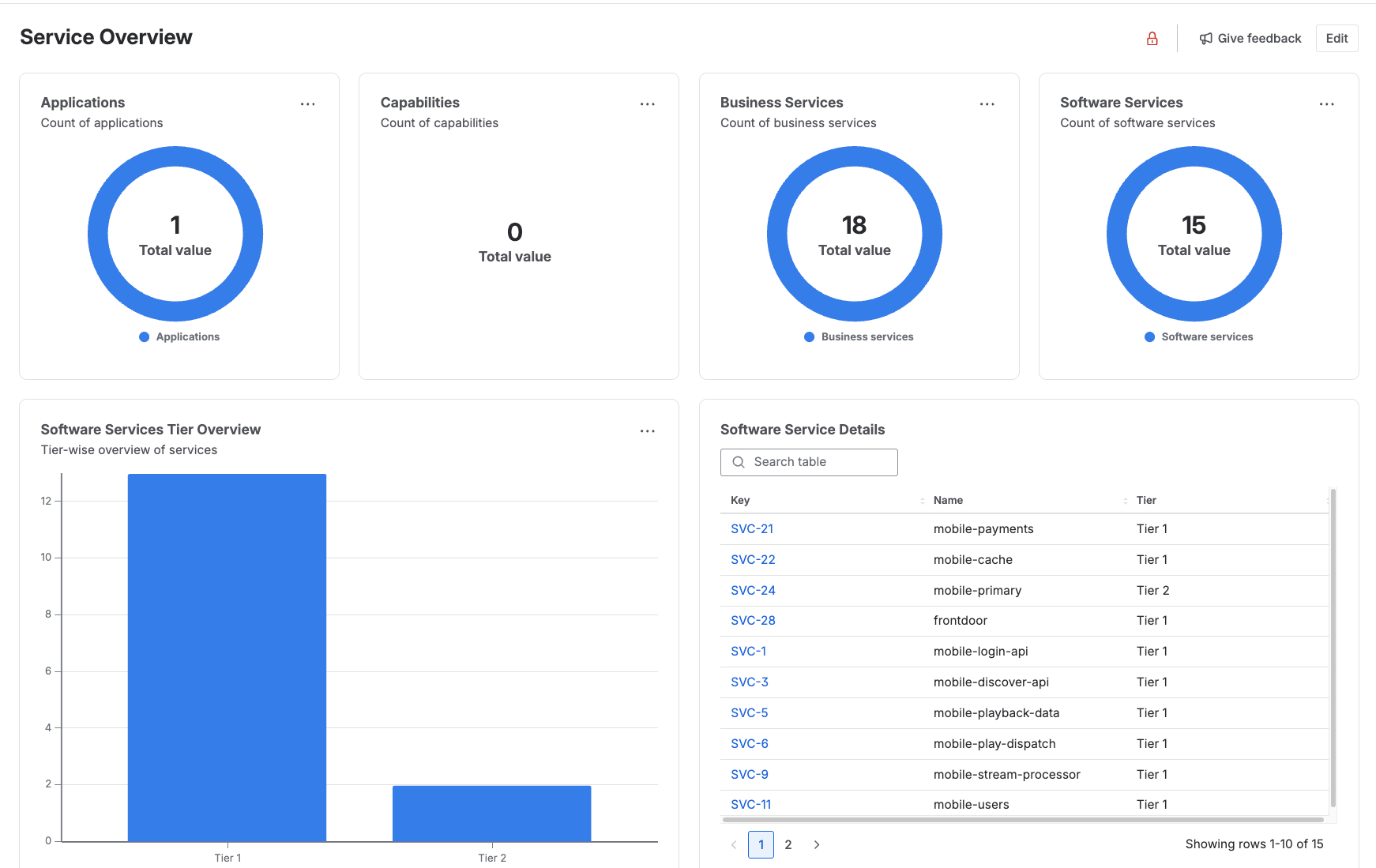
The new dashboards module is significantly more modular, visually polished, and properly Assets-aware. Instead of jumping to an isolated "Assets Report" tab, you now build dashboards using gadgets that pull:
- Object counts by attribute (e.g. laptops by manufacturer)
- Schema health metrics (data quality, missing fields)
- Issue-to-object dependency data (e.g. open incidents per affected service)
All in one pane of glass alongside your Jira ticket dashboards. It's a massive UX win — and worth the time to learn even if your old reports still technically work.
If You Need Heavier Reporting
The native dashboards are fine for 90% of teams. If you need genuinely heavyweight BI — joining Assets data with external sources, scheduled email reports, executive scorecards — look at:
- Custom Charts for Jira (covers ~99% of "I just want a pie chart" use cases)
- eazyBI (the absolute power-user option — paid)
- Atlassian Analytics (only if you're on Enterprise)
No affiliation with any of these. I just use them with clients.
Heads-Up: Did Your Legacy External Asset Platform API Break?
If you had a custom integration built against the old External Asset Platform APIs and it stopped working some time in 2025, this is why.
Atlassian fully deprecated those APIs and migrated everything to Forge-native APIs. The new stack gives you tighter integration for custom-built Forge apps and a proper Assets Data Manager layer for handling external syncs.
The good news: the native out-of-the-box integration adapters (Intune, Jamf, Azure VM, SCCM, Entra ID) make a lot of custom code unnecessary now. If your old custom sync was just pulling endpoints from Intune into Assets — you might be able to delete it entirely and use the native adapter instead.
If you wrote something more bespoke, you'll need to port it to Forge. Atlassian's developer docs cover the migration in detail.
Best Practices From 14+ Years of Implementations
These haven't changed in 2026, because they're not about the tool. They're about how teams use it.
1. Start Simple, Scale Gradually
Don't: create 20 object types on day one. Don't add 30 attributes to each one. Don't build complex relationship webs before any real users have touched the schema.
Do: start with 2-3 core object types. 5-7 essential attributes per type. Test with real users for two weeks. Add complexity only when actual workflows demand it.
I have never been called to rescue a team that kept things too simple.
2. Focus on Data Quality Over Quantity
A hundred assets with complete, accurate data beats a thousand with missing or wrong data, every single time.
How to keep quality high:
- Make critical fields required
- Use select lists instead of free text where possible (no more "Apple" vs "apple" vs "APPLE")
- Quarterly audits — schedule them, don't hope someone will do them
- Assign explicit data ownership to specific people for each schema
3. Use Status Fields Religiously
Every object should have a clear status: Available, Assigned, In Transit, In Repair, Retired, Lost/Stolen.
Status is your filter for everything else. You can't assign unavailable equipment. You can't forget about laptops sitting in repair limbo. Without status discipline, your CMDB rots within six months.
4. Use Groups, Not Users, for Permissions
When you're assigning Asset roles and permissions — at either the schema or object-type level — assign to groups, not individual users.
Why: if you assign permissions user-by-user, every joiner/leaver becomes an admin task. If you assign to groups (and sync those groups from Azure AD / Google Workspace / Entra ID), permissions update automatically when people change roles. This is a 30-minute setup decision that saves your admin team many hours per year.
5. Plan Offboarding Properly
The most common gap I see: great onboarding process, terrible offboarding. Without an offboarding workflow that explicitly reclaims assets, equipment quietly disappears.
A proper offboarding flow:
- Employee resignation submitted
- Offboarding ticket auto-created with linked assets
- Return checklist generated from the asset list
- Asset status → "In Transit" → "Available"
- Equipment ready for the next employee
If you want the full walkthrough of how I build this for clients, see How to Build a Secure Offboarding System in JSM.
Common Mistakes to Avoid
❌ Treating Assets as Documentation
Problem: Creating an asset object for every possible thing — including non-physical, low-value items that don't need lifecycle tracking.
Solution: Assets is for things you need to track over time — location, ownership, status, repairs. Confluence is for documentation. Don't confuse the two.
❌ Over-Complicated Relationships
Problem: Elaborate relationship hierarchies that no one understands or maintains six months later.
Solution: Keep relationships simple and obvious. Laptop → Assigned To → User. Software → Installed On → Laptop. That's enough for 90% of teams.
❌ Not Training Your Team
Problem: Implementing Assets but not teaching agents how to use it. Six weeks later it's abandoned.
Solution: A 30-minute training session covering: how to search assets, how to link assets to tickets, how to update status, how to create new assets. That's it. Don't over-train; just do it once and answer questions.
❌ Skipping Status Updates
Problem: No process for keeping asset status current. Old assets show "Available" when they're actually in a drawer in IT.
Solution: Automate status changes through ticket workflows wherever possible. When a "Return Equipment" ticket is resolved, the asset's status automatically flips. Don't rely on humans remembering to update fields.
Cloud vs. Data Center: An Honest 2026 Take
If we were having this conversation a year or two ago, my advice would have been different. I would have told you that the Cloud version of Assets was clearly steps behind Data Center—it was slower, lacked a mature API, and felt limited for true enterprise scale.
But 2026 changed the game. Atlassian has essentially closed the functional gap with a massive wave of Cloud updates:
- Forge-Native APIs & Integrations: Built-in adapters that seamlessly pull data from Intune, Jamf, Azure VM, SCCM, and Entra ID without clunky third-party middleware.
- Service Collections Packaging: A brilliant licensing shift that opens Assets up to teams beyond the strict Premium-only tier.
- Massive Scaling (10M Object Ceiling): Clear, tiered object limits with structured overage pricing to handle massive enterprise footprints.
- Modern Dashboards Module: Finally replacing the slow, legacy reporting engines with snappy, real-time insights.
- Advanced CSV Import: Fully mature data importing that natively respects and builds object relationships.
- The Discovery Agent: Providing robust, secure on-premises scanning that bridges the hybrid gap.
The 2026 Reality Check: The Data Center Clock is Ticking
Let's be completely real: comparing minor edge-case features between Cloud and Data Center doesn't matter much anymore. Atlassian has officially placed Data Center on a strict End of Life (EOL) timeline, winding down completely by March 2029. In fact, as of March 2026, new Data Center sales are entirely closed, and new feature development has frozen to security-only patches.
If you are starting fresh today, Go Cloud. There is no alternative.
If you are currently running your CMDB on Data Center, the writing is on the wall. You shouldn't be looking to expand your on-prem Assets architecture; you should actively be planning your migration path to Atlassian Cloud. The zero-infrastructure overhead, continuous feature drops, and tight native integration with everything else in Jira Cloud vastly outweigh any remaining niche arguments for staying on-prem.
The Sole Exception: If you operate in a heavily regulated, completely air-gapped environment where compliance legally bars you from the cloud, hold the line on Data Center until you have to transition. For everyone else? It’s time to move.
Is JSM Assets Worth the Price?
Short answer: if you need any kind of structured asset or CMDB management, yes. If you don't, no.
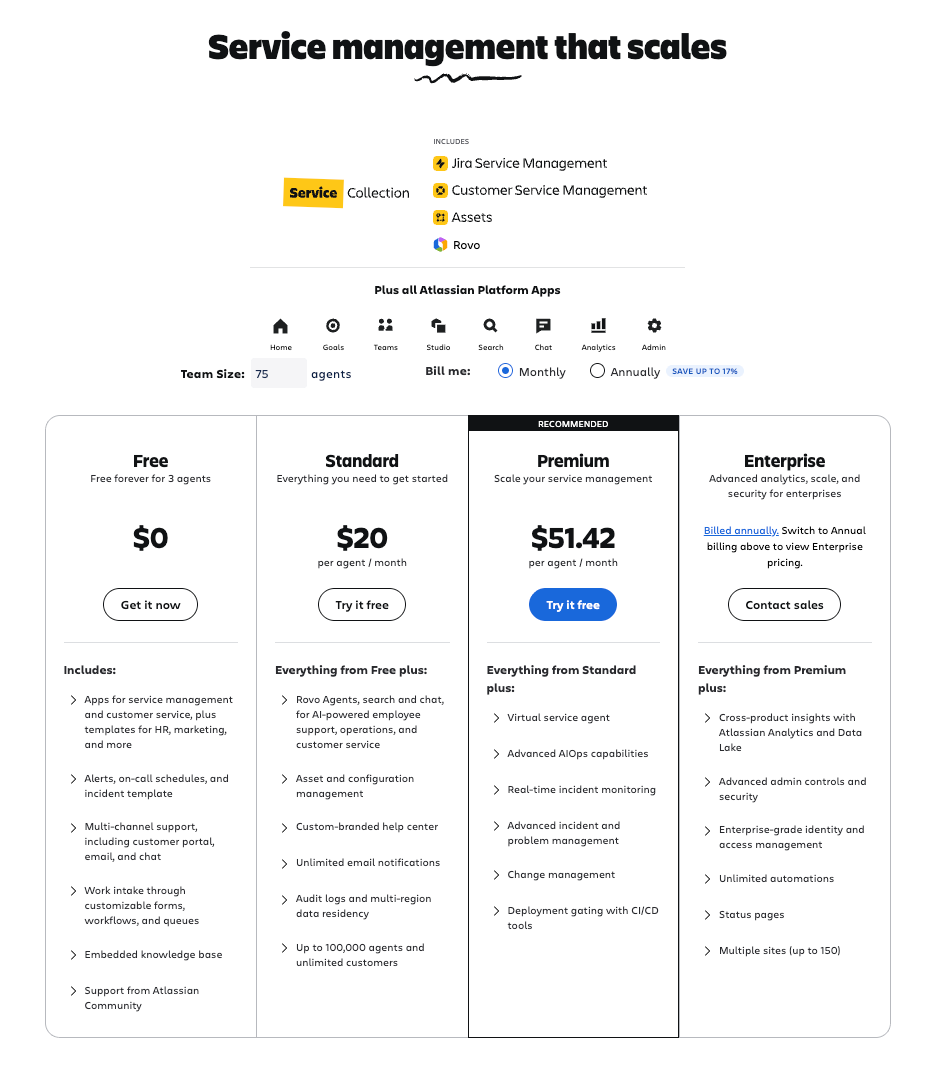
The ROI Maths
The headline cost gap (Premium vs Standard) is around $32/agent/month. For a 10-agent team, that's $320/month — about $3,840/year for the upgrade.
What you stand to save:
- Eliminating separate asset-tracking tools: typically £5,000 - £15,000/year
- Reducing lost or "ghost" equipment: easily £10,000+/year for a mid-sized org
- Faster onboarding (less time chasing kit): hard to quantify but real
- Better compliance, auditing, and security posture: avoids costly incidents
My Client's Numbers
The £10,000/year savings I mentioned at the top wasn't an estimate. That client:
- Replaced three separate asset tracking tools with Assets
- Recovered 15 "lost" laptops worth around £15,000 they'd written off
- Cut new-hire equipment provisioning time from ~3 days to same-day
- Achieved full ROI in under three months
If you're juggling spreadsheets, multiple tools, or losing track of expensive equipment, Premium pays for itself fast.
Where to Start: A 3-Week Roll-Out Plan
If you want to actually do this rather than just read about it, here's the approach I take with clients.
Week 1 — Foundation
- Activate Premium trial (or check your Service Collection)
- Create a test object schema using the IT Assets template
- Add 10-20 demo assets
- Link one request type to an Assets field
- Test the full request → asset link workflow end-to-end
Week 2 — Plan Production
- Calculate your real ROI based on tools you'll replace and time saved
- Define your production schema structure (object types, key attributes, relationships)
- Map permissions to groups (not users)
- Prepare your CSV files for bulk import
Week 3 — Go Live
- Build the production schema from blank
- Run your CSV imports with proper relationship mapping
- Set up the Filter Issue Scope AQL on customer-facing forms
- Run a 30-minute training session with your team
- Soft-launch with one team before rolling out wider
That's it. Three weeks to a working CMDB that's actively saving you time and money.
Need a Hand?
Working with Assets is something I do constantly for clients — from small businesses tracking 50 laptops to enterprise CMDBs with tens of thousands of configuration items. The setup, the data migration, the automation, the team training — all of it.
If you've been told you need a "proper CMDB" and you don't know where to start, or you've set up Assets and it's already turning into a mess, or you want to skip the trial-and-error and just have someone build it properly with you — book a free strategy call and we'll work out the right approach for your team.
Whether it's a Quick Fix to clean up an existing setup or a full Implementation Sprint to roll out Assets across your organisation, the path forward is usually clearer than you think.
Want this whole system implemented in your company in less than a week? That's exactly what I do
A Quick Note: Where I Picked Up Some of This
A big shout-out to Josh from Grid.io, who recorded a brilliant ~2-hour deep dive on Assets that helped sharpen a few of the things in this guide — particularly the Object Graph, the scheduled-trigger debug technique, and the CSV relationship-import syntax. He shares his content for free and he's worth following if you want to go even deeper than this article does.
Questions? Pushback? Something you'd handle differently? Drop it in the comments below — I read and reply to every single one.
For more on tracking hardware and licences in JSM, see the full JSM Assets (CMDB) guides collection.