JSM Knowledge Base Setup Guide (And Why Virtual Agent is KB 2.0)

Let me be brutally honest: JSM Knowledge Base is outdated. It hasn't changed significantly in 10 years. The search is imprecise. The control is limited. It's... not great.
New to JSM? Start with What is JSM.
But here's the reality: If you're on Standard JSM, it's your only option for self-service. And when configured properly, it can reduce ticket volume by 15-25%.
The good news: Atlassian knows Knowledge Base is outdated. That's why they built Virtual Agent—an AI-powered, interactive replacement that actually works. But Virtual Agent requires Premium.
So today, I'll show you:
- How to set up Knowledge Base properly (if you're on Standard)
- Best practices to make it actually useful
- The limitations you need to know about
- Why Virtual Agent is the future (and when to upgrade)
Let's start with what you're probably here for: the setup.
What Is JSM Knowledge Base?
The concept: Link Confluence articles to your JSM portal. When users start typing a request, relevant articles appear. Hopefully, they find an answer and don't create a ticket.
Knowledge bases are powered by Confluence - you need both products.
The goal: Ticket deflection. Self-service. Reduce agent workload.
The reality: It works... sometimes. Maybe 15-20% ticket deflection if you're lucky and maintain it well.
Why it exists: Before AI, this was the best we could do. Static articles + keyword search = "self-service."
How It Works (User Perspective)
- User opens JSM portal
- Starts typing: "VPN not working"
- Knowledge Base searches Confluence
- Shows 3 relevant articles (hopefully)
- User clicks article
- Reads solution
- Either:
- Problem solved ✅ (no ticket created)
- Problem not solved ❌ (creates ticket anyway)
When it works well: Common, documented problems (password resets, VPN setup, printer configuration)
When it fails: Complex issues, poorly written articles, outdated content, or search can't find the right article
Why Knowledge Base Is... Problematic
After 14+ years consulting, I've implemented Knowledge Base dozens of times. Here are the issues I see repeatedly:
Problem #1: Search Isn't Precise
Example scenario:
- User types: "Can't access Salesforce"
- KB shows: "How to reset password", "VPN setup guide", "Software license requests"
- None are relevant
- User creates ticket anyway
Why? Keyword matching is crude. No contextual understanding. No follow-up questions.
Problem #2: Difficult to Control What Appears
The security risk:
Client scenario: Company connected general Confluence space to KB. Search exposed internal documents users shouldn't see. Confidential information leaked through portal search.
The solution: Dedicated KB space (I'll show you how). But this requires maintenance and discipline.
Problem #3: Static and Outdated
Knowledge Base doesn't:
- Ask clarifying questions
- Guide users through troubleshooting
- Update itself when processes change
- Learn from user behavior
Result: Articles get stale. Users stop trusting KB. Ticket deflection drops.
Problem #4: It Hasn't Evolved
Honest take: Atlassian hasn't invested heavily in Knowledge Base for years. Why?
Because they built Virtual Agent instead. That's where the innovation is happening.
Knowledge Base is maintenance mode. It works, but don't expect major improvements.
Setting Up Knowledge Base (The Right Way)
Despite the limitations, here's how to configure it properly.
Prerequisites
You need:
- JSM project (Standard or Premium)
- Confluence instance (Free tier works! No paid licenses needed)
- JSM and Confluence connected
Important: You can have 100 JSM agents and still use FREE Confluence for Knowledge Base. You don't need Confluence licenses for KB users.
Step 1: Verify Confluence Connection
- Go to your Jira instance
- Click the grid icon (app switcher, top left)
- Verify Confluence appears in the list
If Confluence isn't there:
- Go to atlassian.com
- Sign up for free Confluence Cloud
- Use same email as Jira
- Confluence auto-connects to Jira
This takes 5 minutes.
Step 2: Create Dedicated KB Space in Confluence
CRITICAL: Do NOT use your general Confluence space for KB.
Why?
- Security (prevent accidental exposure of internal docs)
- Organization (KB articles separate from project docs)
- Control (easier to manage what appears in search)
To create KB space:
- Open Confluence
- Click Spaces → Create Space
- Select Blank Space
- Name it: "IT Support Knowledge Base" (or similar)
- Set permissions:
- Admins: Can edit
- Everyone: Can view
- Click Create
You now have a dedicated KB space.
Step 3: Add Your First Articles
Let's create 3-5 starter articles. Keep them simple.
Article 1: Password Reset
Title: "How to Reset Your Password"
Content:
Follow these steps to reset your password:

1. Go to [company login page]
2. Click "Forgot Password"
3. Enter your email address
4. Check your email for reset link
5. Click link and create new password

Password requirements:
- Minimum 12 characters
- Include uppercase, lowercase, number, special character
- Cannot reuse last 5 passwords

Still having trouble? Submit a support ticket.
Article 2: VPN Connection Issues
Title: "VPN Not Connecting - Troubleshooting Steps"
Content:
Try these steps in order:

1. Verify your username and password are correct
2. Check your internet connection (try another website)
3. Restart the VPN client
4. Restart your computer
5. Check if VPN service is down (status page: [link])

If none of these work, submit a ticket with:
- Error message you're seeing
- Your location (office/remote)
- Device type (Windows/Mac/phone)
Article 3: Printer Setup
Title: "How to Connect to Office Printers"
Content:
For Windows:
1. Open Settings → Devices → Printers
2. Click "Add Printer"
3. Select [Printer Name]
4. Click "Add Device"

For Mac:
1. System Preferences → Printers & Scanners
2. Click "+"
3. Select [Printer Name]
4. Click "Add"

Printer locations:
- Floor 1: HP LaserJet - Printer01
- Floor 2: Canon Color - Printer02
- Floor 3: HP LaserJet - Printer03
Start with 3-5 articles for your most common issues.
Step 4: Use Labels (Important for Search)
Labels help KB search find relevant articles.
For each article:
- Click ••• (more options)
- Select Add Labels
- Add relevant tags:
- password
- vpn
- printer
- network
- access
Example: VPN article gets labels: vpn, network, remote-access, connection-issue
Why this matters: KB search uses labels to match user queries.
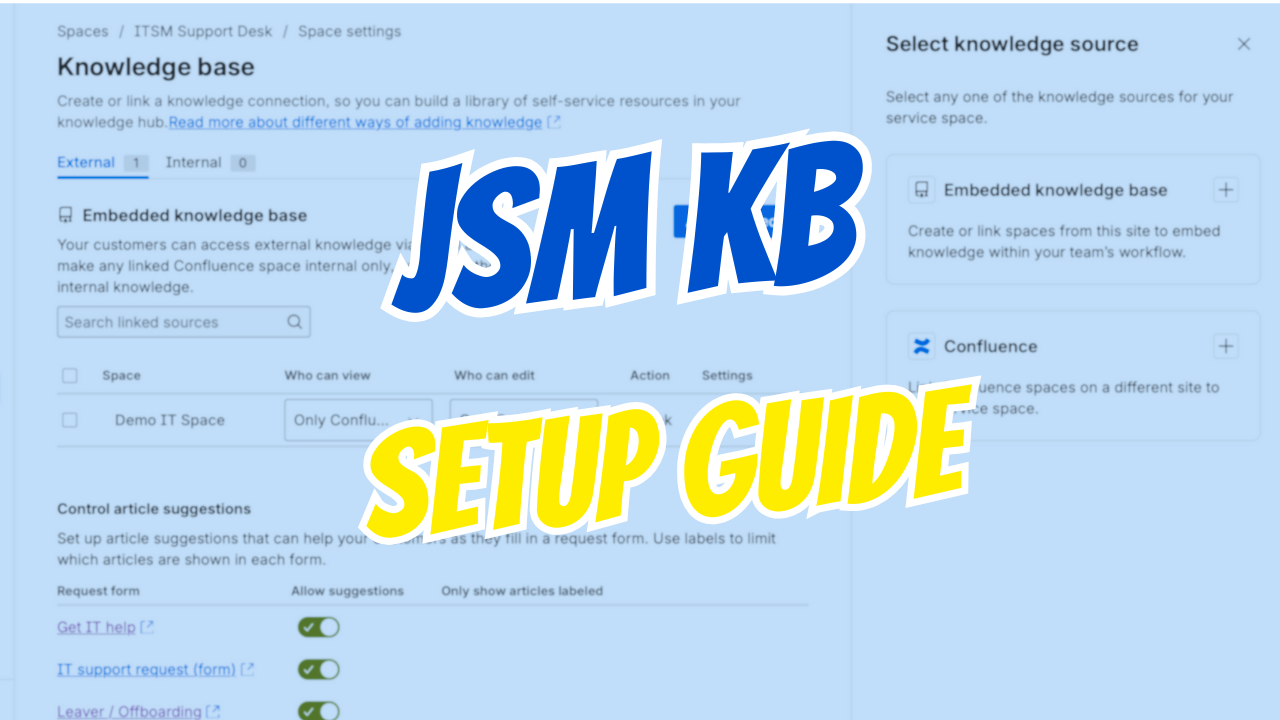
Step 5: Link KB Space to JSM
Now connect your KB space to JSM project.
- Open your JSM project
- Go to Project Settings (bottom left)
- Click Knowledge Base (in left sidebar)
- Click Link Space
- Select your "IT Support Knowledge Base" space
- Click Link
You'll see your space appear in the list.
Optional: Link multiple spaces if you have different KB categories (IT, HR, Finance, etc.)
Step 6: Configure KB Settings
Important settings:
Which request types show KB?
- By default: All request types
- You can disable KB for specific request types
To disable for a request type:
- Still in Knowledge Base settings
- Find the request type
- Toggle OFF
Example: Disable KB for "Report Security Incident" (you want tickets, not self-service)
Number of articles shown:
- Default: 3 articles
- I recommend keeping it at 3
- Too many = overwhelming
Step 7: Test the Experience
Open an incognito window (to see it as a user):
- Go to your JSM portal
- Select a request type
- Start typing in the summary field: "vpn not working"
- KB articles should appear
If articles don't appear:
- Check: Is KB space linked?
- Check: Are articles published (not drafts)?
- Check: Do articles have relevant labels?
- Try different keywords
Adjust labels and titles until search works reliably.
Step 8: Create Articles Directly from JSM (Optional)
New feature: You can now create KB articles from JSM without opening Confluence.
To create from JSM:
- In JSM project, click Knowledge Base (left sidebar, not settings)
- Click Create Article
- Select KB space
- Write article
- Add labels
- Click Publish
My take: It works, but I still prefer creating in Confluence directly. More control, better editor.
But: If your agents don't have Confluence access, this is useful.
Best Practices (Making KB Actually Useful)
Here's what actually works after dozens of implementations.
Best Practice #1: Dedicated Space (Cannot Emphasize Enough)
Never connect your general Confluence space to KB.
Real incident:
- Client connected company-wide Confluence
- KB search exposed "2026 Layoff Plan" document
- Employee saw it through support portal
- Chaos ensued
Always use dedicated KB space with controlled permissions.
Best Practice #2: Start Small, Grow Deliberately
Don't create 50 articles on day one.
Better approach:
- Track ticket volume by category
- Identify top 5-10 issues
- Create KB articles for those
- Monitor ticket deflection
- Add more articles based on data
Quality > Quantity. 10 excellent articles beat 50 mediocre ones.
Best Practice #3: Update Regularly
KB articles get stale fast.
Set calendar reminders:
- Monthly: Review top 10 articles
- Quarterly: Full KB audit
- After any process change: Update affected articles immediately
Stale articles are worse than no articles. Users lose trust in KB.
Best Practice #4: Track Deflection Metrics
In JSM, you can see:
- How many users viewed KB articles
- Which articles are most viewed
- Ticket creation after viewing KB (deflection rate)
To access:
- Project Settings → Knowledge Base
- Click View Analytics
Use this data to:
- Identify which articles work
- Find gaps (high tickets, no articles)
- Improve low-performing articles
Best Practice #5: Don't Overwhelm Users
Keep KB suggestions to 3 articles.
Why? More = decision paralysis. Users give up and create ticket.
Better: 3 highly relevant articles than 10 maybe-relevant ones.
Best Practice #6: Write for Your Audience
Your users aren't IT experts.
Good article:
- Clear steps (numbered)
- Screenshots/videos
- Expected outcome at each step
- "Still stuck? Submit ticket" at end
Bad article:
- Technical jargon
- Assumes knowledge
- Missing steps
- No visuals
Write like you're explaining to a friend, not writing documentation.
Best Practice #7: Include "Submit Ticket" Path
Every article should end with:
"Still having trouble? [Submit a support ticket] and we'll help you."
Why? Some users will hit edge cases. Give them an easy out.
The Limitations (What KB Can't Do)
Let me be clear about what Knowledge Base WON'T do:
Limitation #1: No Contextual Understanding
KB doesn't know:
- User's role (is this an admin question?)
- User's history (have they asked this before?)
- Urgency (is this blocking work?)
Result: Same articles for everyone, regardless of context.
Limitation #2: No Interactive Troubleshooting
KB can't:
- Ask clarifying questions ("Is this on laptop or phone?")
- Guide through decision trees
- Adapt based on user responses
It's static. Read article, hope it works.
Limitation #3: No Learning or Improvement
KB doesn't:
- Learn which articles work
- Improve based on user behavior
- Auto-update when processes change
You manually maintain everything.
Limitation #4: Search Quality Issues
Common frustrations:
- Searches "email" → Shows VPN articles
- Searches "printer" → No relevant articles (even though they exist)
- Searches with typos → Nothing found
Keyword matching is primitive.
The Better Alternative: Virtual Agent (KB 2.0)
This is why I called Knowledge Base "outdated" at the start.
Atlassian knows KB is limited. That's why they built Virtual Agent.
What Is Virtual Agent?
Virtual Agent is AI-powered self-service. It's everything Knowledge Base should have been.
Instead of showing 3 articles and hoping, Virtual Agent:
- Has a conversation with the user
- Asks clarifying questions
- Narrows down the problem
- Guides to exact solution
- Creates ticket if needed (with context)
KB vs Virtual Agent: Real Comparison
Scenario: User needs VPN help
With Knowledge Base:
- User types: "vpn problem"
- KB shows: 3 articles about VPN
- User reads all 3 (maybe)
- Finds answer (maybe)
- Ticket deflection: 15-20%
With Virtual Agent:
- User types: "vpn problem"
- Agent asks: "Are you working from home or office?"
- User: "Home"
- Agent asks: "What error do you see?"
- User: "Authentication failed"
- Agent: "Your password may have expired. Here's how to reset it: [steps]"
- Ticket deflection: 35-50%
The difference: Interactive, contextual, intelligent.
Why Virtual Agent Is Premium Only
The catch: Virtual Agent requires JSM Premium ($57/user/month vs $25 for Standard).
Is it worth it?
For most organizations: Yes, if you have 20+ agents.
ROI calculation:
- 20 agents = extra $640/month for Premium
- Virtual Agent deflects 100 extra tickets/month
- Agent handles 50 tickets/month normally
- That's 2 agents' worth of capacity freed up
- Pays for itself immediately
I recently helped a client implement Virtual Agent. Ticket deflection went from 18% (with KB) to 43% in first 3 months.
That's not incremental improvement. That's transformational.
When to Upgrade to Virtual Agent
Upgrade to Premium (and Virtual Agent) if:
- ✅ Ticket volume is overwhelming
- ✅ Common issues are well-documented
- ✅ KB isn't delivering enough deflection
- ✅ You can justify Premium cost
- ✅ You want modern AI self-service
Stay with KB if:
- ❌ Small team (< 10 agents)
- ❌ Budget constrained
- ❌ Ticket volume is manageable
- ❌ KB is working "well enough"
Read my complete Virtual Agent implementation guide here: [will be ready soon]
Troubleshooting Common KB Issues
Issue #1: Articles Don't Appear in Search
Check:
- Are articles published (not drafts)?
- Is the KB space linked to JSM?
- Do articles have labels matching user keywords?
- Is KB enabled for that request type?
Fix: Add more labels. Try typing exact article titles to verify connection.
Issue #2: Wrong Articles Appear
Check:
- Are labels too broad? ("help", "issue" = useless)
- Are article titles unclear?
Fix: Use specific labels. Rename articles with clearer titles.
Issue #3: Users Ignore KB Articles
Check:
- Are articles helpful? (ask users)
- Are they outdated?
- Too many articles shown?
Fix: Improve article quality. Update stale content. Reduce article count.
Issue #4: Security - Internal Docs Appearing
Check:
- Is the correct space linked?
- Are space permissions set properly?
Fix: Unlink general spaces. Use dedicated KB space only.
The Honest Take: Should You Use KB?
My recommendation after 14+ years:
Use Knowledge Base If:
✅ You're on Standard JSM (can't afford Premium)
✅ You have documented, common issues
✅ You can maintain articles regularly
✅ You have someone to own KB quality
Don't Bother With KB If:
❌ Your issues are too complex for articles
❌ No one will maintain it
❌ You can afford Premium (get Virtual Agent instead)
❌ Your team is tiny (< 5 agents)
Upgrade to Virtual Agent If:
⭐ Ticket volume is high
⭐ KB isn't performing well
⭐ You want modern self-service
⭐ ROI justifies Premium cost
Knowledge Base is the "good enough" solution. It works, reduces some tickets, requires minimal investment.
Virtual Agent is the "actually good" solution. It works significantly better, but costs more.
Which is right for you? Depends on your situation.
Real Client Scenarios
Let me share what I've seen work (and not work).
Success Story: Small IT Team
Company: 200 employees, 5 IT agents Setup: KB with 15 core articles Result: 20% ticket deflection Verdict: Works great for them. Can't justify Premium cost.
Mixed Results: Mid-Size Company
Company: 800 employees, 15 IT agents Setup: KB with 50 articles Result: 12% ticket deflection (articles got stale)Verdict: KB maintenance was neglected. Considering Premium + Virtual Agent.
Failure: Enterprise
Company: 5,000 employees, 50 IT agents Setup: KB with 200 articles across multiple spaces Result: 8% ticket deflection (search was terrible) Verdict: Upgraded to Premium + Virtual Agent. Now at 38% deflection.
Pattern: KB works okay for small-mid size. Struggles at enterprise scale.**
What's Coming: The Future of Self-Service
Atlassian's roadmap (based on what I've seen and heard):
Knowledge Base: Maintenance mode. No major updates planned.
Virtual Agent: Heavy investment. Continuous AI improvements.
My prediction: In 2-3 years, Virtual Agent will be standard for most organizations. Knowledge Base will be legacy.
What this means for you:
- If implementing KB now: Know it's temporary
- Plan for Virtual Agent migration eventually
- Don't over-invest in KB customization
The Bottom Line
JSM Knowledge Base is outdated but functional. If you're on Standard JSM, it's your self-service option.
Set it up properly:
- Dedicated Confluence space
- Well-labeled articles
- Regular maintenance
- Track metrics
Expect 15-25% ticket deflection if you do it right.
But know this: Virtual Agent is the future. It's interactive, AI-powered, and actually works well.
When you're ready to upgrade, that's where the real ticket deflection happens.
Need help with JSM Knowledge Base or Virtual Agent implementation? I work with teams regularly on both. Book a consultation to discuss your specific situation and calculate ROI for Premium upgrade.
Coming next: Complete Virtual Agent implementation guide with real examples and deflection strategies.
Questions about KB or Virtual Agent? Join my Skool community where I answer questions regularly.