Jira (Custom) Fields Masterclass: How to Avoid the 300-Field Nightmare

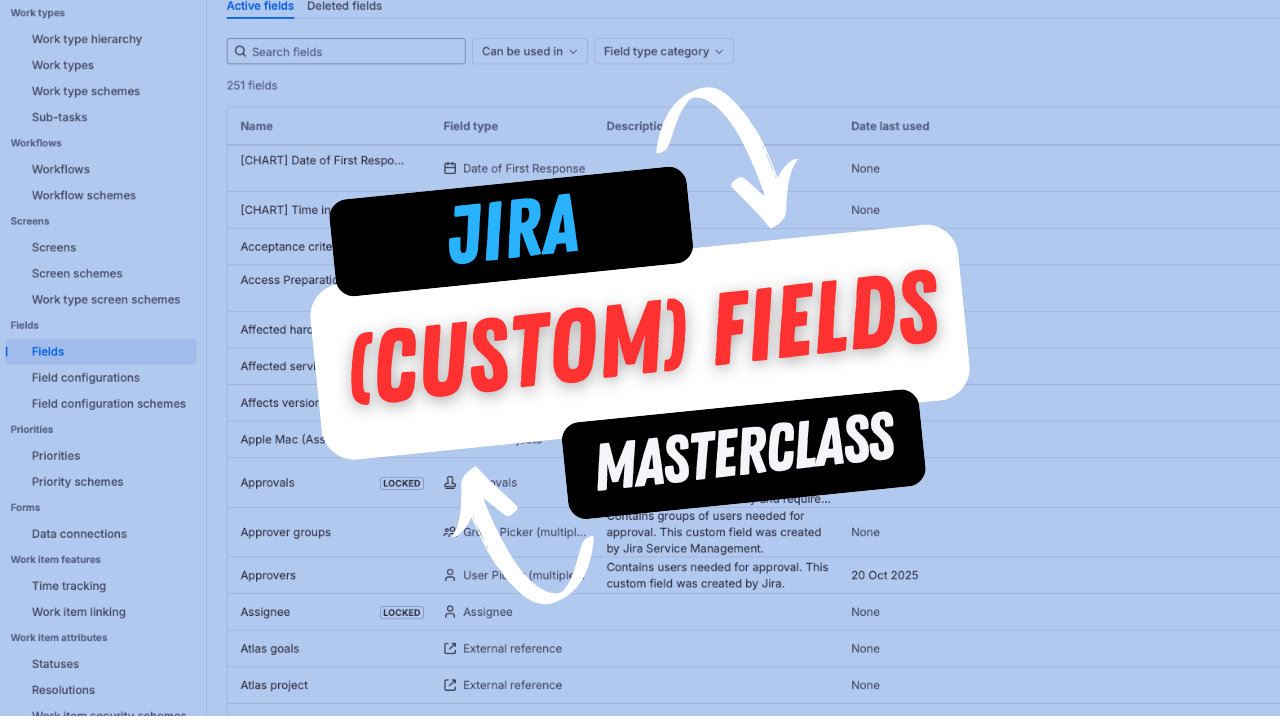
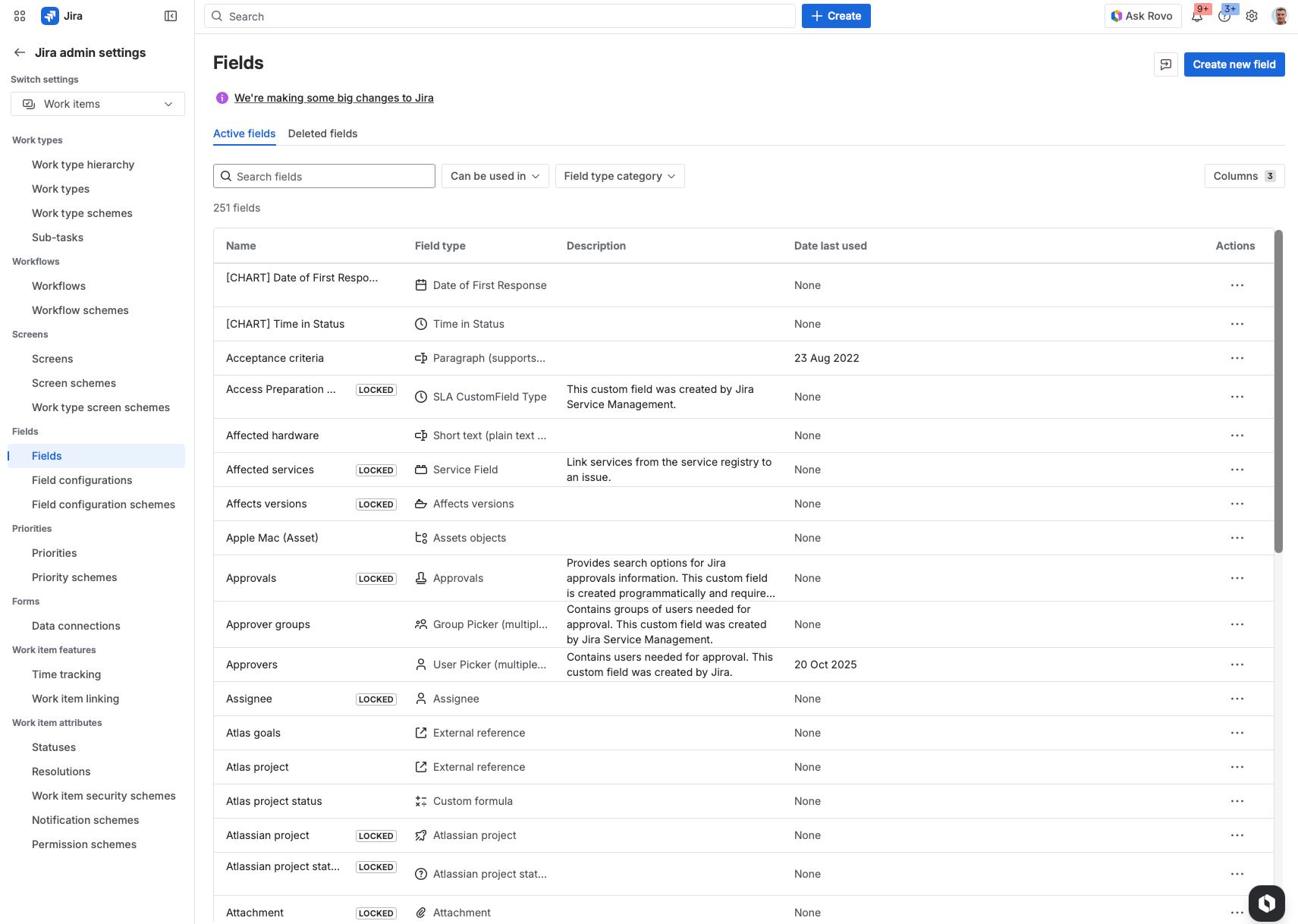
Let me tell you about the worst Jira instance I've ever inherited, but just before we start a quick info. Atlassian a while ago changed the naming convention from Custom Field to Fields.
300+ (custom) Fields. Three hundred.
When I started the audit, I found:
- "Priority", "priority", "Priority Level", and "Urgency" - all doing the exact same thing
- "Customer Name", "Client Name", "Customer", and "Client Company" - four fields, one purpose
- "Start Date", "Project Start Date", "Kick-off Date", and "Begin Date" - you get the picture
Nobody knew which fields to use. Reports were inconsistent. New team members were confused from day one. The admins had given up trying to maintain it.
Sound familiar? You're not alone.
But first, what Are Fields in Jira?
Every Jira Space uses two types of fields to capture information about Work Items.
System Fields are built-in and come with Jira by default. These include Comments, Assignee, Reporter, Labels, Status, and Priority. You can't edit or remove
them - they're part of the core platform.
Fields (formerly called "Custom Fields") are extra fields you add to gather more information specific to your team or workflow. These could be anything from a
simple dropdown for "Department" to sophisticated types like Assets, Version pickers, or User fields.
Here's the reality: it's very unusual to run a Jira Space without some field customisation. Almost every team needs to capture data beyond what the system
fields provide. The good news? Adding and configuring fields is a straightforward process - the challenge isn't the technical setup, it's knowing which fields
to add and when to stop.
That's what this guide is about.
(Custom) Field sprawl is one of the most common problems I see as a consultant. And the worst part? It's entirely preventable - if you understand the fundamentals and avoid the traps that can't be undone.
This guide covers everything you need to know about Jira (custom) Fields in 2026: the consultant perspective on managing field sprawl, practical naming conventions that scale, the "old traps" that will haunt you forever, and a technical walkthrough of actually creating and managing fields properly.
Let's fix this.
The Two Big Problems with Fields
Based on 14 years of consulting, I see two problems over and over again:
Problem 1: Too Many Fields
Large instances accumulate fields like a garage accumulates junk. Every time someone needs to track something, they create a field. Multiply that by 5 years and 50 administrators, and you've got chaos.
The 300-field client? They thought they needed all those fields. After our audit, we got them down to 45 essential fields. They didn't lose any functionality. They gained clarity.
Problem 2: Duplication
This is the bigger issue. Duplication happens when:
- Someone needs a field and doesn't check if one already exists
- Two teams create the same field with slightly different names
- An admin creates a new field because they can't find the existing one
- Multiple projects each create their own version of the same field
Duplication kills your reporting. If half your projects use "Customer Name" and half use "Client Name", your dashboard showing "issues by customer" is only half accurate.
Duplication confuses users. Which field should I fill in? Both? Neither?
Duplication makes maintenance a nightmare. Update the options in one field, forget the duplicate exists, wonder why reports are wrong six months later.
The Root Cause (It's Not Technical)
Here's what most people miss: the problem isn't technical. It's organizational.
The real root cause is too many administrators with no governance.
Field sprawl often goes hand-in-hand with workflow sprawl. The same principles apply: keep it simple, document everything, and govern changes. See my Workflow Customization Guide for more.
Workflow complexity is a separate beast - my Workflow Customization Guide shows how to keep workflows simple.
When 20 people can create (custom) fields, and there's no process for checking whether a field already exists, you get 20 versions of every common field.
I've seen this pattern repeatedly:
- Admin A needs a "Project Start Date" field for their project
- Admin A doesn't search for existing fields (or the search doesn't surface the right results)
- Admin A creates "Project Start Date"
- Admin B, two months later, needs the same thing
- Admin B creates "Start Date" (because "Project Start Date" didn't come up in their search)
- Admin C creates "Kick-off Date"
- Repeat for 5 years
The technical solution is easy. The organizational solution is what matters.
Before You Create: The Essential Checklist
Before creating ANY (custom) field in Jira, ask yourself these questions:
1. Does a built-in field already do this?
Jira has dozens of system fields. Before creating a (custom) field for "Priority" or "Due Date" or "Assignee", check what's already available. You'd be surprised how often people create (custom) fields that duplicate system fields.
Common examples:
- Creating "Goal Date" when "Due Date" exists
- Creating "Importance" when "Priority" exists
- Creating "Owner" when "Assignee" exists
If a system field does what you need, use it. Your reports will thank you.
2. Does a field already exist?
This is where discipline matters. Before creating "Start Date":
- Search for "start"
- Search for "date"
- Search for "begin"
- Search for "kick-off"
- Look at related projects to see what they use
Pro tip: Don't search for the exact name you want to create. Search for keywords. "Project Start Date" won't match if someone called it "Start Date" - but searching "start" will find both.
3. Can I use a broader name?
Instead of "Project Start Date", could you use "Start Date"?
Broader names = more reusable fields = less duplication.
Think about it: "Start Date" works for projects, sprints, phases, milestones. "Project Start Date" only works for projects, so the sprint team creates "Sprint Start Date", and the milestone team creates... you see where this goes.
My recommendation: Use the broadest accurate name. "Start Date" not "Project Start Date". "Budget" not "Project Budget Amount".
4. Will this field be used in reports or filters?
If yes, naming and consistency matter even more. If no, consider whether you need the field at all.
5. Who needs to see/edit this field?
If only one project needs it, use project-specific context. If multiple projects need different options, use the context feature (covered below). If it's truly global, create it as global - but that's rare.
Naming Conventions That Actually Scale
Here's the naming system I use with clients:
The Category Prefix System
[Category] - [Specific Name]

Examples:
- Customer - Company Name
- Customer - Contact Email
- Customer - Tier
- Finance - Budget Approved
- Finance - Cost Center
- Finance - Invoice Number
- Dev - Repository URL
- Dev - Target Branch
- HR - Department
- HR - Manager
Why This Works
- Grouped in dropdowns: When adding fields to screens, all "Customer" fields appear together. Easy to find, hard to miss duplicates.
- Easy to search: Searching "Customer" shows all customer-related fields. No more wondering if it's called "Client" or "Customer" or "Account".
- Clear ownership: The category prefix tells you which team "owns" that field. Need to change Finance fields? Talk to Finance.
- Self-documenting: "Finance - Cost Center" is clearer than "CC" or "Cost_Ctr" or "CostCenter".
Naming Rules
- No abbreviations (unless universally understood like "URL")
- Consistent capitalization (Title Case for both category and name)
- Category prefix always (even if you think it's obvious)
- Descriptive but concise (3-4 words maximum after the prefix)
What About Existing Fields?
If you have existing fields without prefixes, add prefixes during cleanup. Rename "Budget" to "Finance - Budget". This won't break anything - the field ID stays the same.
The Hidden Gem: Context Feature
This is something that surprises me every time: most Jira admins don't know this feature exists.
One field can have different values for different projects.
Let me explain with an example.
Say you have a "Location" field that's a dropdown. Five projects use it:
- European team wants: London, Amsterdam, Warsaw
- US team wants: New York, Washington, Dallas
- APAC team wants: Tokyo, Singapore, Sydney
Most admins think they need three separate fields. They don't.
You can use field contexts to give the same field different options per project.
How It Works
- Create the field "Location" once
- Add a context for European projects with European options
- Add a context for US projects with US options
- Add a context for APAC projects with APAC options
Same field. Different options. Consistent reporting.
This is one of the biggest reasons for field duplication - people don't know contexts exist. Now you do.
When to Use Context
- Same data type (dropdown), different values per team
- Same field, different default values per project
- Restricting a field to specific projects
When NOT to Use Context
- When the data should be truly different fields (e.g., "Budget" for Finance vs "Sprint Capacity" for Dev aren't the same thing)
- When you want unlimited contexts (there are limits per project)
Team-Managed vs Company-Managed: A Consultant's Perspective
I'm going to say something that might be controversial: I actually recommend team-managed projects more than most consultants do.
Here's why this matters for fields.
The Conventional Wisdom
Most consultants (and Atlassian training) push company-managed projects because:
- Central governance
- Shared configurations
- Consistent experience
The Reality
Team-managed projects keep fields separate per project. This sounds like a disadvantage, but consider:
- No cross-project contamination: A team can't accidentally mess up another team's fields
- Freedom without governance overhead: Teams can experiment without bothering admins
- Natural isolation: Fields created in Project A don't clutter Project B's screens
When Team-Managed Makes Sense
- Teams that work independently
- Projects that don't need shared reporting
- Organizations where governance is a bottleneck
- Pilot projects or experiments
When Company-Managed is Better
- Enterprise-wide reporting requirements
- Shared workflows across teams
- Strict governance requirements
- Complex integrations depending on consistent field IDs
The Bottom Line
Team-managed projects get criticized because "anyone can create anything." That's a feature, not a bug - as long as you understand the tradeoffs.
Note: Atlassian has hinted at unifying fields between project types in the future, but as of January 2026, they're still separate.
THE OLD TRAPS: What You Can't Undo
This section might save your career. These are the mistakes that can't be easily fixed once made.
Trap 1: You Can't Change Field Type
Created a checkbox field but need radio buttons? Too bad.
Created a single-select dropdown but need multi-select? Nope.
Created a text field but need a dropdown? Start over.
Once you choose a field type, you're stuck with it. The only solution is:
- Create a new field with the correct type
- Migrate all historical data (painful)
- Rename the old field to "[OLD] Field Name"
- Update all screens, filters, automations, dashboards
- Pray you didn't miss anything
Why it can't be changed: Historical data depends on the field type. If you have years of checkbox data, Jira can't magically convert that to radio button format.
Prevention: Talk to stakeholders before creating. Understand the use case completely. When in doubt, text fields are more flexible than dropdowns.
Trap 2: Deleting Fields Deletes All Historical Data
Delete a field = delete ALL values that field ever held across ALL issues.
Even if a field seems unused, old issues may have data. That data disappears forever.
The safe approach:
- Never delete - rename to "[DEPRECATED] - Do Not Use"
- Remove from all screens (so no one can add new values)
- Keep the field so historical data remains accessible
- Optional: After 1 year with no complaints, consider deletion
Trap 3: Context Chaos
Field contexts (which projects see which options) get messy fast.
The temptation is to create everything as "Global context" because it's easier. Then every project sees every field, screens become cluttered, and users see options that don't apply to them.
Prevention: Be intentional about contexts from day one. Start restricted, expand as needed.
Trap 4: Option List Mess
Dropdown options can be added easily but deactivating them is awkward:
- Deactivated options still show on historical issues
- You can't truly delete options, only deactivate
- Historical data shows "(inactive)" next to old values
Prevention: Plan your options carefully. Use naming conventions for options too. Think about what happens when an option is no longer valid.
Technical Walkthrough: Creating Fields Properly
Now let's get practical. Here's exactly how to create fields the right way.
Step 1: Access Fields
- Click the gear icon (Settings)
- Click Issues (or "Work Items" in newer UI)
- Click Fields on the left sidebar
Note: Atlassian recently rebranded "Custom fields" to just "Fields" in some interfaces. Same thing.
Important: You need to be a Jira Admin (not just Project Admin) to create (custom) fields.
Step 2: Search Before Creating
Before clicking "Create field":
- Use the search box
- Search for keywords, not exact phrases
- Check multiple variations
If a similar field exists, use it. Don't create duplicates.
Step 3: Choose the Right Field Type
Available types (Company-managed projects have more options than Team-managed):
Basic Types:
- Short text (single line): Up to 255 characters, like a tweet
- Paragraph (multi-line): Rich text with formatting, images, bullets
- Number: For arithmetic, can be used in calculations and automations
- Date: Just the date (YYYY-MM-DD)
- Date Time: Date plus time stamp
- URL: For links (validates URL format)
- User Picker: Select a licensed Jira user
Selection Types:
- Select List (single): Dropdown, pick one option - this is the most common
- Select List (multiple): Dropdown, pick multiple options
- Checkboxes: Multiple selection with visible checkboxes
- Radio Buttons: Single selection with visible options
- Cascading Select: Parent-child dropdowns (2 levels max)
- Labels: Free-form tags (like the system Labels field)
Advanced Types (varies by products installed):
- Assets Objects: Link to JSM Assets/Insight objects
- Group Picker: Select a Jira group
- Version Picker: Select from project versions
Step 4: Name It Properly
Using the naming convention from earlier:
- Use category prefix: "Customer - Company Name"
- No abbreviations
- Title Case
- Be descriptive
Step 5: Configure Context
After creating the field, you'll be asked about screens. Before randomly selecting screens, think about context:
- Which projects need this field?
- Do different projects need different options?
- Should this be global or restricted?
To add context:
- Find the field in Fields list
- Click the ... menu
- Select Context and default value
- Click Add new context
- Choose projects and/or issue types
- Configure options specific to that context
Step 6: Add to Screens
Fields only appear on issues when they're on a screen. To add a field to a project:
- Go to Project Settings
- Click Screens
- Expand your screen scheme
- Click on the relevant screen
- Scroll to bottom, search for your field
- Add it
Common mistake: Creating a field but forgetting to add it to screens. The field exists but nobody can see it.
Step 7: Test
Before announcing the new field:
- Create a test issue
- Verify the field appears
- Verify the options are correct (if dropdown)
- Check that it doesn't appear in projects where it shouldn't
Field Governance That Works
Technology won't save you from field sprawl. Process will.
The Field Request Process
- Single point of contact: One person (or small team) approves all new field requests
- Request form: Standardize what information is needed (purpose, projects, type, options)
- Duplication check: Before approving, check for existing similar fields
- Documentation requirement: Every field must have documented purpose and owner
Quarterly Field Audits
Every quarter, review:
- Fields with zero values (never used)
- Fields used by only one or two issues (probably should be labels)
- Duplicate-looking fields (similar names, same purpose)
- Fields with no clear owner
Field Inventory
Maintain a simple spreadsheet:
| Field Name | Type | Owner | Purpose | Projects Using | Created | Last Reviewed |
|---|---|---|---|---|---|---|
| Customer - Tier | Select | Sales | Customer segment | SALES, SUPPORT | 2024-01 | 2025-10 |
This becomes invaluable during migrations, audits, and when someone asks "why do we have this field?"
Planning a Data Center to Cloud move? See my Migration Guide - custom fields are one of the biggest complexity drivers.
Cleanup Strategy for Existing Messes
If you've inherited a 300-field disaster (or created one), here's how to clean it up.
Phase 1: Inventory
- Export your field list with usage counts
- Identify how many issues use each field
- Note which projects use each field
- Flag obvious duplicates (same/similar names)
Phase 2: Categorize
Group fields into:
- Keep: Clear purpose, widely used, no duplicates
- Merge: Multiple fields serving same purpose - pick winner, migrate losers
- Deprecate: Unused or rarely used, keep for historical data
- Investigate: Unclear purpose, need to talk to stakeholders
Phase 3: Merge Duplicates
For each duplicate group:
- Pick the "winner" field (best name, most usage)
- Document the mapping (Field A, B, C → Winner)
- Migrate data from losers to winner (may need scripting)
- Rename losers to "[OLD] Original Name"
- Remove losers from all screens
Phase 4: Update Dependencies
Before hiding deprecated fields, check:
- Automations referencing the field
- Filters and dashboards using the field
- API integrations reading the field
- Saved filters other users have created
Update all of these to use the winner field.
Transitioning issues via API requires knowing your workflow transition IDs.
If you're not sure how your workflows are configured, check that first.
For bulk field operations, the Jira REST API is your friend.
Phase 5: Document and Communicate
- Update your field inventory
- Announce changes to users
- Provide a transition period
- Create Confluence page documenting the cleanup
The 300-Field Client: The Result
After following this process with the 300-field client:
- Before: 300+ fields, 47% duplication, inconsistent reporting
- After: 45 essential fields, clear naming, accurate dashboards
They didn't lose functionality. They gained clarity. Reports that used to require manual data reconciliation now work automatically.
Consultant Insights
A few final thoughts from 14 years of Jira consulting:
"Every field you create is technical debt you're taking on." Fields need maintenance. Options change. Projects come and go. The more fields you have, the more maintenance you need.
"The best field is the one you didn't create." If a system field works, use it. If a label works, use that. Fields are for when nothing else will do.
"Labels are underrated." Labels are free-form, searchable, don't require admin to add new values, and work across all projects. Before creating a dropdown, ask if labels would work.
"I've never been called to rescue a team that kept things too simple." Overcomplicated Jira setups cause pain. Simple setups with clear conventions scale better than complex ones with perfect intentions.
"The 300-field client thought they needed all those fields. They needed 45." Most instances have significant field debt. The cleanup is work, but the result is worth it.
What's Next?
If you're struggling with field sprawl, you have a few options:
Quick win: Start using the naming convention today. Even if you can't clean up old fields, new fields can follow the pattern.
Medium investment: Do a quarterly field audit. Export the list, identify duplicates, deprecate what's unused.
Full cleanup: If you've got a serious mess, a structured cleanup sprint might be worth it. Document everything, migrate data, establish governance.
Whatever you choose, remember: the goal isn't perfection. It's clarity. When a user can find the right field, fill it in confidently, and trust that reports are accurate - that's success.
Need help with your field situation?
- 2-hour field audit: I'll review your instance live and give you a prioritized cleanup plan
- Full cleanup sprint: 3-day intensive to inventory, merge, document, and establish governance