Jira Work Management: The Underrated Tool That Changes Everything

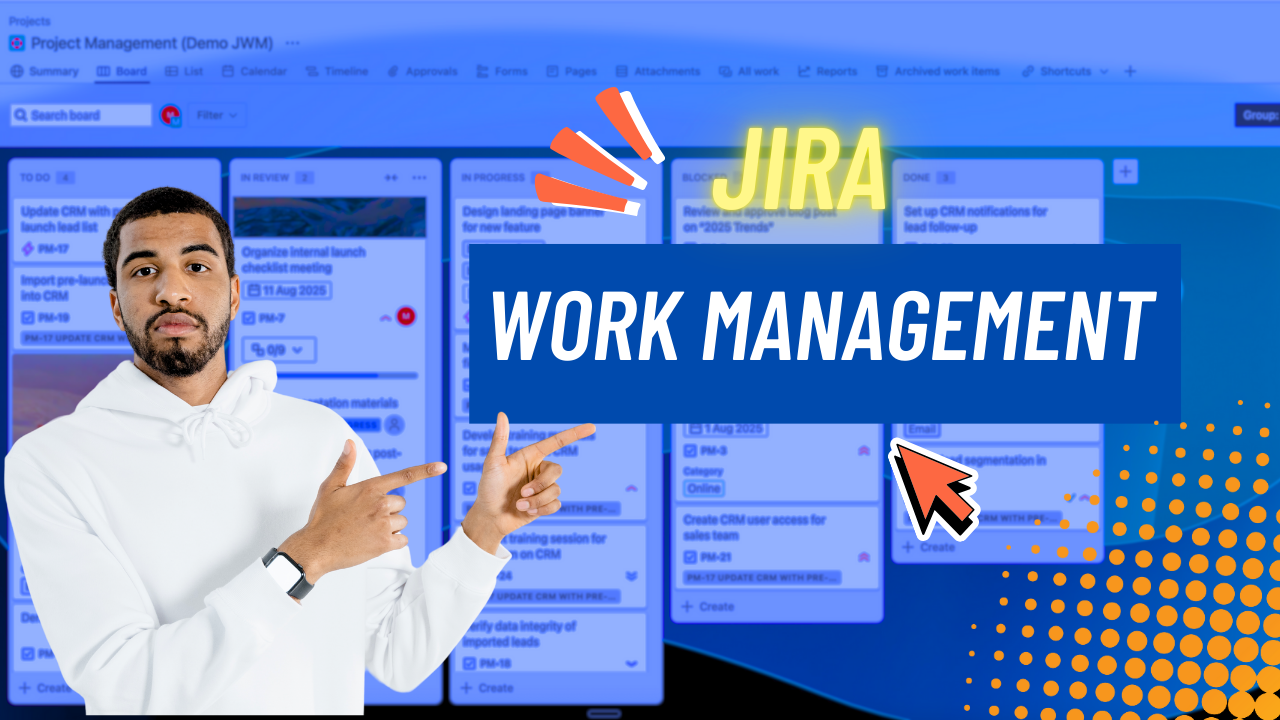
Controversial take: Jira Work Management is Atlassian's best product that nobody talks about.
After 14+ years consulting, I've seen every project management tool. Trello, Asana, Monday, ClickUp, Smartsheet—all of them. But here's what happened last month that convinced me JWM is special:
I trained 100 people at a large London organization. Mixed backgrounds: HR, finance, marketing, operations. Zero technical experience. People who'd never touched Jira in their lives.
After the first 2-hour session? They were using it independently.
Next day? They were asking advanced questions.
Two weeks later? Running smoothly with almost zero support tickets.
One person said: "Oh, this is like Trello!"
I replied: "Exactly. Trello on steroids."
That's Jira Work Management in 2026. Let me show you why it's brilliant.
What Is Jira Work Management (And Why Should You Care)?
The elevator pitch: Jira Work Management is project management for non-developers. It combines Trello's simplicity with Jira's power.
Who it's for:
- HR teams
- Marketing departments
- Finance teams
- Operations groups
- Any business team that needs to manage work
Who it's NOT for:
- Software development teams (use Jira Software)
- IT service desks (use JSM)
- Complex engineering workflows
JWM is built on the same foundation. See my Jira Crash Course for fundamentals.
The magic: It looks like Trello, feels like Trello, but has Jira's automation, integrations, and ecosystem behind it.
Why I'm Obsessed with This Product
Let me be clear: I'm not paid by Atlassian. I just genuinely love this tool because of what I've seen it do for clients.
Reason #1: It Actually Gets Used
The problem with traditional Jira: Too complex. Overwhelming. Scary.
The problem with simple tools (Trello, Asana): Hit limitations fast. No automation. Weak integrations.
Jira Work Management: The sweet spot. Simple enough for HR. Powerful enough to scale.
Real example: That 100-person London training. These weren't tech people. They were:
- HR coordinators managing onboarding
- Marketing teams planning campaigns
- Finance tracking budget approvals
- Operations coordinating projects
All of them were productive in hours, not weeks.
Reason #2: The 2026 Update Is Game-Changing
Atlassian quietly released massive improvements to JWM in 2025-2026. Most people didn't notice. I did.
What changed:
Forms with Public Access (The Big One)
- Before: Forms only worked for Jira users
- Now: Share forms via public link to ANYONE
- Impact: External requests without needing Jira licenses
This was the #1 complaint from clients. Fixed.
Timeline Improvements
- Drag-and-drop roadmaps
- Works with tasks (not just epics)
- Visual planning for non-technical teams
Beautiful Backgrounds
- Customize your board aesthetics
- Sounds superficial, matters psychologically
- Teams actually enjoy using it
AI Integration (Rovo)
- Auto-suggest child tasks
- Generate project structures
- Still early, but improving monthly
Summary View
- At-a-glance project health
- Replaces complex dashboards for most teams
- Clients tell me they use this more than custom reports
Reason #3: It Plays Well with the Atlassian Ecosystem
If your company already uses:
- Jira Software (dev teams)
- JSM (IT support)
- Confluence (documentation)
Adding JWM is seamless. Cross-project collaboration just works.
Example workflow:
- Marketing creates campaign in JWM
- Requests dev support (auto-creates Jira Software ticket)
- IT provisions tools via JSM
- All documentation in Confluence
- Everything linked, nothing siloed
This is impossible with Trello, Asana, or Monday.
Reason #4: Why Not Just Use Trello?
People ask me this constantly. Valid question.
Trello is simpler (slightly)
JWM is more powerful (significantly)
Here's what JWM has that Trello doesn't:
Automation:
- Jira's automation engine
- Conditional logic
- Webhooks
- Integration with everything
Reporting:
- Built-in analytics
- Custom dashboards
- JQL filtering (powerful searches)
Permissions:
- Granular access control
- Private projects
- Team-managed flexibility
Forms:
- Public forms (new in 2026)
- Conditional fields
- Direct ticket creation
Confluence Integration:
- Embedded pages
- Linked documentation
- Project wikis
Approval Workflows:
- Multi-stage approvals
- Conditional routing
- Audit trails
Atlassian Ecosystem:
- Works with Jira Software, JSM
- Marketplace apps (thousands)
- Enterprise integrations
For a 5-person team? Trello might be fine.
For 30+ people? JWM scales better.
For organizations already on Atlassian? No-brainer.
Getting Started: Create Your First Project
Let me walk you through exactly how I set up JWM projects for clients.
Step 1: Choose Your Plan
Free (Up to 10 users):
- 2GB storage
- 100 automations/month
- Unlimited projects
- Limitation: No private projects (everything is visible to everyone)
Standard ($7/user/month):
- Advanced permissions (private projects)
- Unlimited storage
- Unlimited automations
- This is where most teams should start
Premium ($14/user/month):
- Advanced Roadmaps (cross-project planning)
- Unlimited storage
- 24/7 support
- Sandbox environments
- AI features (Rovo)
My recommendation:
- < 10 users: Start free, upgrade when you hit limits
- 10-100 users: Standard is perfect
- 100+ users or need advanced planning: Premium
Don't overthink it. Start cheap, upgrade when you need specific features.
Step 2: Create Your Project
- Click Projects → Create Project
- You'll see templates:
- Marketing Campaign
- Content Calendar
- Event Planning
- HR Onboarding
- General Business
- Blank Project
My approach:
For your first project: Pick a template close to your use case.
Don't worry about perfection. Templates are just pre-configured boards and issue types. Everything is customizable.
Example: I'm creating a "Marketing Content Plan"
- Select Marketing template
- Name it: "Content Marketing 2026"
- Click Create
Boom. You have a functional project in 30 seconds.
Step 3: Customize Your Background (Optional but Fun)
This sounds trivial but trust me—it matters.
- Click the three dots (top right)
- Select Change background
- Choose from Atlassian's library or upload custom image
Why this matters: Teams enjoy using tools that don't look boring. Aesthetic matters for adoption.
Step 4: Configure Your Board
The board is where your team will spend 80% of their time. Get this right.
Default Columns (Using Marketing Template)
- To Do
- In Progress
- Done
This works for simple teams. But let's add more structure.
Add Custom Statuses
- Click Board view
- Click + Add status
- I typically add:
- Backlog (To Do category) - Ideas not yet prioritized
- Ready to Start (To Do category) - Approved and queued
- In Progress (In Progress category) - Active work
- In Review (In Progress category) - Waiting for feedback
- Blocked (In Progress category) - Stuck, needs unblocking
- Done (Done category) - Completed
The "In Review" status is clutch. Most teams forget this. Work sits in "In Progress" waiting for approval. "In Review" makes the bottleneck visible.
Drag statuses to reorder them on the board.
Step 5: Set Up Issue Types
Issue types = categories of work.
Default in JWM:
- Task
- Subtask
I always add Epics:
- Go to Project Settings → Issue Types
- Click Add Issue Type
- Select Epic
- Click Add
What are Epics?
Think of them as "big chunks of work" that contain multiple tasks.
Example:
- Epic: Q1 Content Campaign
- Task: Write blog post about JSM
- Task: Create social media graphics
- Task: Schedule email newsletter
- Task: Film YouTube video
Epics help organize work hierarchically. JWM's timeline and board views visualize this beautifully.
Step 6: Create Your First Epic
- Click Create button
- Select Epic as issue type
- Name it: "Q1 Content Campaign"
- Add description: "Complete content marketing push for Q1 2026"
- Set dates: Start: 2026-01-01, End: 2026-03-31
- Click Create
Your epic appears on the board.
Step 7: Add Child Tasks (The AI Way)
Here's where the new AI features shine.
- Open your epic
- Click Rovo AI button
- Select Suggest child issues
- AI generates task breakdown
Example AI output for "Q1 Content Campaign":
- Research trending topics
- Write blog post outlines
- Create content calendar
- Design graphics and visuals
- Schedule social media posts
- Draft email campaigns
- Film and edit videos
- Publish and promote content
Review the suggestions. AI gets it right 70-80% of the time. Accept good ones, delete irrelevant ones, edit as needed.
Click "Accept All" (or selectively accept)
Boom. Instant project structure.
Old way: Manually create 15 tasks. Takes 20 minutes.
New way: AI suggests, you review. Takes 2 minutes.
The Views That Matter
JWM has several views. Let me show you which ones actually get used.
1. Board View (Your Daily Driver)
This is your Kanban board. Drag tasks between columns.
JWM uses Kanban boards by default. See my Kanban setup guide.
What I love:
- Simplified workflow (drag anywhere without restrictions)
- Visual WIP limits (see bottlenecks)
- Quick filters (show only my tasks, high priority, etc.)
Customization options:
Card Display:
- Show/hide fields (due date, assignee, priority, labels)
- Color-code by priority, assignee, or custom field
- Compact vs detailed view
JWM supports custom fields just like Jira Software.
My typical setup:
- Show: Due date, assignee, labels
- Color by: Priority
- Compact view (fits more cards on screen)
To customize: Click ⚙️ icon on board → Card Layout
2. List View (The Underrated Hero)
This is your hierarchical view. See epics, tasks, and subtasks in nested structure.
Why I love it:
- See entire project structure at once
- Bulk edit (change status, assignee, priority for multiple items)
- Sort and filter (due date, assignee, status)
- Inline editing (click field, change it, done)
When to use:
- Project planning (organize hierarchy)
- Weekly reviews (see what's blocked, overdue)
- Bulk updates (change assignees after team changes)
Pro tip: You can edit fields directly in List View without opening each task. Click the field, type, done. WAY faster than opening 20 tasks individually.
3. Timeline View (Your Roadmap)
This is your Gantt chart. Visual project timeline.
2026 improvement: Works with tasks, not just epics. Huge upgrade from Jira Work Management 1.0.
Features:
- Drag to change dates
- Resize to extend/shorten duration
- Link dependencies (this task blocks that task)
- Zoom in/out (day, week, month, quarter view)
When to use:
- Project planning (schedule work)
- Capacity planning (see resource conflicts)
- Stakeholder presentations (visual roadmap)
Example: Planning Q1 content campaign
- Switch to Timeline view
- Drag epics and tasks onto calendar
- Resize based on estimated duration
- Link dependencies (can't publish blog until it's written)
- Share timeline link with stakeholders
They see a beautiful roadmap. No complicated dashboard needed.
4. Summary View (The New Game-Changer)
This is your project dashboard. At-a-glance health check.
What it shows:
- Work done vs remaining
- Overdue items
- Upcoming deadlines
- Top priorities
- Recent activity
Real client feedback: "Mike, we spent a week building custom dashboards. Then you showed us Summary view. We use this 90% of the time now."
Why it works: Zero configuration. Always up-to-date. Shows what matters.
When to use:
- Daily standups (what's the status?)
- Weekly reviews (are we on track?)
- Stakeholder updates (quick health check)
5. Forms (The 2026 Killer Feature)
This is how external people submit work to your team.
The game-changer: Public forms. No Jira license required.
Before 2026:
- Forms only worked for Jira users
- Clients complained constantly
- Workarounds were clunky
After 2026 update:
- Share form via public link
- Anyone can submit (no Jira account needed)
- Form creates task automatically
- Submitter gets confirmation
Use cases:
Marketing team:
- Public form for content requests
- Sales team submits: "Need case study for prospect X"
- Form creates task, assigns to content writer
- Sales gets confirmation, tracks progress via link
HR team:
- Public form for equipment requests
- Employee submits: "Need new laptop"
- Form creates task, assigns to IT
- Employee tracks request status
Operations:
- Public form for vendor requests
- Business unit submits: "New vendor setup needed"
- Form creates task, routes through approval workflow
To create a form:
- Go to Project Settings → Forms
- Click Create Form
- Add fields (text, dropdown, date, etc.)
- Configure form logic (conditional fields)
- Click Publish
- Copy public link
- Share anywhere (email, website, Slack)
Form submissions become tasks automatically. No manual data entry.
Features You'll Actually Use
Let me cut through the noise and show you what matters.
Automation (The Power Tool)
JWM uses Jira's full automation engine. This is where it destroys Trello.
Example automations I set up for every client:
Auto-assign based on request type:
- Trigger: Issue created
- Condition: Labels contains "Design"
- Action: Assign to Design Team
Escalate overdue tasks:
- Trigger: Scheduled (daily at 9am)
- Condition: Due date < today AND status != Done
- Action: Comment "@manager This task is overdue"
Notify on status change:
- Trigger: Issue transitioned to "In Review"
- Action: Send Slack message to #reviews channel
Auto-move after approval:
- Trigger: Issue approved
- Action: Transition to "Ready to Start"
To create automation:
- Project Settings → Automation
- Click Create Rule
- Choose trigger (when does this run?)
- Add conditions (should it run?)
- Add actions (what should it do?)
- Click Turn it on
Start with 3-5 simple automations. Add more as you discover repetitive tasks.
Confluence Integration (The Hidden Gem)
JWM projects can have embedded Confluence pages.
What this means:
- Project documentation lives IN the project
- No switching between tools
- Always up-to-date
My setup for every project:
Project Pages:
- Overview (what is this project?)
- Team Roster (who's involved?)
- Process Documentation (how do we work?)
- Meeting Notes (weekly sync notes)
- Resources (links, templates, references)
To add Confluence pages:
- Click Project Pages (left sidebar)
- Click Add Page
- Create new Confluence page or link existing
- Page appears in your JWM project
Why this is powerful: Everything in one place. No hunting for documentation.
Approvals (The Workflow Feature)
JWM supports approval workflows. Huge for business teams.
Example: Content approval process
- Writer creates blog post task
- Moves to "In Review"
- Approval triggers automatically
- Editor gets notification
- Editor approves/rejects
- If approved → moves to "Ready to Publish"
- If rejected → back to writer with comments
To set up approvals:
- Create custom status: "Pending Approval"
- Project Settings → Workflows
- Add approval step to workflow
- Configure: Who approves? How many approvers?
- Link to status transition
Common approval use cases:
- Budget requests (manager approval)
- Content publishing (editorial approval)
- Vendor contracts (legal approval)
- Equipment purchases (finance approval)
Common Mistakes (And How to Avoid Them)
After setting up JWM for dozens of clients, I see the same mistakes repeatedly.
Mistake #1: Over-Customizing Day One
The temptation: Add 15 statuses, 20 custom fields, complex automations.
Why it fails: Overwhelming. Team doesn't adopt.
Solution: Start simple. Use template defaults for 2 weeks. Then customize based on real needs.
Mistake #2: Skipping Training
The assumption: "It's simple, they'll figure it out."
Reality: 30-minute training 10x's adoption.
What to cover:
- How to create tasks
- How to move tasks on board
- How to filter (show my tasks)
- How to use forms
That's it. Advanced features come later.
Mistake #3: Too Many Projects
The pattern: Create separate project for every small initiative.
Why it fails: Fragmentation. No visibility across work.
Solution:
- Start with ONE project per team/department
- Use epics to organize different initiatives
- Create second project only when truly needed (different team, different workflow)
Mistake #4: Ignoring List View
Most teams: Live in Board view 100% of the time.
What they miss: Bulk editing, hierarchy visibility, faster updates.
Solution: Introduce List view for weekly planning sessions. Game-changer.
Mistake #5: Not Using Forms
Pre-2026: Understandable (forms required Jira accounts)
Post-2026: No excuse. Public forms are magic.
If your team receives requests from:
- Other departments
- External clients
- Vendors
You need forms. Period.
JWM vs The Competition
Let me be blunt about how JWM compares.
vs Trello
Trello wins: Simplicity (slightly), price (free tier is generous)
JWM wins: Automation, permissions, reporting, integrations, forms, Atlassian ecosystem
Verdict: If you're 5 people with simple needs, Trello is fine. If you're 20+ or on Atlassian already, JWM crushes Trello.
vs Asana
Asana wins: Timeline view (still better), polish, marketing
JWM wins: Atlassian integrations, automation depth, forms, lower cost
Verdict: Close call. If you're already on Atlassian, JWM. If greenfield, could go either way.
vs Monday.com
Monday wins: Visual customization, sales/CRM features
JWM wins: Cost (Monday gets expensive fast), Atlassian ecosystem, cleaner interface
Verdict: Monday is flashier. JWM is more practical. Depends on your priorities.
vs Jira Software
Jira Software wins: Developer workflows, advanced features, customization depth
JWM wins: Simplicity, non-technical user adoption, speed to value
Verdict: Different audiences. Software teams = Jira Software. Business teams = JWM. Don't use Jira Software for marketing teams.
Who Should Use Jira Work Management?
Perfect for:
- Business teams (HR, marketing, finance, operations)
- Teams of 10-100 people
- Organizations already using Atlassian products
- Teams outgrowing Trello/Asana
- Teams that need automation and integrations
- Teams receiving external requests (forms!)
Not ideal for:
- Software development (use Jira Software)
- IT service desk (use JSM)
- Very small teams with simple needs (Trello is fine)
- Teams needing heavy CRM features (use dedicated CRM)
The Bottom Line
Jira Work Management is the best project management tool nobody talks about.
After training 100 non-technical people and watching them thrive in 2 hours, I'm convinced: This is the future of business team collaboration at Atlassian-using organizations.
The 2026 updates fixed the biggest complaints:
- Public forms (game-changer)
- Better timeline
- AI assistance
- Improved aesthetics
It's simple enough for HR. Powerful enough to scale.
If you're:
- Currently using Trello and hitting limitations
- On Atlassian already (Jira, JSM, Confluence)
- Managing business teams (not developers)
- Need automation and integrations
Try Jira Work Management. Start free. Upgrade when you need to.
My prediction: In 2-3 years, JWM will be as common as JSM for business teams. Get ahead of the curve now.
Want help setting up JWM for your team? I offer consultations from 30 minutes to full-day workshops. Book a discovery call and I'll show you exactly how to deploy this for your organization.