Confluence Crash Course 2026: The Underrated Tool That Makes Jira Actually Useful

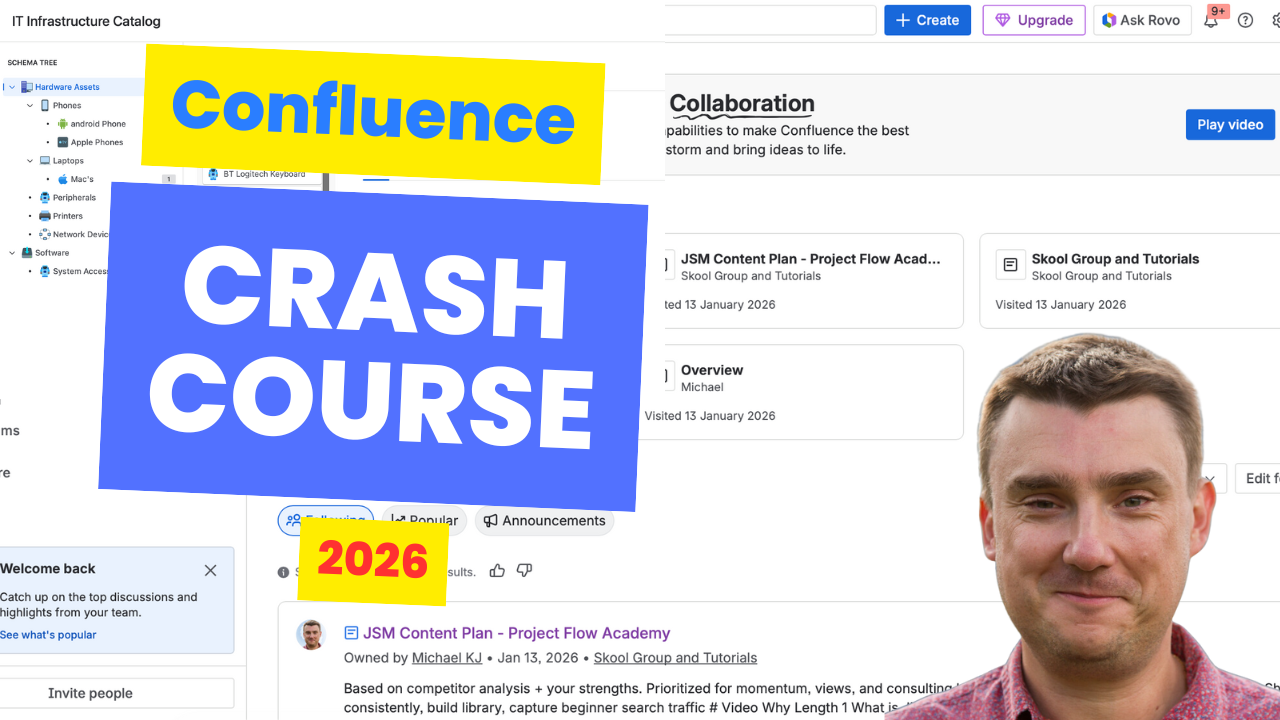
Confluence is the underdog of the Atlassian stack.
Not as much as it used to be, but there are still so many companies that don't use it. Or they have it, but barely touch it. They think of it as "just a documentation portal" - somewhere to store meeting notes and policies that nobody reads.
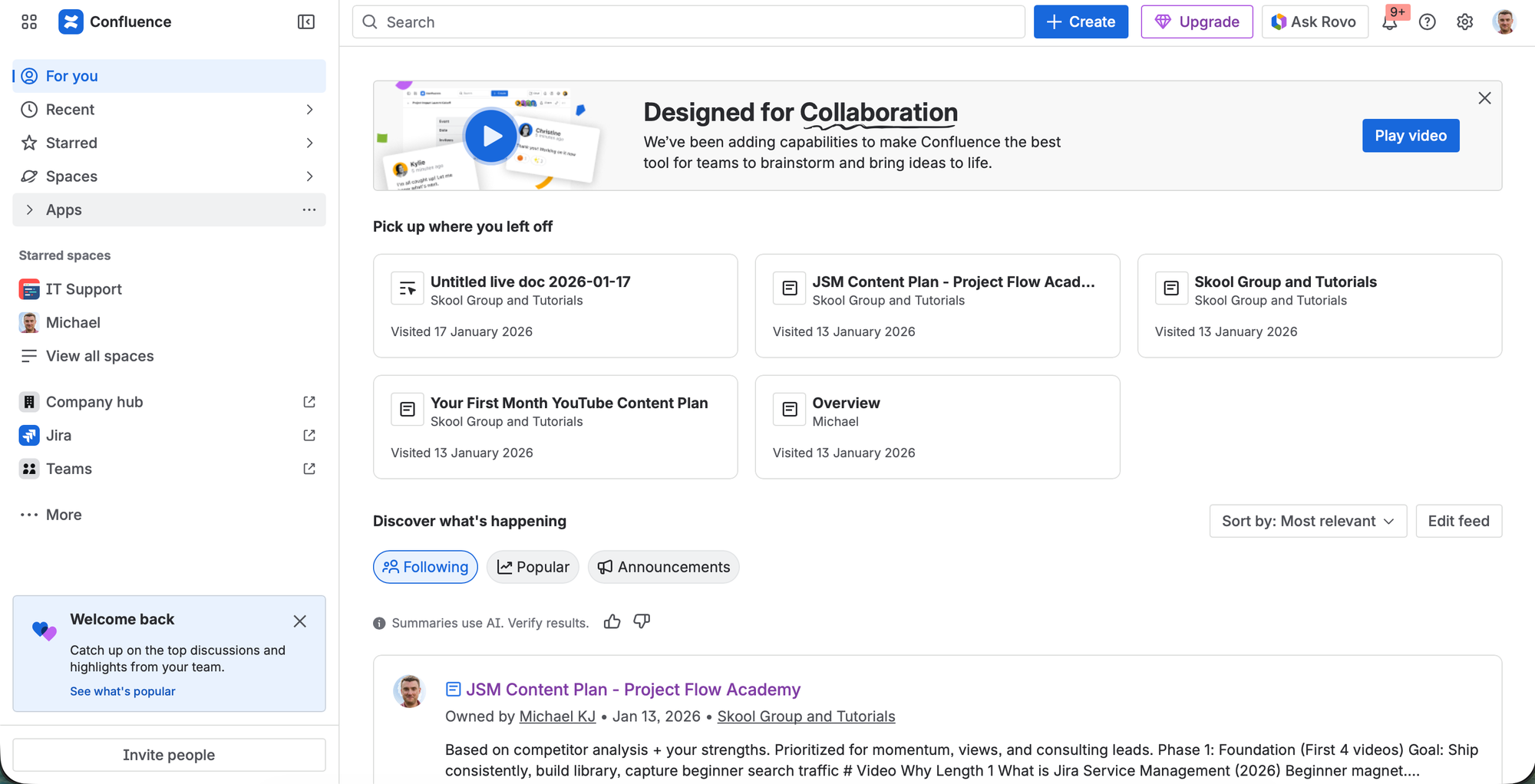
That's a massive missed opportunity.
Because here's what most teams don't realize: Confluence isn't just documentation. It's a live reporting tool that can pull data directly from Jira. I call these "dynamic reports" - pages that update themselves with real-time project data.
Imagine sending your stakeholders a link to a Confluence page instead of spending 4 hours every Friday building a PowerPoint. The page updates itself. The charts are live. The issue counts are accurate. You never manually update it again.
That's the real power of Confluence. And in this guide, I'll show you how to use it.
The Underdog Status: Why Many Teams Skip Confluence
Let's be honest about why companies avoid Confluence:
"We already have Google Docs / SharePoint / Notion"
Fair point. Those tools work. But they don't integrate with Jira. If your work lives in Jira, having documentation in a completely separate tool means constant copy-paste, outdated information, and duplicate sources of truth.
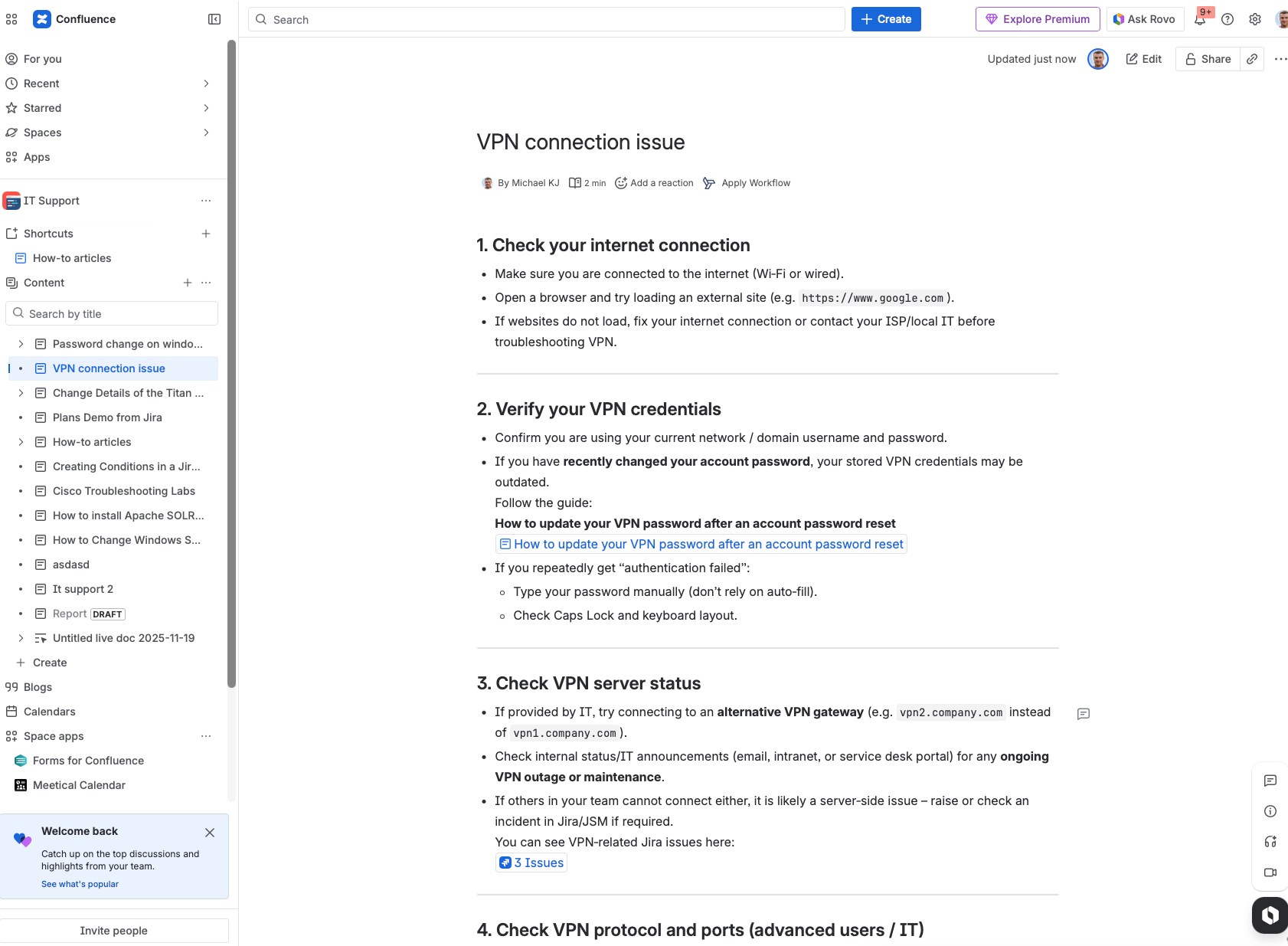
"It's another license to pay for"
True. Though Confluence has a generous free tier (up to 10 users), and Standard pricing is reasonable. More on this below.
"We tried it and it became a mess"
This one I hear a lot. Teams create spaces without structure, pages become dumping grounds, and nobody can find anything. That's a governance problem, not a Confluence problem. Same thing happens with SharePoint, Google Drive, or any documentation tool without clear structure.
"It's just for documentation"
This is the biggest misconception. Yes, Confluence handles documentation. But the Jira integration turns it into something much more powerful - a live dashboard that non-technical stakeholders can actually use.
The Pricing Reality: Do You Need Premium?
Let's talk about Confluence pricing tiers, because this is different from my advice on Jira.
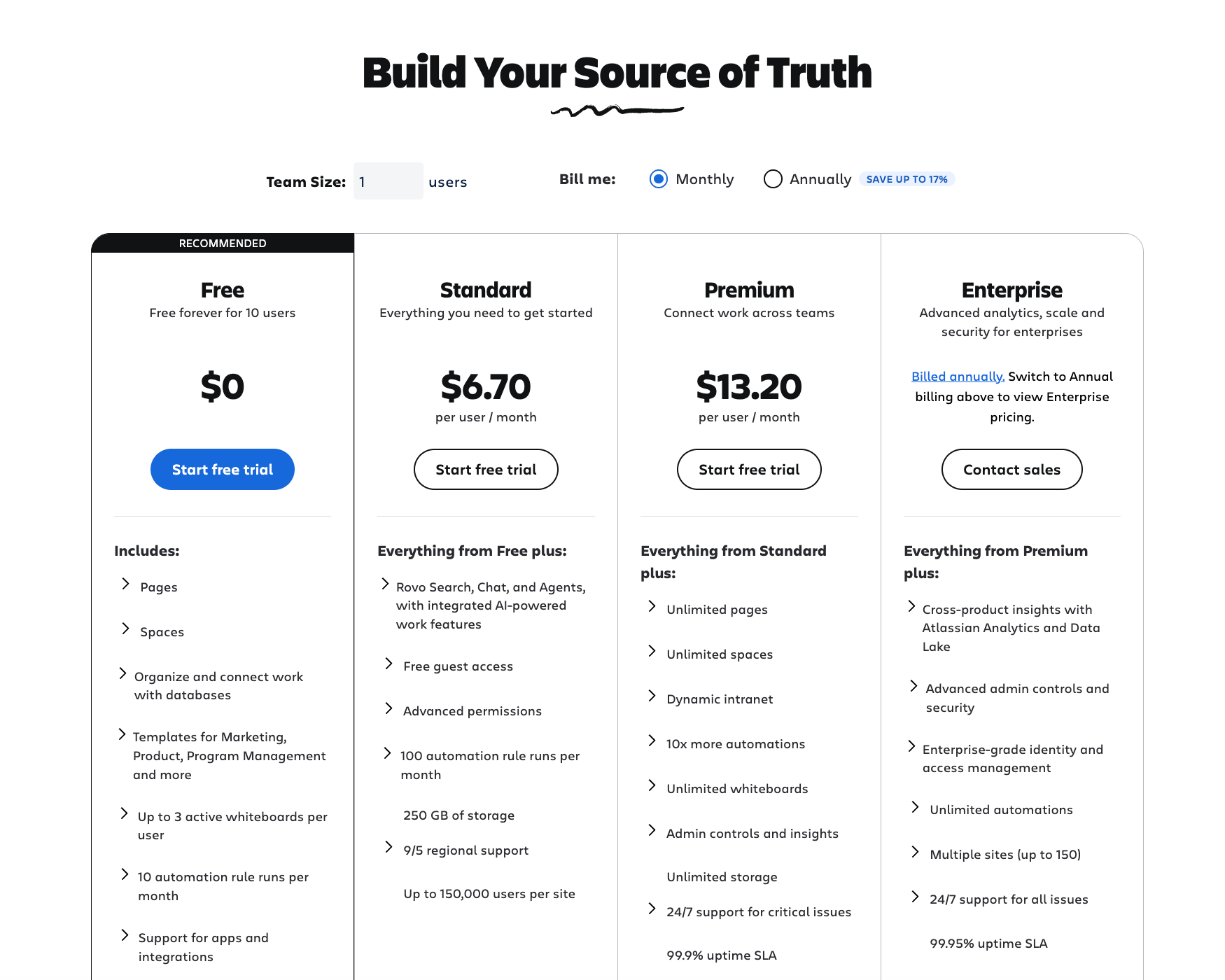
The Tiers
- Free: Up to 10 users, basic features, 2GB storage
- Standard: Unlimited users, more storage, basic permissions
- Premium: Advanced permissions, analytics, Rovo AI, workflows
My Recommendation
For Jira, I strongly recommend Premium because the AI features (Rovo) and advanced automation are genuinely valuable for day-to-day work.
For Confluence, Premium is less essential.
Here's why: The killer features of Confluence - Jira integration, Smart Links, dynamic pages, real-time collaboration - are all available in Standard and even Free.
Premium adds:
- Rovo AI for content creation
- Advanced page analytics
- Workflow approvals for pages
- Admin insights
These are nice-to-have, not must-have for most teams.
The AI Argument
"But what about AI? Don't we need Rovo?"
You can compensate for the lack of Rovo with external tools. Draft your content in ChatGPT or Claude, then paste it into Confluence. Use Gemini for summarization. The AI assistance in Confluence is convenient, but it's not a dealbreaker if you don't have it.
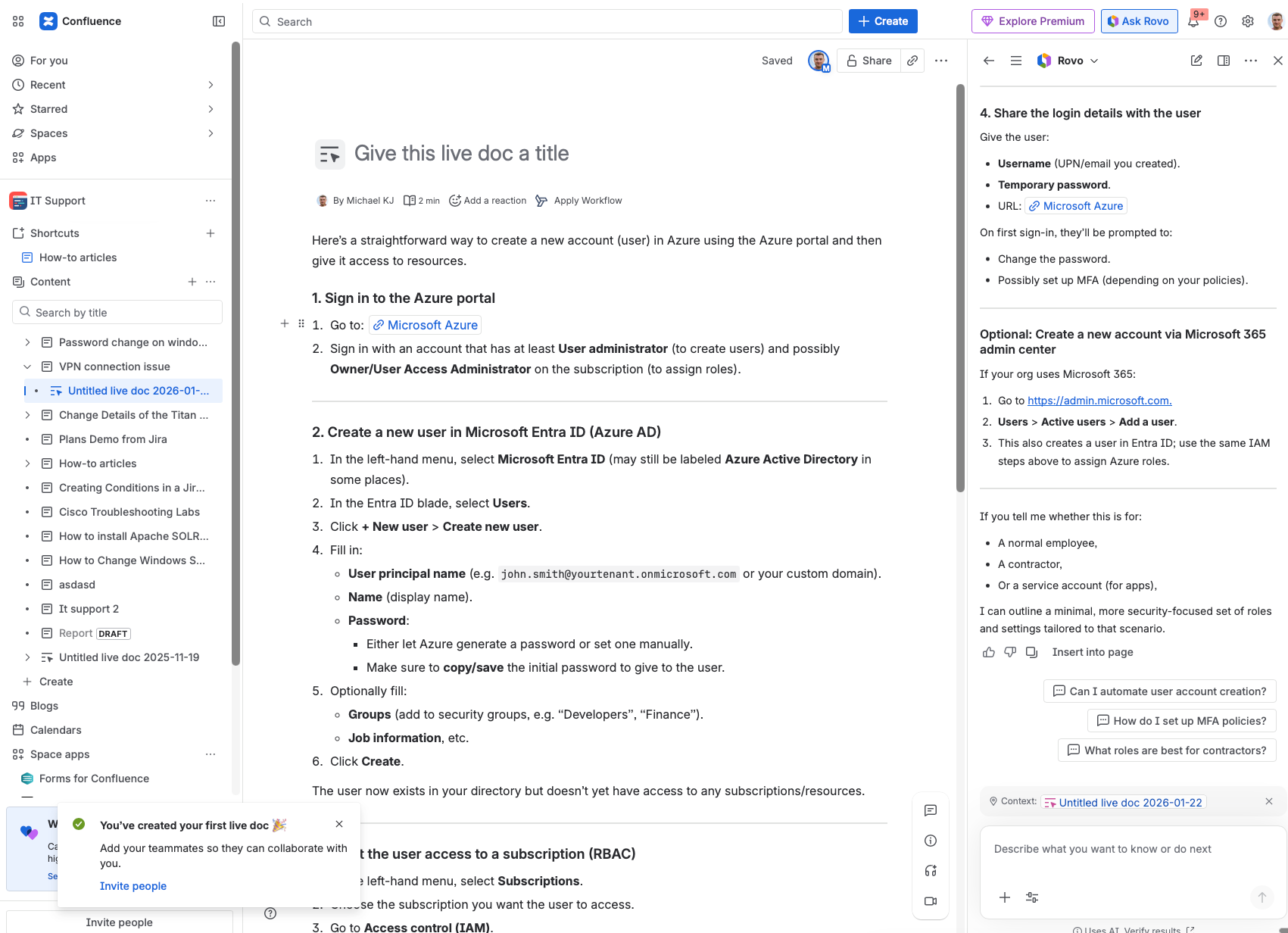
Compare this to Jira, where AI-powered JQL generation and issue suggestions are integrated into the workflow in ways that external tools can't replicate.
Bottom line: Start with Standard. Upgrade to Premium if you need the advanced workflow features or your organization mandates AI features within the Atlassian ecosystem.
The Real Value: Jira Integration and Dynamic Reports
This is what I want you to understand: Confluence's killer feature is that it's not just a documentation tool.
When integrated with Jira, Confluence becomes a live reporting platform.
What Do I Mean by "Dynamic Reports"?
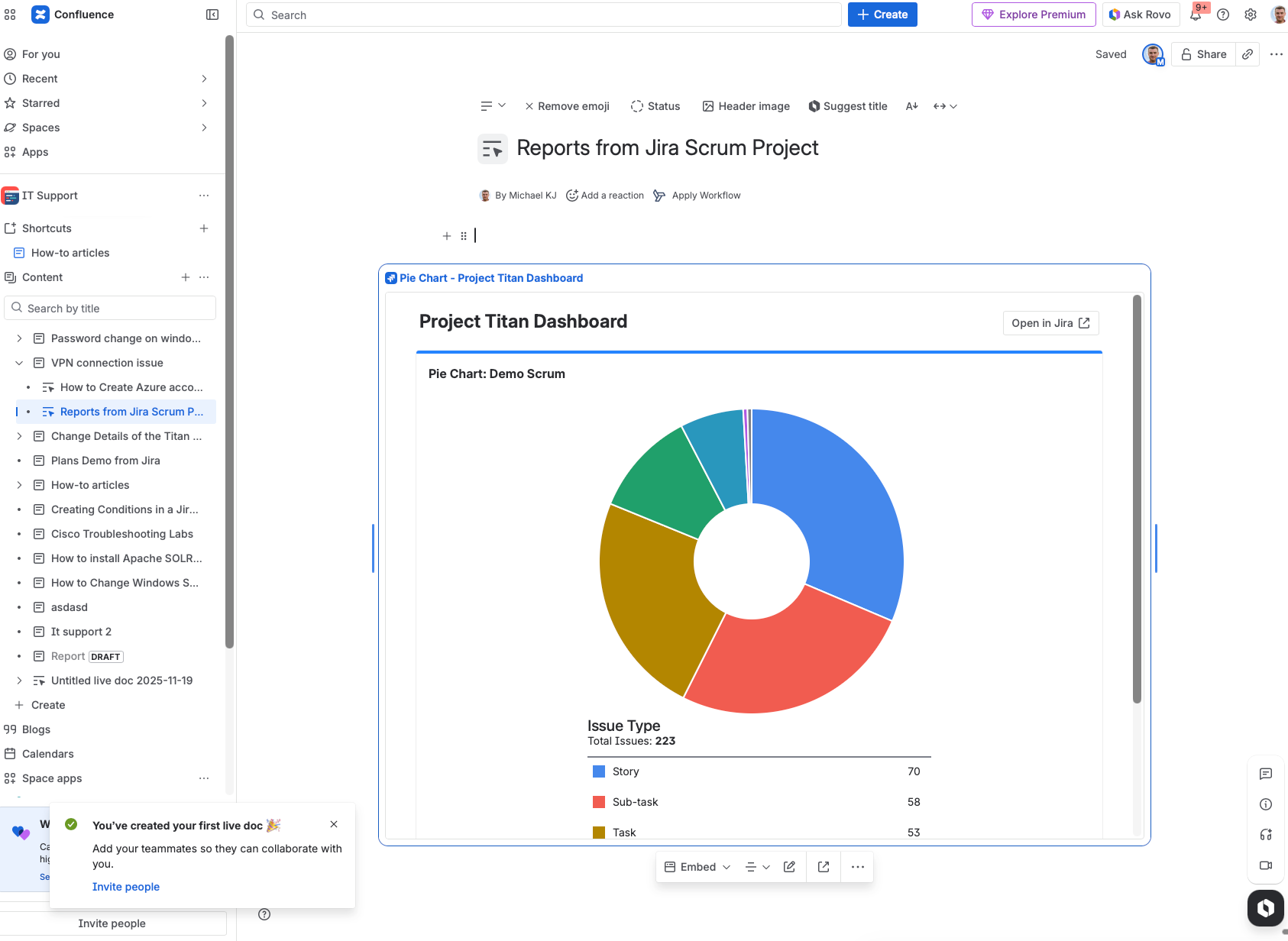
A dynamic report is a Confluence page that pulls live data from Jira. The data updates automatically. You create the page once, and it stays current forever.
Examples:
- Executive dashboard: Live project status, open issues by priority, sprint progress
- Release notes page: Automatically lists all issues completed in a release
- Stakeholder report: Charts showing progress over time, current blockers, upcoming work
- Team capacity view: Who's working on what, workload distribution
For Jira-native dashboards, see my Jira Dashboards guide - they serve different purposes.
Why This Matters
Your stakeholders don't want to log into Jira. They don't understand JQL. They don't want to click through boards and filters.
They want a clean page with the information they need. Updated automatically. No manual effort from you.
I've seen teams save 5-10 hours per week by replacing manual status reports with Confluence pages that pull from Jira.
One client replaced their weekly status meeting entirely. They now share a Confluence link. Everyone reads the live dashboard before the meeting. Meeting time dropped from 60 minutes to 15 minutes of discussion.
What Can You Pull From Jira?
Almost everything:
- Issue lists (filtered by project, status, assignee, sprint, etc.)
- Issue counts
- Charts (created vs resolved, status distribution, etc.)
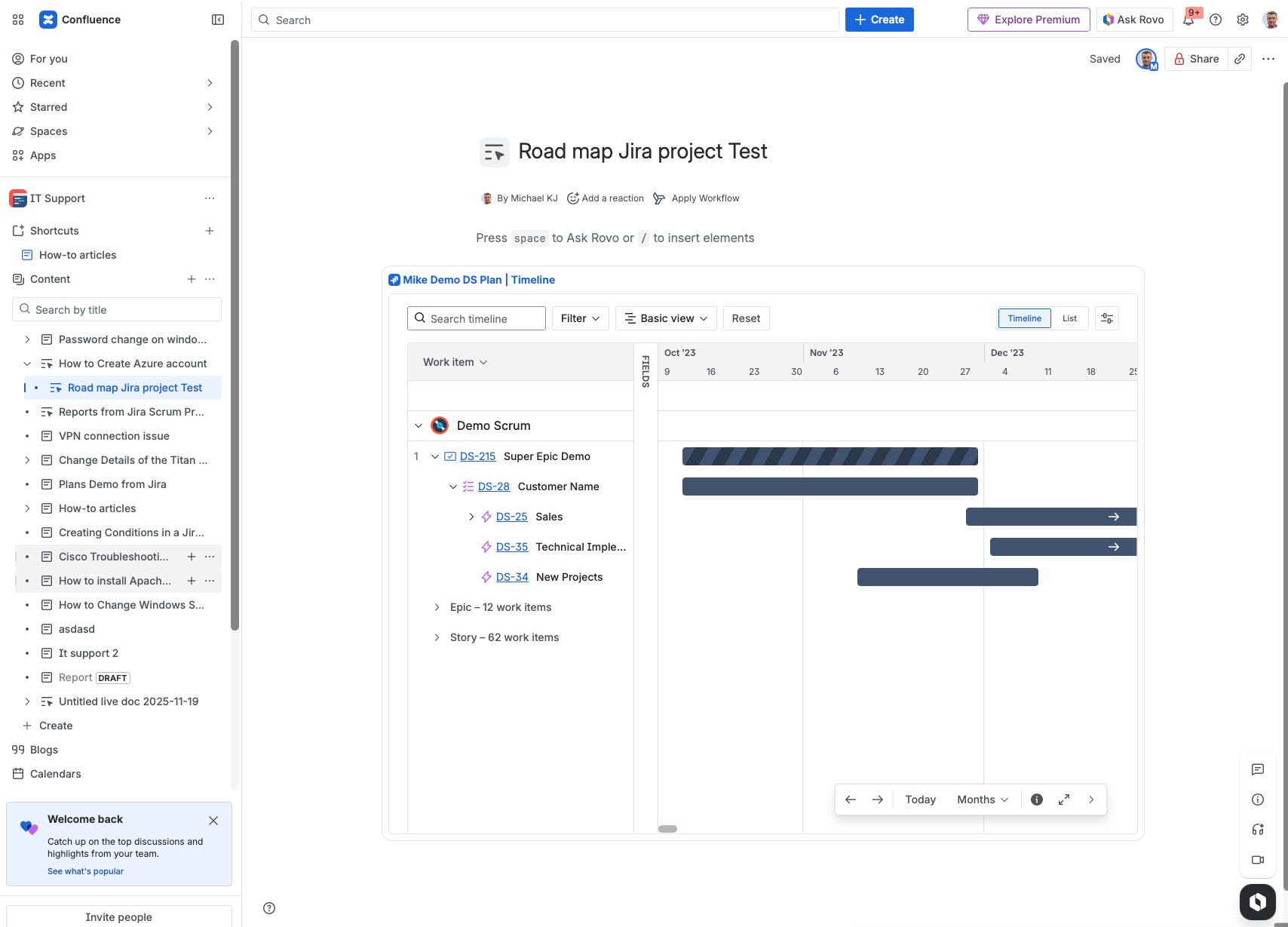
- Roadmaps and Plans (formerly Advanced Roadmaps)
- Sprint boards
- Individual issue details
If it's in Jira, you can display it in Confluence.
Getting Started: Spaces, Pages, and Structure
Let's cover the fundamentals quickly.
What is Confluence?
Confluence is a team workspace for collaboration, project management, and knowledge sharing using dynamic pages. It's a product of Atlassian and integrates deeply with Jira, JSM, and other Atlassian tools.
Using JSM? Confluence powers the Knowledge Base feature for customer self-service.
The Structure
Workspace → Spaces → Pages
- Workspace: Your entire Confluence instance
- Spaces: Containers that organize your content (think of them like folders)
- Pages: The actual documents where content lives
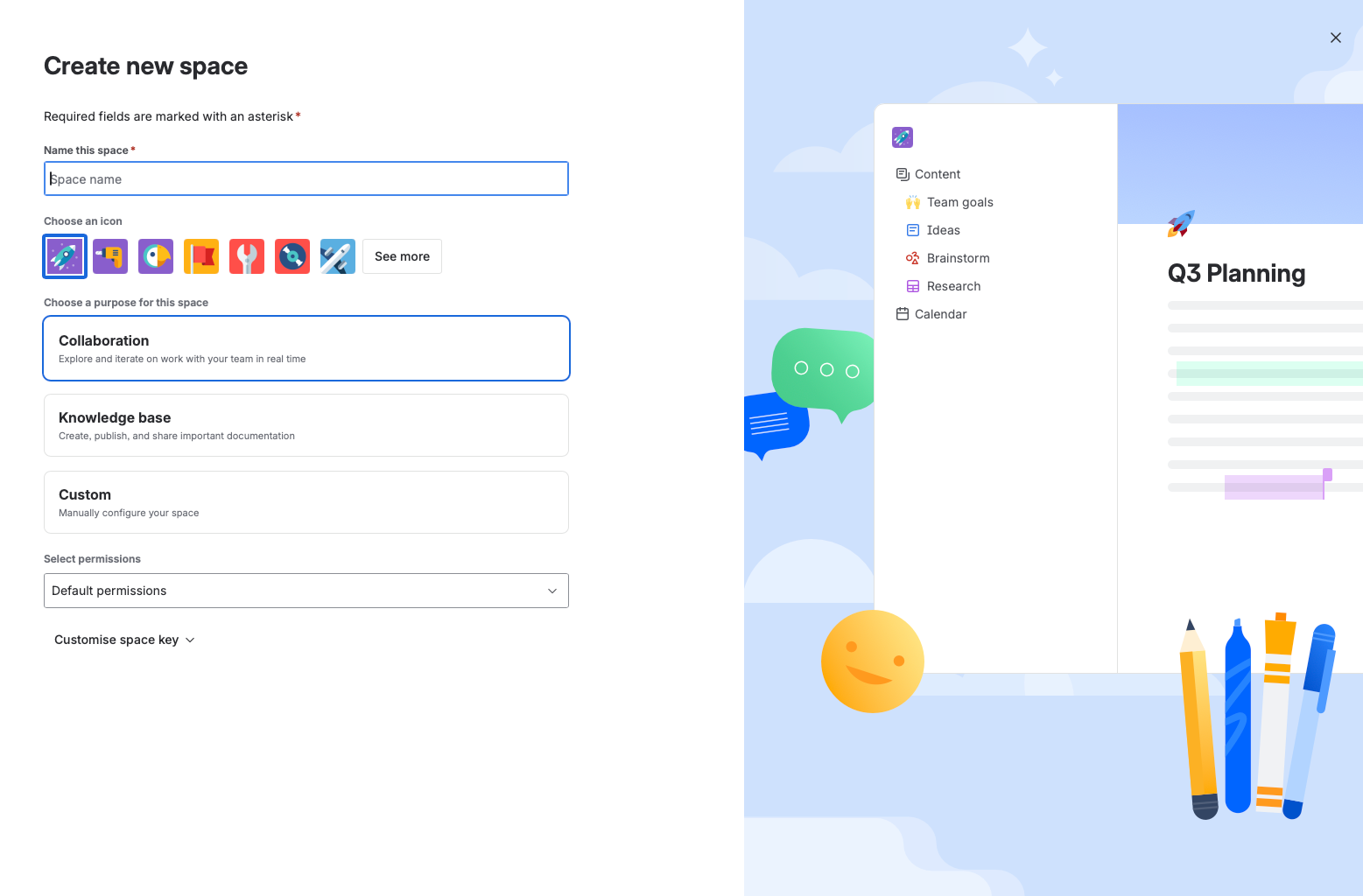
Creating a Space
- Navigate to Spaces in the left sidebar
- Click Create a space
- Choose a template or start blank
- Name your space and set permissions
- Add a description and customize the header
Space tips:
- One space per project or team is usually right
- Don't create spaces for individual people
- Use clear naming conventions
- Set permissions intentionally (default is often too open)
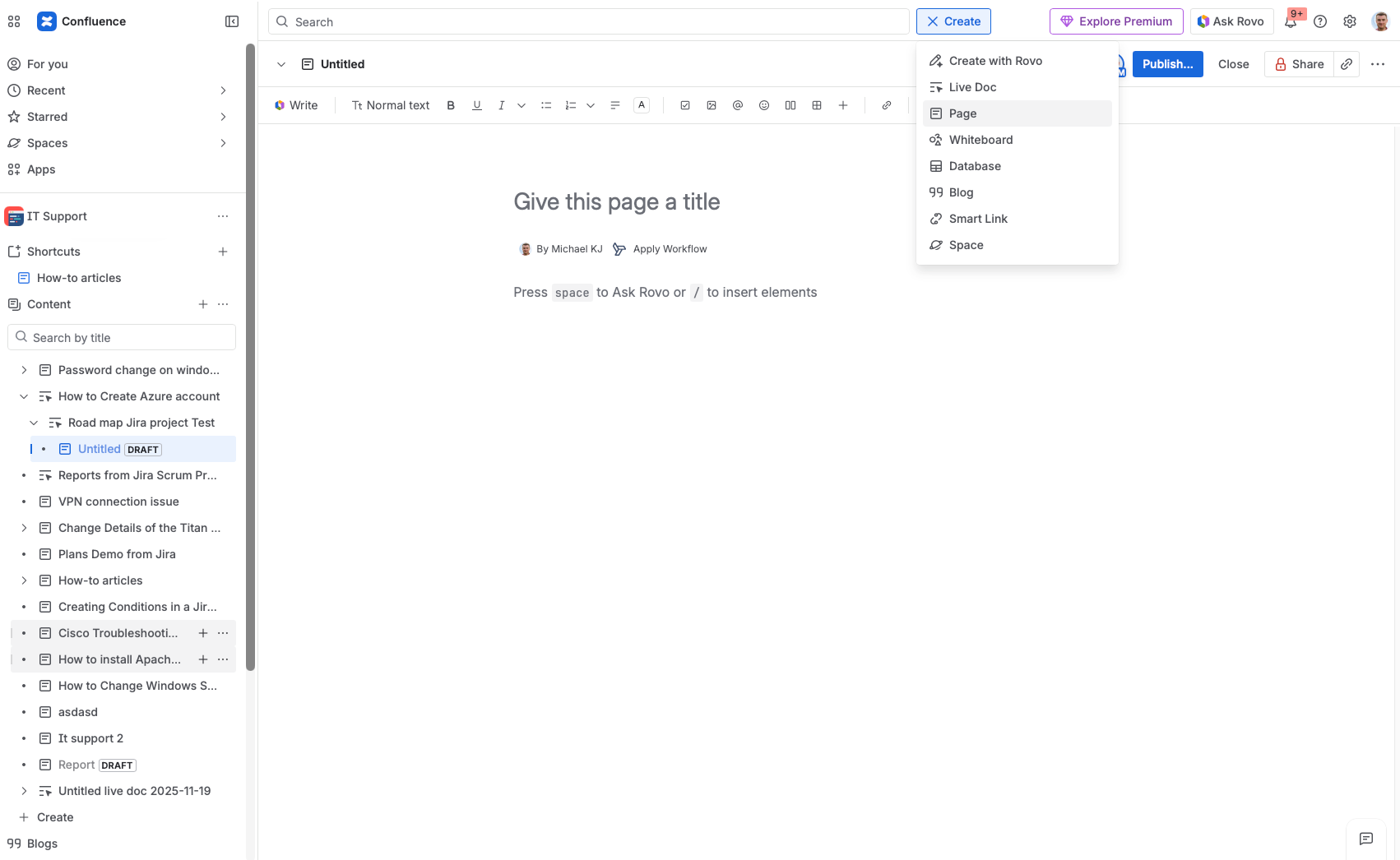
Creating Pages
- Navigate to your space
- Click Create → Page
- Name your page
- Use the
/command to add content (more on this below) - Publish when ready
Page tips:
- Use page hierarchy (parent/child pages) to organize content
- The page tree on the left becomes your navigation
- Don't create deeply nested hierarchies - 3 levels max
- Use templates for common page types
Templates and Blueprints
Confluence comes with dozens of templates:
- Project plans
- Meeting notes
- Decision logs
- Retrospectives
- Product requirements
- Content strategy
Navigate to Templates to browse them. Start with templates to understand how pages should be structured.
Live Docs: The Google Docs-Style Future
Atlassian recently introduced Live Docs, and I think this is a glimpse of Confluence's future.
What's Different About Live Docs?
Traditional Confluence pages work like this:
- Click "Edit"
- Make changes
- Click "Publish" (or "Update")
- Others see your changes
Live Docs work like Google Docs:
- Open the document
- Start typing
- Changes save automatically
- Everyone sees changes in real-time
No save button. No publish button. Just... work.
Why I Love This
The publish/update workflow creates friction. You forget to publish. You lose work because you didn't save. Collaborators are editing an old version.
Live Docs eliminates all of that. Open it, type, done. Multiple people can edit simultaneously with real-time cursors showing who's where.
My Prediction
This is speculation, but I think Atlassian will eventually make Live Docs the default. The traditional publish model will be phased out. It's more modern, more intuitive, and matches how people expect collaborative documents to work in 2026.
For now, you can choose: Create a traditional Page or a Live Doc. Try Live Docs for collaborative documents where multiple people need to contribute. Use traditional pages when you want the explicit "publish" control.
Dynamic Content: Macros That Matter
Macros are the building blocks of dynamic pages. Type / in any page to see the available macros.
Essential Macros for Everyone
Layouts: Structure your page into columns
- Two columns, three columns, or asymmetric layouts
- Great for dashboards with multiple data sources
Tables: Self-explanatory, but powerful
- Add colors, formatting, merge cells
- Can include status indicators and dates
Action items: Task lists with assignees and due dates
- Check off items as you complete them
- Tagged users get notifications
Info panels: Callout boxes for important information
- Info (blue), warning (yellow), error (red), success (green)
- Draw attention to key content
Table of contents: Auto-generated from your headings
- Essential for long pages
- Updates automatically as you add sections
Jira-Specific Macros (The Power Moves)
Jira Issues macro: Display a list of issues
- Filter by JQL, project, status, assignee, etc.
- Choose which columns to display
- Automatically updates as issues change
Example: Show all open bugs assigned to my team
project = MYPROJECT AND type = Bug AND resolution = Unresolved ORDER BY priority DESC
Jira Chart macro: Visualize Jira data
- Created vs Resolved over time
- Two-dimensional (status by assignee, etc.)
- Pie charts, bar charts, line charts
Jira Roadmap macro: Embed your roadmap
- Shows Plans (Advanced Roadmaps) data
- Live updates as the roadmap changes
- Perfect for stakeholder visibility
Single issue macro: Embed one issue with details
- Shows status, assignee, priority
- Great for linking to specific work items
AI Macros (Premium Only)
If you have Confluence Premium:
- AI summarize: Summarize long content
- AI rewrite: Improve writing, fix grammar, change tone
- AI generate: Create content from prompts
Remember: You can get similar results by using external AI tools and pasting the output.
Smart Links: Copy, Paste, Done
Smart Links (formerly called "magic links") are one of Confluence's most underrated features.
How They Work
- Copy a URL from Jira (or other supported tools)
- Paste it into Confluence
- Confluence automatically converts it to a rich preview
That's it. No configuring macros. No hunting for the right integration. Copy. Paste. Done.
What You Can Smart Link
From Jira:
- Individual issues → Shows issue key, summary, status, assignee
- Boards → Embeds the board view
- Filters → Shows the filtered issue list
- Dashboards → Embeds dashboard gadgets
- Plans/Roadmaps → Shows the roadmap view
From Other Tools:
- Google Docs, Sheets, Slides
- YouTube videos
- Figma designs
- Loom videos
- Trello boards
- And many more
Why This Matters
Smart Links make it trivially easy to create connected documentation.
Writing a project brief? Paste the Jira project link. It shows live status.
Creating release notes? Paste the filter for completed issues. The list updates automatically.
Building a design spec? Paste the Figma link. Viewers see the current design without leaving Confluence.
This is the "dynamic" part of dynamic reports. Paste links, and your page stays current.
Building Your First Dynamic Report
Let's build a stakeholder status report that updates itself.
Step 1: Create the Page
- Create a new page in your project space
- Name it "Project Status - [Project Name]"
- Add a header image if you want (optional polish)
Step 2: Add the Overview Section
Use a two-column layout:
Left column: Key metrics
- Use the Jira Issues macro with
countdisplay - Show: Total issues, Open issues, Completed this week, Blocked items
Right column: Quick status
- Manual summary (this is where you add your commentary)
- Overall RAG status (Red/Amber/Green) - this is the human judgment part
Step 3: Add the Progress Section
Jira Chart macro: Created vs Resolved over last 30 days
- Shows if you're making progress or falling behind
- Visual and easy for stakeholders to understand
Jira Issues macro: Recently completed
- Filter:
resolved >= -7d ORDER BY resolved DESC - Shows what got done this week
Step 4: Add the Current Work Section
Jira Issues macro: In Progress
- Filter:
status = "In Progress" ORDER BY priority DESC - Shows what's being worked on right now
Jira Issues macro: Blocked items
- Filter:
status = Blocked OR labels = blocked - Highlights items needing attention
Step 5: Add the Upcoming Section
Jira Issues macro: Coming next
- Filter:
status = "To Do" AND sprint in openSprints() ORDER BY rank - Shows what's planned for this sprint
Step 6: Add Your Commentary
This is crucial. The data updates automatically, but stakeholders want context:
- What's going well?
- What are the risks?
- Any decisions needed?
- Timeline changes?
Update this section weekly (or whatever cadence makes sense). The Jira data handles the "what" - you provide the "so what."
Step 7: Share the Link
Instead of emailing a report, share the Confluence page link.
Set up page watching so stakeholders get notified when you update the commentary section. Or set up a recurring calendar reminder for them to check the page.
Real-Time Collaboration: The Hidden Power Feature
Confluence's collaboration features are excellent and often overlooked.
Inline Comments
Highlight any text and add a comment. This creates a discussion thread attached to that specific content.
Use cases:
- Asking for clarification on a specific section
- Suggesting edits without making them
- Flagging items that need review
Inline comments are visible only when you click on the highlighted text - they don't clutter the page.
@Mentions
Type @ followed by a name to mention someone. They'll get a notification.
Use this to:
- Assign action items
- Ask for input from specific people
- Draw attention to updates
Page Watching
Click the eye icon to watch a page. You'll get notified when:
- The page is edited
- Someone comments
- The page is moved or renamed
Encourage stakeholders to watch important pages instead of asking you for updates.
Real-Time Editing (Live Docs)
With Live Docs (or when multiple people are editing a traditional page), you see:
- Who's currently on the page
- Where their cursor is
- Changes as they happen
This makes collaborative editing actually collaborative, not a merge nightmare.
Version History
Every change is tracked. Click the "..." menu and select "Page history" to:
- See all previous versions
- Compare versions side by side
- Restore an old version if needed
This is your safety net. You can't accidentally destroy content.
Common Mistakes and How to Avoid Them
Mistake 1: No Space Structure
The problem: Create a space, dump pages in it randomly, can't find anything.
The fix: Plan your space structure before creating pages. Create a clear hierarchy. Use parent/child pages. Add a homepage that explains what's in the space and links to key pages.
Mistake 2: Treating It Like a File System
The problem: Creating deeply nested folders (spaces) for everything. "Marketing > Campaigns > 2026 > Q1 > January > Week 2"
The fix: Spaces are not folders. Use fewer spaces with more pages. Use page hierarchy within spaces. Search is your friend - make pages findable through good naming and labels.
Mistake 3: Never Updating Content
The problem: Pages created once and never touched again. Information becomes stale and untrustworthy.
The fix: Use dynamic content (Jira macros, Smart Links) so data updates automatically. For manual content, set review dates. Archive or delete outdated pages.
Mistake 4: Ignoring Permissions
The problem: Everything is visible to everyone. Sensitive information exposed. Or the opposite - everything is locked down and nobody can find anything.
The fix: Think about permissions when creating spaces. Use space permissions for broad access control. Use page restrictions for sensitive individual pages.
Mistake 5: Not Using Templates
The problem: Every meeting notes page looks different. Every project page has a different structure. Inconsistency creates confusion.
The fix: Create templates for common page types. Encourage (or require) their use. Consistency makes content easier to create and consume.
Consultant Insights
A few closing thoughts from years of Confluence implementations:
"Confluence is the glue that makes Jira data accessible to non-Jira users." Your developers live in Jira. Your stakeholders don't. Confluence bridges that gap with live dashboards they can actually read.
"I've seen teams waste hours creating PowerPoint reports when a Confluence page with Jira macros updates itself." The ROI on setting up dynamic reports is immediate. Spend an hour building the page, save hours every week forever.
"The dynamic report approach saves my clients 5-10 hours per week on status reporting." This isn't exaggeration. Manual report creation is a massive time sink that most teams don't realize they're paying for.
"Start with the Jira integration. That's the hook." If you're trying to get your team to adopt Confluence, start with the value they can't get anywhere else - live Jira data in a readable format.
What's Next?
If you're not using Confluence, start small:
- Create one project space
- Build one dynamic status report using Jira macros
- Share it with your stakeholders
- Watch their reaction when they realize it updates automatically
That reaction - the "wait, this updates itself?" moment - is what sells Confluence to teams.
If you're already using Confluence but not using the Jira integration, go deeper:
- Replace your manual status reports with Confluence pages
- Create a stakeholder dashboard using Smart Links and Jira macros
- Set up templates for repeatable reports
The tool is powerful. Most teams just aren't using it.
Need help setting up Confluence for your team?
- 2-hour Confluence audit: I'll review your current setup and give you a prioritized improvement plan
- Knowledge base setup sprint: 3-day intensive to build your space structure, templates, and dynamic reports -
Need hands-on help? Book a strategy call and I'll help structure your spaces.