Clone Expert for Jira: From Hours to Seconds (Save 3-4 Hours Weekly)


Sponsored by Vilisoft
Real client scenario:
"Mike, we clone the same epic structure every sprint. 50 issues. Different assignees, dates, priorities. Takes us 2-3 hours of manual work every two weeks."
My response:
"What if I told you that could be 2 minutes instead?"
Their reaction:
"No way. Show me."
I showed them Clone Expert for Jira. They now save 3-4 hours per week. Every week.
Let me show you why this is the best epic cloning tool on the market.
The Problem: Cloning Epics in Jira Is Painful
Let's be honest about how we use epics:
The theory: Epics are large user stories in Agile methodology.
The reality: We use them to group issues into sprint cycles, project phases, or recurring workflows.
Clone Expert respects your workflow configurations.
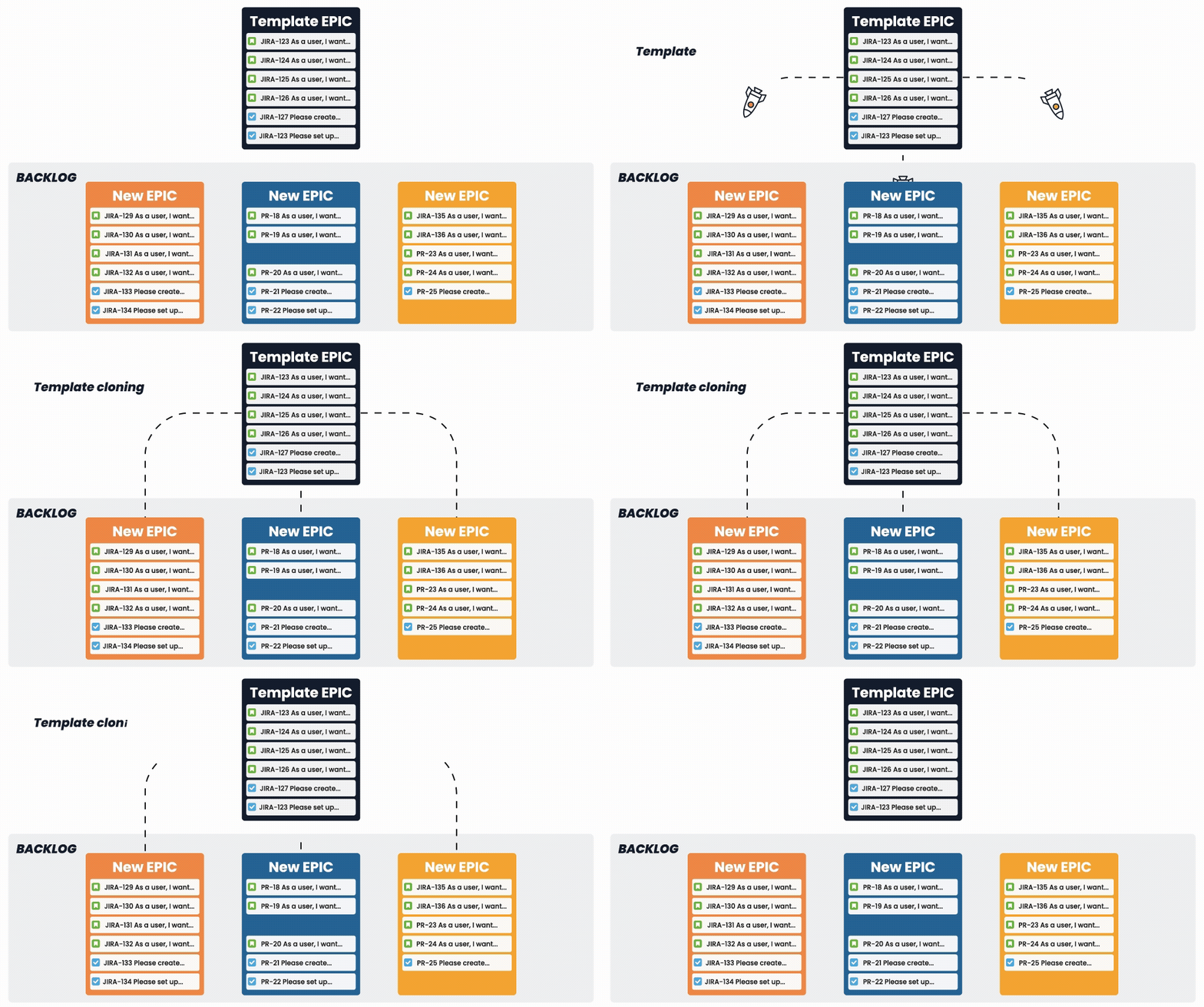
Common scenario:
You have an epic with 50 issues. Every sprint (or every 2-4 weeks), you need to repeat that structure:
- Same epic
- Same issue types
- Same workflow
- Different dates
- Different assignees
- Different priorities
Manual cloning process:
- Clone epic (Jira does this)
- Manually clone 50 issues (one by one)
- Update dates on each issue
- Change assignees
- Adjust priorities
- Update custom fields
- Re-link issues to new epic
- Fix broken links
- Update components
- Repeat forever
Time required: 2-3 hours
Frequency: Every sprint (bi-weekly)
Annual waste: 50-75 hours per year
That's almost 2 full work weeks wasted on repetitive cloning.
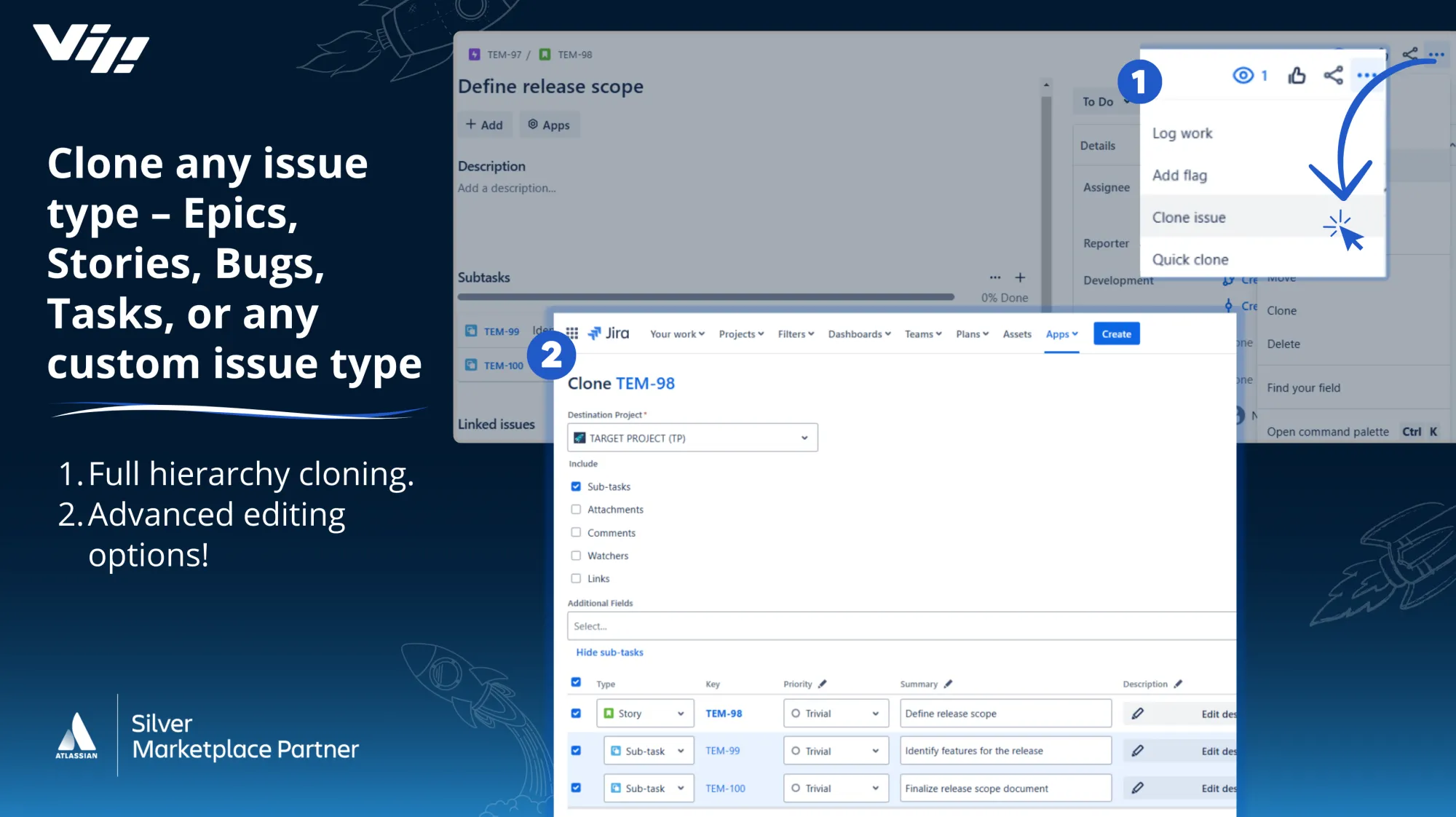
The Solution: Clone Expert for Jira
What is Clone Expert?
A Jira plugin (Cloud + Data Center) that clones epics WITH all child issues in one operation.
The process with Clone Expert:
- Open epic
- Click "Clone Template"
- Select which issues to clone
- Bulk update fields (dates, assignees, priorities)
- Click "Clone"
- Done
Time required: 2 minutes
Time saved: 2-3 hours → 2 minutes = 98% faster
That's 3-4 hours saved per week for most teams.
Why Clone Expert Is the Best on the Market
I've tested every epic cloning solution. Clone Expert wins. Here's why:

Feature #1: True Bulk Cloning
Other tools:
- Clone epic ✅
- Clone issues one-by-one ❌
- Manual updates ❌
Clone Expert:
- Clone epic ✅
- Clone ALL issues simultaneously ✅
- Bulk field updates ✅
- Maintains relationships ✅
In one operation.
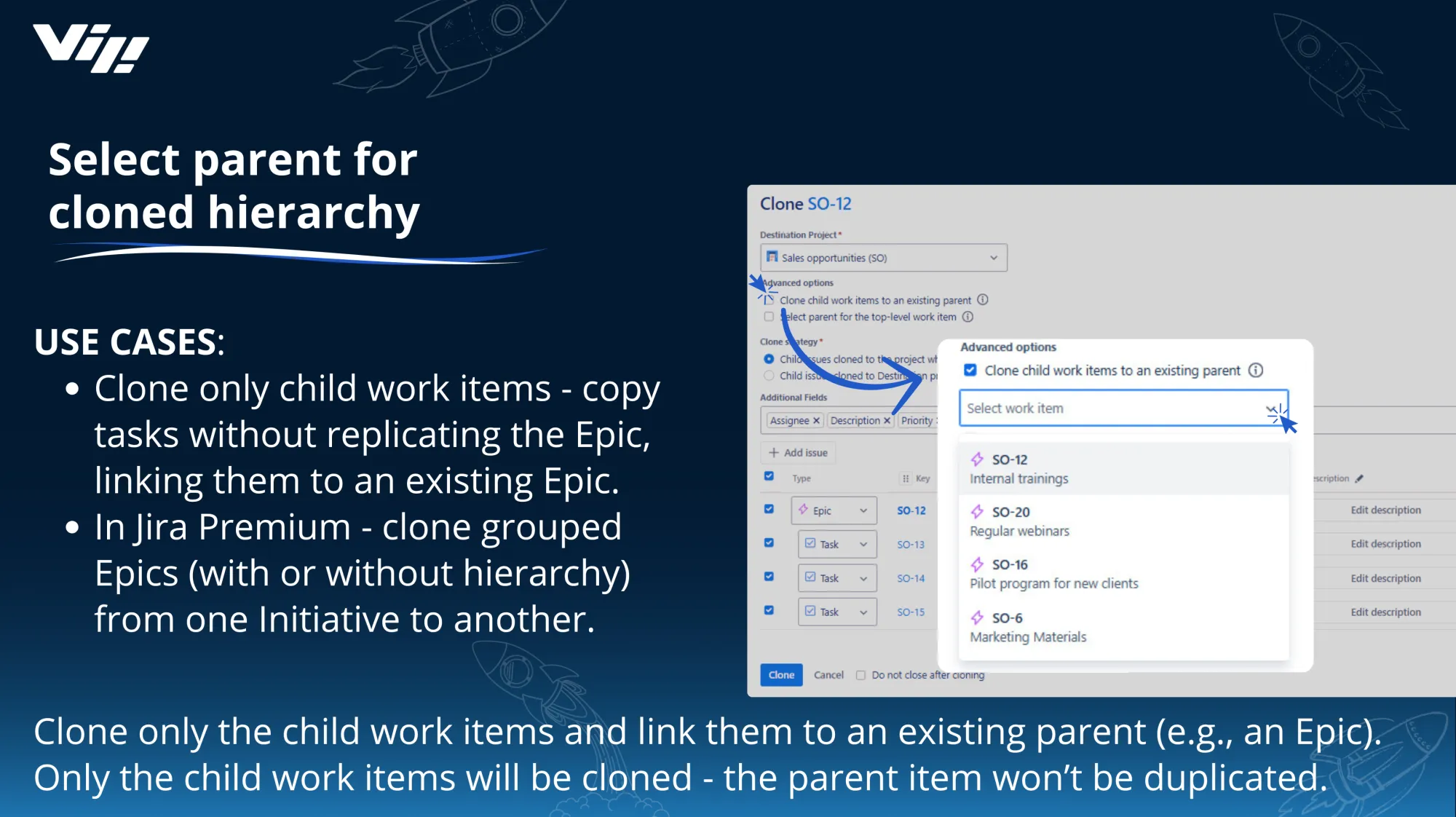
Feature #2: Selective Cloning
You don't always want to clone everything.
Clone Expert lets you:
- Select which issues to clone (checkboxes)
- Clone some, skip others
- Mix and match
Example:
Epic has 50 issues. You only need 30 for next sprint.
With Clone Expert:
- Uncheck 20 issues
- Clone remaining 30
- Done
Without: Clone all 50, manually delete 20. (More work)
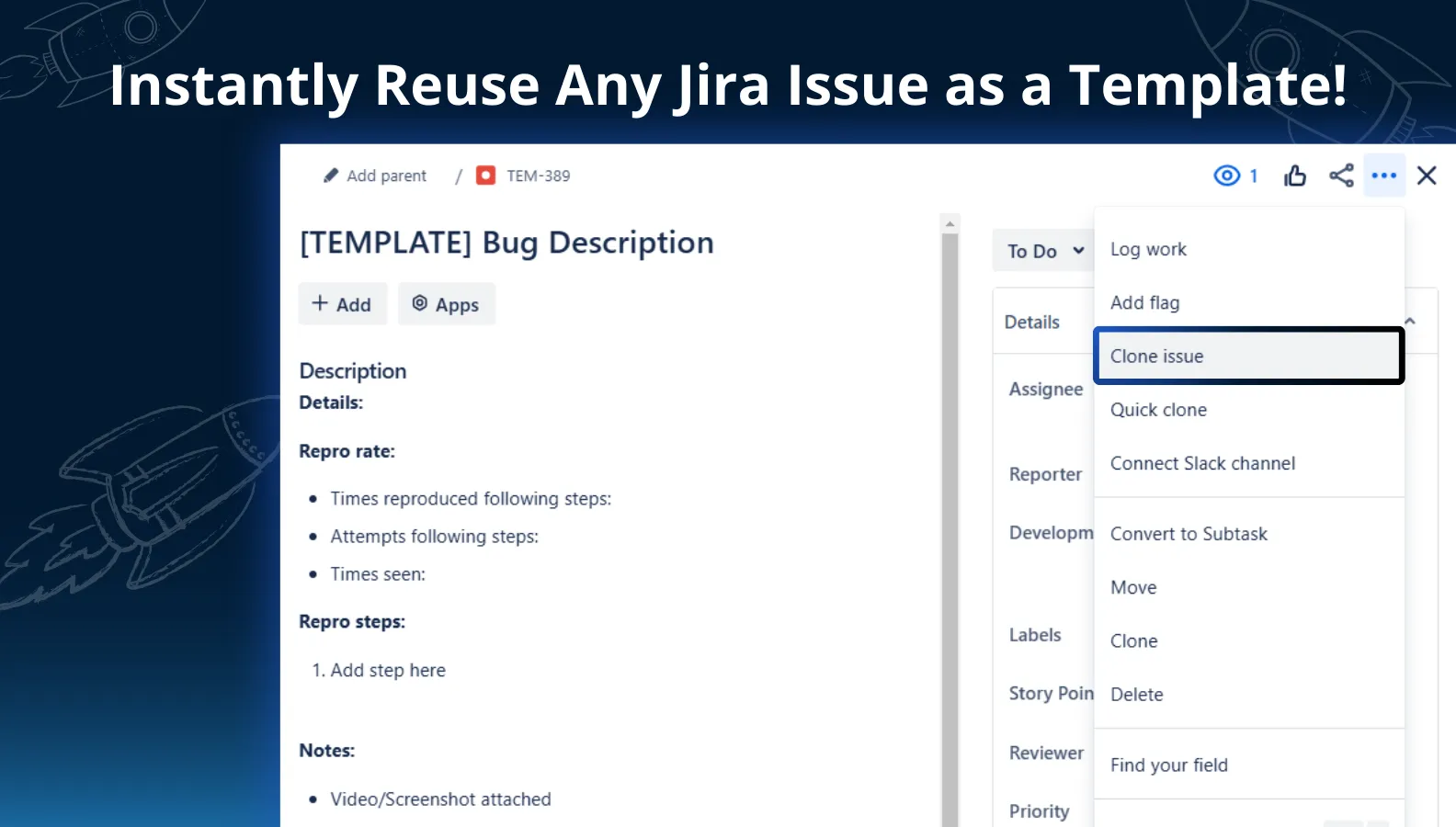
Feature #3: Bulk Field Updates
This is the game-changer.
Scenario: Cloning 50 issues for next sprint. All need:
- Priority: High
- Assignee: New team member
- Component: Backend
- Due Date: 2 weeks from now
Manual process: Update 50 issues individually (30+ minutes)
Clone Expert: Select all 50, set values once, apply to all (30 seconds)
Fields you can bulk update:
- Summary (prefix/suffix)
- Description
- Assignee
- Priority
- Due Date
- Labels
- Components
- Fix Version
- Custom fields
- And more
Set once, apply to all selected issues.
Feature #4: Smart Placeholders
This is where Clone Expert becomes magical.
Placeholders = Smart values for fields
Available placeholders:
{project.key}- Project key (e.g., "DS"){project.name}- Project name (e.g., "Demo Scrum"){parent.key}- Epic key{parent.summary}- Epic summary{current.date}- Today's date{current.time}- Current time{current.user.name}- Your username{issue.key}- Original issue key
Example use cases:
Use Case 1: Add project name to summaries
Original issues:
- "Design homepage"
- "Build API"
- "Write tests"
With placeholder {project.name} - as prefix:
- "Demo Scrum - Design homepage"
- "Demo Scrum - Build API"
- "Demo Scrum - Write tests"
One click. All issues updated.
Use Case 2: Add sprint identifier to descriptions
Add to description: Cloned from {parent.key} on {current.date}
Every cloned issue gets: "Cloned from DS-26 on 2026-01-15"
Automatic documentation.
Use Case 3: Version tracking in summaries
Epic name: "Blog Section Update - Version 7"
Add - Sprint {current.date} to summaries
Result:
- "Build feature X - Sprint 2026-01-15"
- "Test feature Y - Sprint 2026-01-15"
No manual date entry needed.
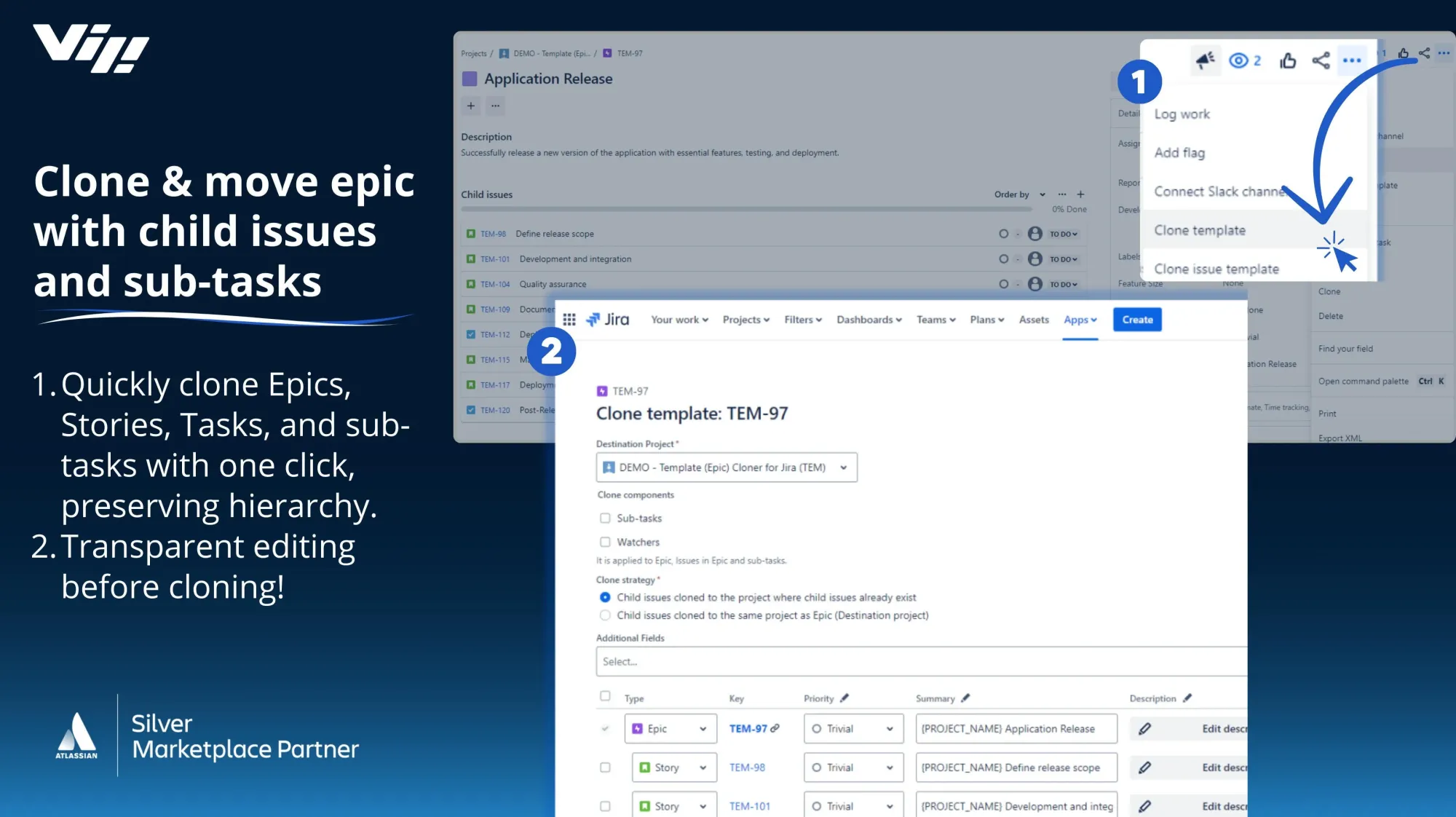
Feature #5: Cross-Project Cloning
Clone epic to different project.
Scenario: Template epic in "Templates" project. Clone to active projects regularly.
Clone Expert:
- Open template epic
- Clone to "Project A"
- Issues created in Project A
- Maintain all configurations
Use cases:
- Template library (one place for all templates)
- Client onboarding (same process, different projects)
- Department workflows (HR, IT, Finance templates)
Perfect for repeatable processes like employee onboarding.
Feature #6: Subtask Support
Clone issues WITH subtasks.
Scenario: Each issue has 3 subtasks. 50 issues = 150 subtasks.
Manual cloning: Clone 50 issues, manually create 150 subtasks
Clone Expert: Check "Include subtasks" option. Done.
All subtasks cloned, linked correctly, ready to use.
Feature #7: Preserve Links
Issue links matter.
Types of links Clone Expert preserves:
- "Blocks" relationships
- "Relates to" connections
- "Duplicates" links
- Custom link types
Options:
- Clone links to new issues
- Maintain original links
- Clone links to existing issues in target project
Your workflow relationships stay intact.
Feature #8: Comments & Attachments
Clone with or without history.
Options:
- Clone comments
- Clone attachments
- Clone both
- Clone neither
Use case: Template epics with instructions in comments.
Clone with comments: New team sees instructions automatically.
Feature #9: Speed
I tested this with 250 issues.
Clone Expert cloned all 250 in under 60 seconds.
That's 4+ issues per second.
Jira's native clone: Would take 30+ minutes (clone each issue individually)
The difference is absurd.
Real Client Success Story
Company: SaaS startup, 30 developers, 2-week sprints

Challenge: Every sprint, clone "Sprint Template" epic with 45 standard issues (tasks, bugs, stories, subtasks).
Manual process:
- Product Manager: 2.5 hours every sprint
- Mistakes: Forgot to update dates, wrong assignees, missing links
- Frustration: High
- Cost: $100+/sprint in wasted salary
After Clone Expert:
Process:
- Open Sprint Template epic
- Click "Clone Template"
- Update epic name: "Sprint 23"
- Select all 45 issues
- Bulk update:
- Due dates: +14 days
- Assignees: Current sprint team
- Priority: Default to Medium
- Component: Current focus area
- Click "Clone"
- Wait 15 seconds
- Done
Time: 2 minutes
Savings: 2.5 hours → 2 minutes = 2.47 hours saved per sprint
Annual savings: 2.47 hours × 26 sprints = 64 hours = 1.6 work weeks
ROI: Clone Expert pays for itself in first sprint.
Bonus benefits:
- No mistakes (bulk updates prevent errors)
- Consistent structure (template ensures nothing missed)
- Team confidence (Product Manager loves it)
They now save 3-4 hours per week because they clone multiple epics (sprint planning, release planning, client onboarding).
Step-by-Step: How to Use Clone Expert
Let me walk you through the exact process.
Step 1: Install Clone Expert
From Atlassian Marketplace:
- Go to Marketplace
- Search: "Clone Expert for Jira"
- Click Try it Free (30-day trial)
- Approve installation
From Jira:
- Settings → Apps → Find new apps
- Search: "Clone Expert for Jira"
- Click Try it Free
- Wait 30 seconds
- Plugin ready
Works on:
- ✅ Jira Cloud
- ✅ Jira Data Center
- ✅ Jira Server (legacy)
No configuration needed. Instant use after installation.
Step 2: Open Your Epic
Navigate to the epic you want to clone.
My recommendation: Open in full-screen mode
- Click epic key to open
- This gives you clean, focused view
Example: Epic "DS-26: Blog Section Update - Version 6"
Step 3: Click "Clone Template"
Find the action menu (three dots, top right)
Click: Clone Template
Clone Expert dialog opens.
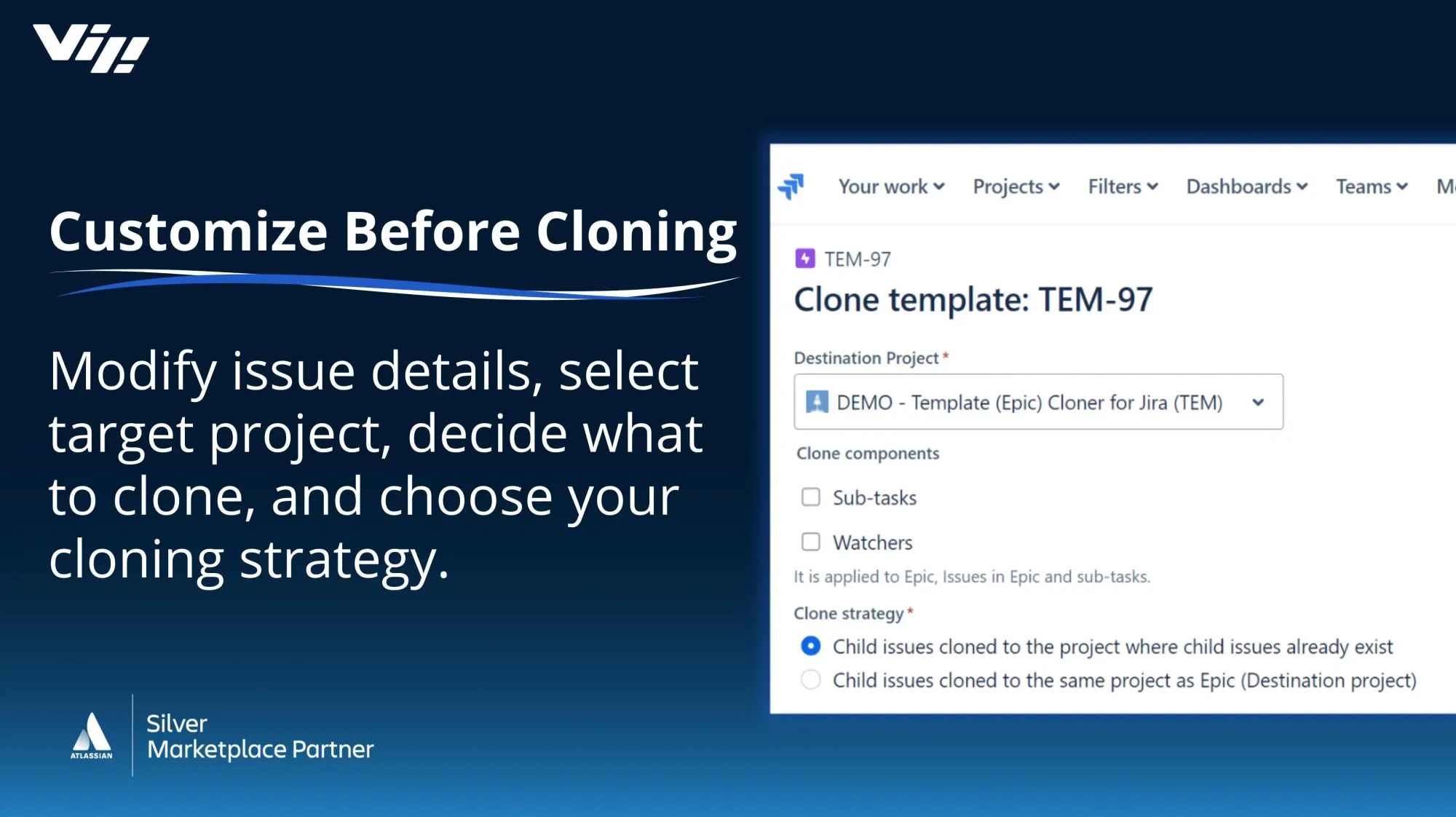
Step 4: Configure Clone Settings
Basic Settings:
Destination Project:
- Default: Same project
- Option: Select different project (cross-project clone)
Epic Name:
- Update to new version/sprint
- Example: "Blog Section Update - Version 7"
Epic Fields:
- Assignee
- Due Date
- Fix Version
- Priority
- Custom fields
Step 5: Select Clone Options
What to include:
☐ Subtasks - Clone issues with their subtasks
☐ Links - Preserve issue relationships
☐ Comments - Include comment history
☐ Attachments - Clone file attachments
My recommendation for sprint templates:
- ✅ Subtasks
- ✅ Links
- ❌ Comments (unless instructions)
- ❌ Attachments (usually not needed)
Link Strategy:
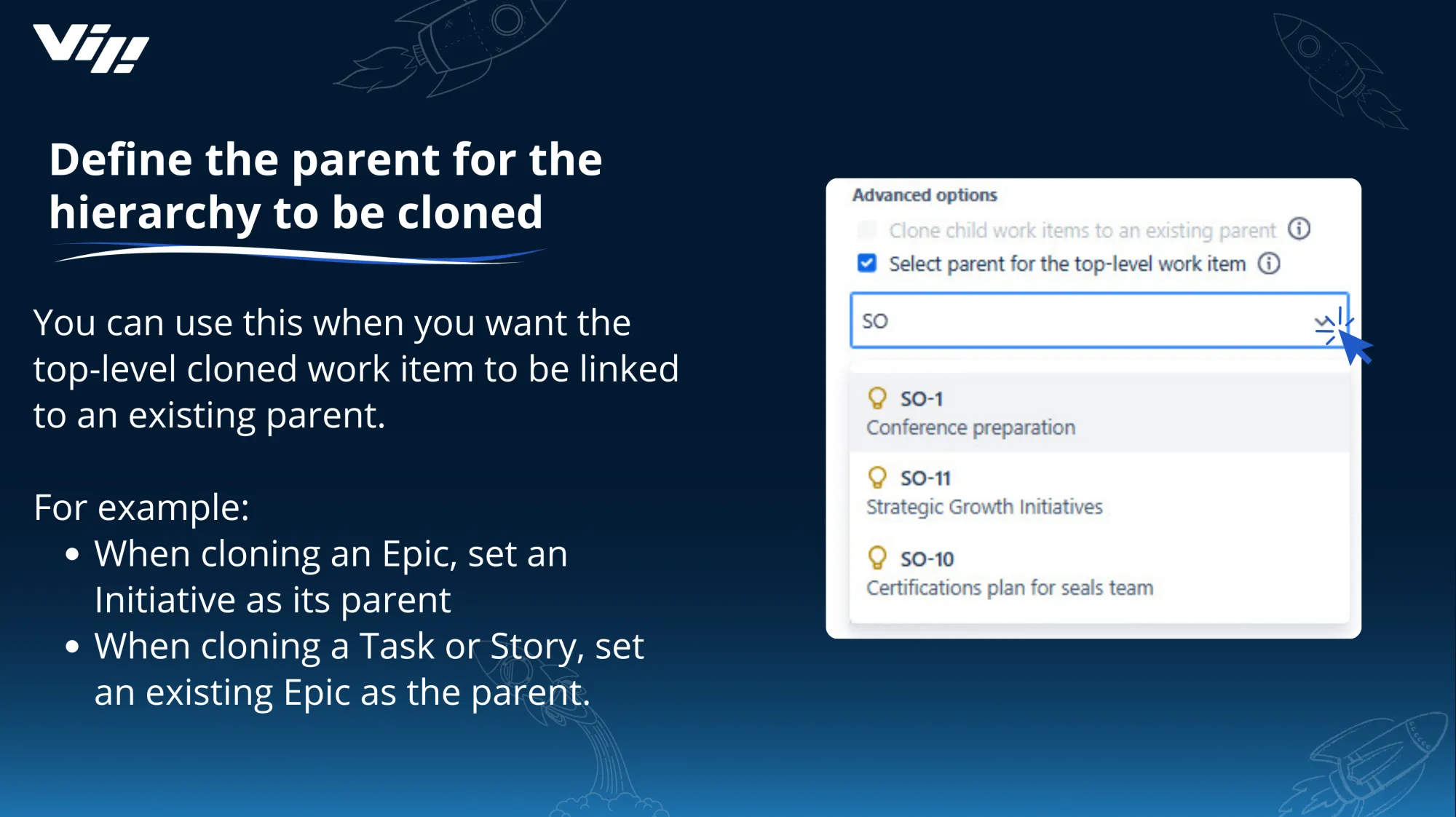
Option 1: Link cloned issues to new epic (usual choice) Option 2: Maintain links to original issues Option 3: Clone links to same project as epic
For sprint templates: Option 1
Step 6: Select Issues to Clone
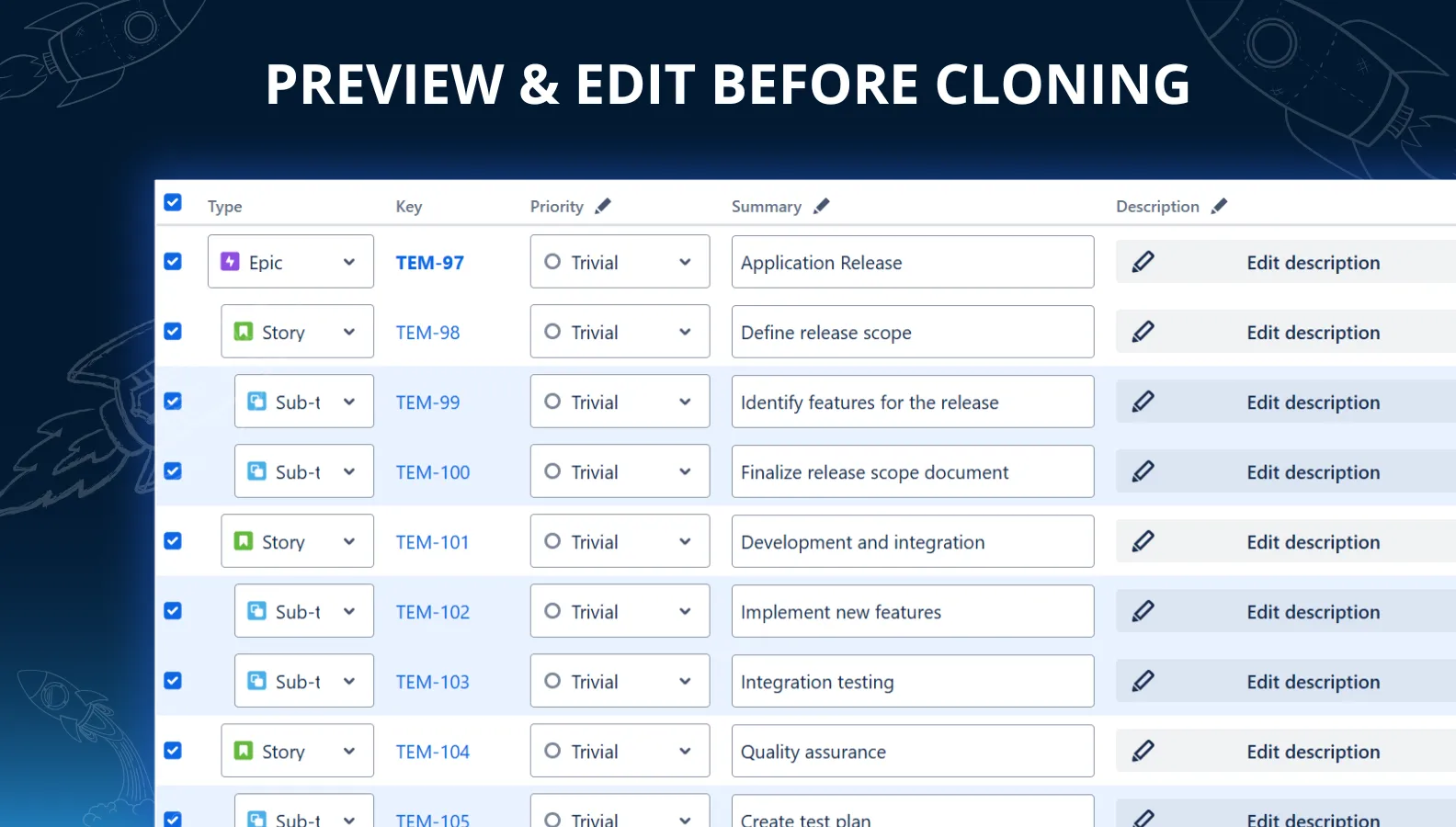
All issues from epic appear as checkboxes.
Select:
- Check all (clone everything)
- Check some (selective clone)
Example:
Epic has 50 issues. You only need 30 for next sprint.
Action:
- Uncheck 20 you don't need
- Check 30 you do need
Clone Expert clones only checked issues.
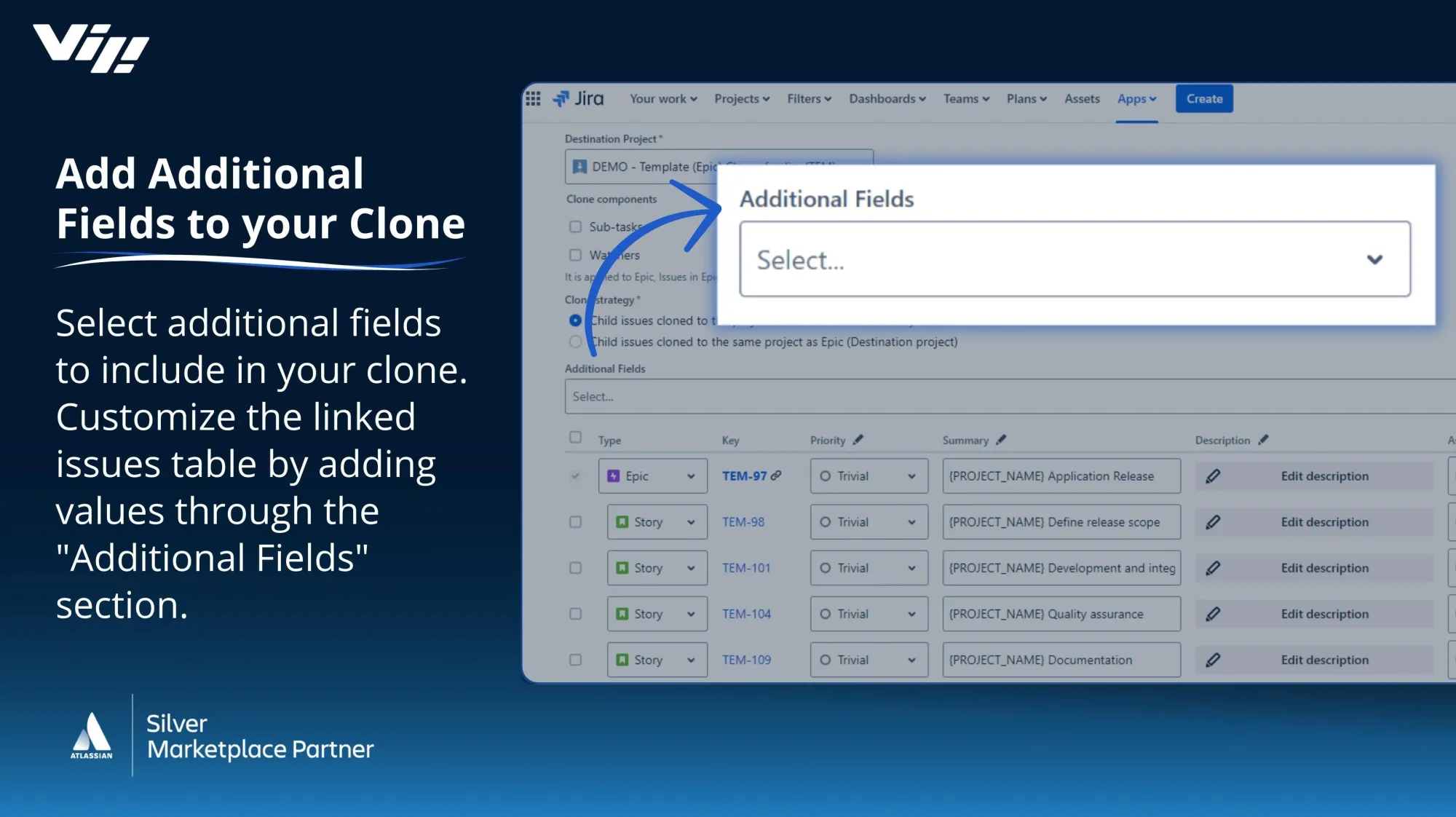
Step 7: Bulk Update Fields
This is where the magic happens.
For each issue, you can set:
- Summary (prefix/suffix)
- Description
- Priority
- Assignee
- Due Date
- Labels
- Components
- Fix Version
- Estimates
- Custom fields
Two modes:
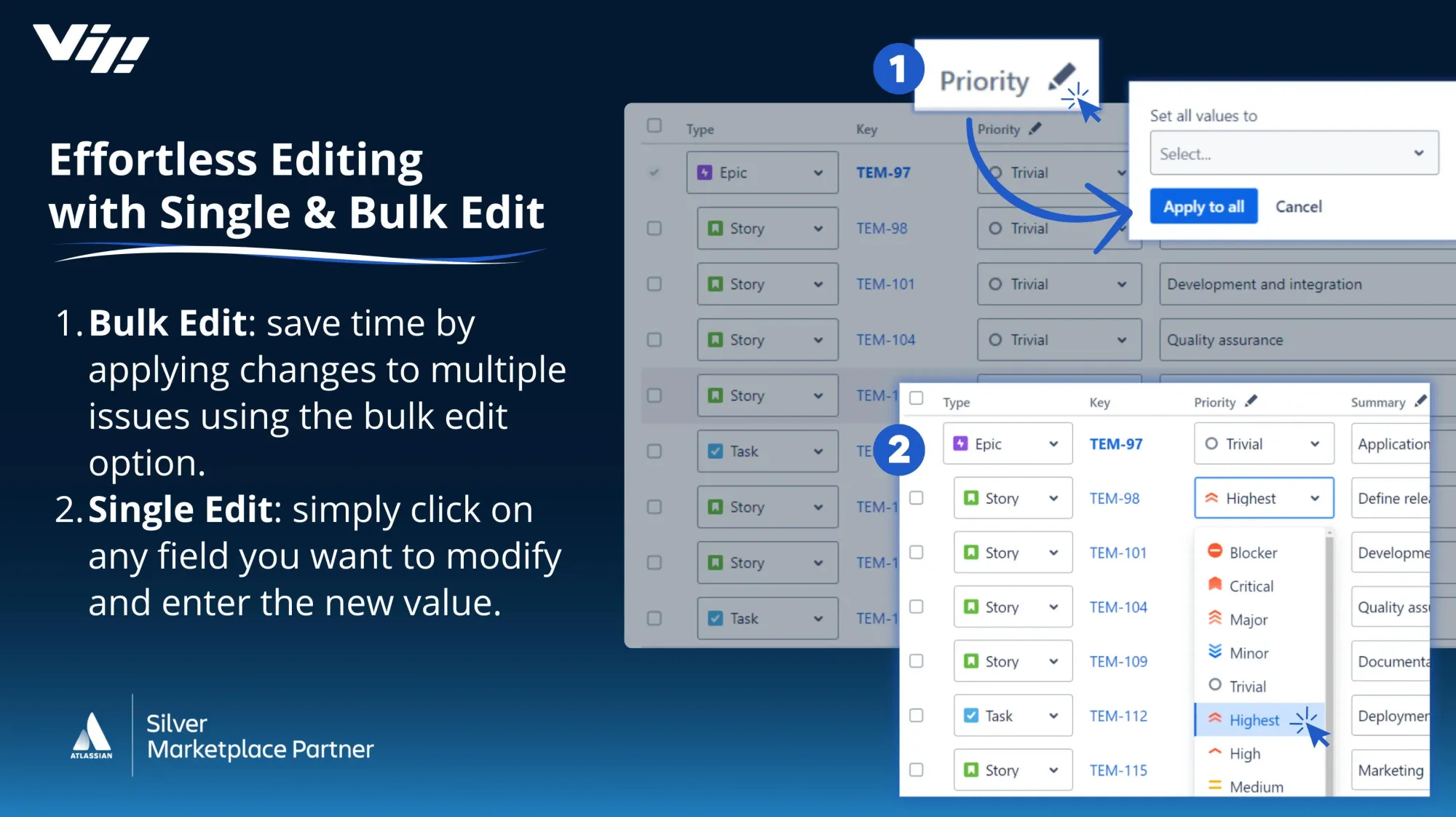
1. Set individual values (each issue different) 2. Apply to all (bulk update all selected)
Example: Bulk Priority Update
- Click Priority column header
- Select Set Value
- Choose "High"
- Click Apply to All
- All 30 issues now have Priority = High
Do this for any field. Massive time saver.
Step 8: Use Placeholders (Advanced)
Add smart values to fields.
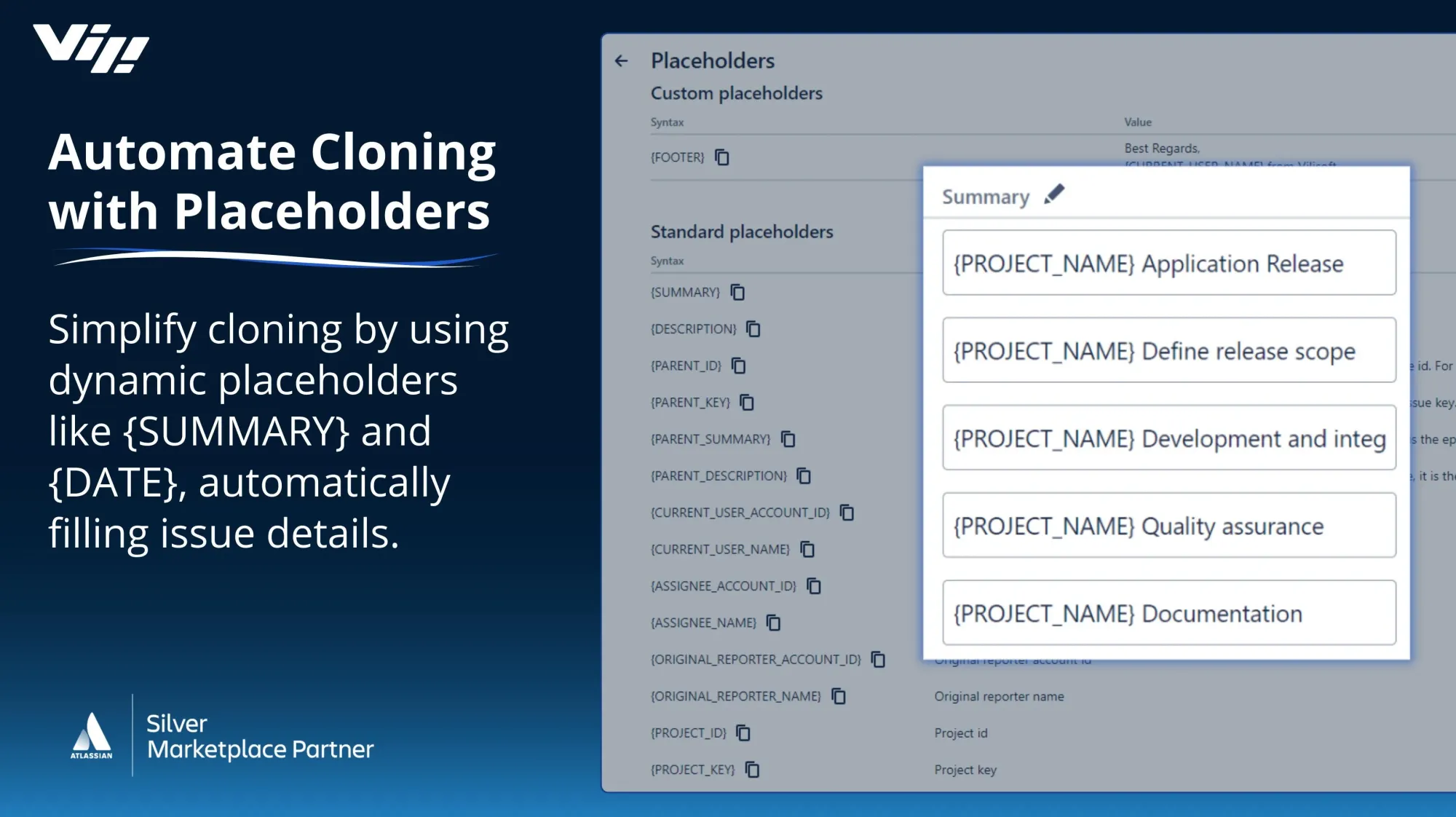
Example 1: Add Project Name to Summary
- Click Summary column header
- Select Set Prefix
- Enter:
{project.name} - - Click Apply to All
Result:
Original: "Build homepage" New: "Demo Scrum - Build homepage"
Example 2: Add Clone Date to Description
- Click Description column header
- Select Append Text
- Enter:
Cloned on {current.date} from {parent.key} - Click Apply to All
Result: Every description gets: "Cloned on 2026-01-15 from DS-26"
Available placeholders:
Copy from Placeholders button (right side of dialog):
{project.key}{project.name}{parent.key}{parent.summary}{current.date}{current.time}{current.user.name}{issue.key}
Click placeholder to copy to clipboard (prevents formatting issues).
Step 9: Clone
Final check:
- Epic name updated? ✓
- Issues selected? ✓
- Fields configured? ✓
Click: Clone
Progress bar appears.
Clone Expert clones:
- Epic
- All selected issues
- Subtasks (if enabled)
- Links (if enabled)
- Comments (if enabled)
- All field values
Speed:
- 10 issues: 3 seconds
- 50 issues: 10 seconds
- 100 issues: 20 seconds
- 250 issues: 60 seconds
When done:
- New epic created
- All issues created
- Links preserved
- You're redirected to new epic
Done. Ready to work.
Advanced Use Cases
Beyond basic sprint cloning, here's how teams use Clone Expert.
Use Case 1: Client Onboarding Template
Scenario: Consulting firm onboards 5-10 new clients monthly. Same 30-task process each time.
Template epic: "Client Onboarding - Template"
30 tasks:
- Kickoff meeting
- Requirements gathering
- Contract setup
- System access
- Training sessions
- etc.
Process with Clone Expert:
- Clone template epic
- Rename: "Client Onboarding - Acme Corp"
- Bulk update:
- Assignees: Project team
- Due dates: Based on contract start
- Client name in descriptions: Use placeholder
{project.name}
- Clone
- 30 tasks ready, customized for Acme Corp
Time: 3 minutes vs 2 hours manual
Used: 5-10 times per month
Monthly savings: 15-30 hours
Use Case 2: Release Planning
Scenario: Software team releases quarterly. Each release has same 80-task checklist.
Template epic: "Release Checklist - Template"
Tasks include:
- Feature freeze
- QA testing cycles
- Documentation updates
- Staging deployment
- Production deployment
- Monitoring setup
- Rollback plans
- Post-release review
Process:
- Clone template
- Rename: "Q2 2026 Release Checklist"
- Bulk update due dates: Aligned to Q2 timeline
- Assign to release manager
- Clone
80 tasks created, configured, ready
Time: 5 minutes vs 3+ hours manual
Use Case 3: Department Templates
Scenario: Large organization, multiple departments use Jira differently.
Templates:
- HR: Employee onboarding (25 tasks)
- IT: New employee setup (40 tasks)
- Facilities: Workspace preparation (15 tasks)
- Finance: Vendor onboarding (20 tasks)
Process:
HR hires new employee → Clone all 4 templates simultaneously
Each department gets their epic with tasks
Cross-functional onboarding in 5 minutes

Use Case 4: Recurring Projects
Scenario: Marketing team runs monthly campaigns. Same structure every time.
Template epic: "Monthly Campaign - Template"
Tasks:
- Strategy session
- Content creation
- Design assets
- Ad setup
- Launch
- Monitoring
- Results analysis
Process:
1st of every month:
- Clone template
- Rename: "Campaign - January 2026"
- Bulk update dates: 1st-31st of month
- Assign to campaign manager
- Clone
New campaign ready to go
Time: 2 minutes
Frequency: Monthly (12 times/year)
Annual savings: 22+ hours
Use Case 5: Training Modules
Scenario: Training team creates courses. Each course has same structure.
Template epic: "Course Template"
Tasks:
- Outline creation
- Content writing
- Video recording
- Quiz development
- LMS upload
- Beta testing
- Launch
Process:
New course needed:
- Clone template
- Rename: "Course - Advanced Excel"
- Update descriptions with course-specific details
- Assign to instructor
- Clone
Course project ready

Pricing & ROI Calculator
Clone Expert pricing is ridiculously affordable.
Cloud pricing: $10-50/month (depends on tier) Data Center: $1,500-12,000 (one-time, depends on tier)
ROI calculation:
Scenario: Team saves 3 hours/week with Clone Expert
Annual time savings: 3 hours × 52 weeks = 156 hours
Cost of that time: 156 hours × $50/hour = $7,800
Clone Expert cost (Cloud): $600/year (assuming $50/month)
Net savings: $7,800 - $600 = $7,200/year
ROI: 1,200% (12x return)
Payback period: < 1 month
Even if you only save 1 hour per week: Still 4x ROI
This is one of the highest-ROI Jira apps available.
Common Questions
Q: Does this work with Jira native clone?
A: No, completely separate. Jira's native clone doesn't clone child issues. Clone Expert does.
Q: Can I clone to different project types?
A: Yes. Clone from Scrum to Kanban, team-managed to company-managed, etc.
Q: What about custom fields?
A: Fully supported. Bulk update custom fields just like standard fields.
Q: Does it work with subtasks?
A: Yes. Enable "Include subtasks" option.
Q: Can I clone only some issues from an epic?
A: Yes. Uncheck issues you don't want. Clone only checked ones.
Q: What about issue links?
A: Preserved. "Blocks", "Relates to", custom links all maintained.
Q: Does it affect Jira performance?
A: No. Lightweight plugin. No performance impact. Tested on instances with 700+ projects.
Q: Can I use this for non-epic scenarios?
A: Primarily designed for epics. But you can clone issues in bulk from filters too.
Q: What if I make a mistake?
A: Just delete the cloned epic (deletes all cloned issues). Re-clone with correct settings.
Q: Is there a limit on how many issues I can clone?
A: Tested with 250+ issues successfully. No practical limit.
Tips & Best Practices
After using Clone Expert extensively, here's what works:
Tip #1: Create Template Epics
Don't clone production epics repeatedly.
Better: Create dedicated template epics in "Templates" project
Benefits:
- Templates stay clean (no work-in-progress)
- Easy to update (improve template over time)
- Cross-project cloning
Tip #2: Use Descriptive Placeholder Prefixes
Instead of: Generic summaries Use: Placeholders for context
Example:
- Bad: "Build feature"
- Good: "{project.name} - Build feature - {current.date}"
- Result: "Acme Corp - Build feature - 2026-01-15"
Makes issues searchable and identifiable.
Tip #3: Leverage Bulk Updates
Don't set fields individually on 50 issues.
Use bulk update for:
- Priority (usually same for all)
- Component (usually one per epic)
- Fix Version (sprint/release version)
- Assignee (if same team)
Only customize individually when necessary.
Tip #4: Test on Staging First
For large epics (100+ issues):
- Test clone on staging/sandbox first
- Verify all fields clone correctly
- Check custom fields especially
- Then do production clone
Avoids cleanup if something's wrong.
Tip #5: Document Your Templates
Add instructions in epic description:
TEMPLATE EPIC - Do not modify directly

To use:
1. Clone with Clone Expert
2. Update epic name to current sprint/version
3. Bulk update due dates (+14 days)
4. Assign to current sprint team
5. Clone

Last updated: 2026-01-15
Makes templates self-documenting.
Tip #6: Review Cloned Issues
After cloning:
- Open new epic
- Spot-check 3-5 issues
- Verify fields updated correctly
- Check links preserved
Catch any issues immediately.
Tip #7: Save Commonly Used Placeholder Patterns
Keep a doc with your favorite patterns:
Summary prefixes:
{project.name} -[Sprint {current.date}]{parent.summary} >
Description additions:
Cloned from {parent.key} on {current.date} by {current.user.name}
Copy-paste when needed.
Alternatives Comparison
Why Clone Expert vs other options?
vs Jira Native Clone
Jira Native:
- ✅ Clones single issue
- ❌ Doesn't clone child issues
- ❌ No bulk updates
- ❌ No placeholders
Clone Expert:
- ✅ Clones epic + all children
- ✅ Bulk updates
- ✅ Placeholders
- ✅ Selective cloning
Winner: Clone Expert (not even close)
vs ScriptRunner
ScriptRunner:
- ✅ Can script epic cloning
- ❌ Requires Groovy knowledge
- ❌ Time-consuming to write
- ❌ No GUI
Clone Expert:
- ✅ No coding needed
- ✅ Visual interface
- ✅ Placeholders built-in
- ✅ Immediate use
Winner: Clone Expert (for non-developers)
vs Automation for Jira
Automation:
- ✅ Can clone issues
- ❌ Can't clone epics with children easily
- ❌ Complex rules needed
- ❌ No bulk field updates
Clone Expert:
- ✅ One-click epic cloning
- ✅ Bulk updates
- ✅ Simpler
Winner: Clone Expert (for epic workflows)
vs Manual Process
Manual:
- ❌ 2-3 hours
- ❌ Error-prone
- ❌ Tedious
Clone Expert:
- ✅ 2 minutes
- ✅ Consistent
- ✅ Automated
Winner: Obviously Clone Expert
The Bottom Line
If you clone epics regularly, Clone Expert is essential.
The math is simple:
Time saved: 2-3 hours → 2 minutes per clone Frequency: Weekly, bi-weekly, or monthly (depends on team) Annual savings: 50-150+ hours ROI: 4-12x minimum
Cost: $10-50/month (Cloud) or $1,500+ one-time (Data Center)
Payback period: < 1 month for most teams
Teams that need Clone Expert:
- Scrum/Agile teams (sprint templates)
- Consulting firms (client onboarding)
- IT departments (user setup workflows)
- HR teams (employee onboarding)
- Marketing teams (campaign templates)
- Anyone cloning epics more than once per month
Try it free for 30 days. If it doesn't save you hours immediately, I'd be shocked.
Get Started
Install Clone Expert:
- Marketplace: Search "Clone Expert for Jira"
- Direct link: https://marketplace.atlassian.com/apps/1217678/clone-expert-for-jira-templates-epics-and-issues
- 30-day free trial, no credit card required. The app is also free up to 10 users
Resources:
- Documentation: https://jira-apps.vilisoft.com/clone-expert-for-jira-documentation/getting-started/
- Support: https://marketplace.atlassian.com/apps/1217678/clone-expert-for-jira-templates-epics-and-issues?tab=support
- My demo video: https://youtu.be/4ThN-QXxrZ0
Questions about Clone Expert or need help setting it up? Join my Skool community where I answer Jira questions regularly.
Need consulting on Jira workflows or epic templates? I help teams optimize their Jira setups regularly. Book a consultation.
Disclosure: This article is sponsored by Vilisoft. However, I genuinely recommend Clone Expert—I've deployed it for multiple clients who report 3-4 hours saved weekly. It's one of the highest-ROI Jira apps available.